
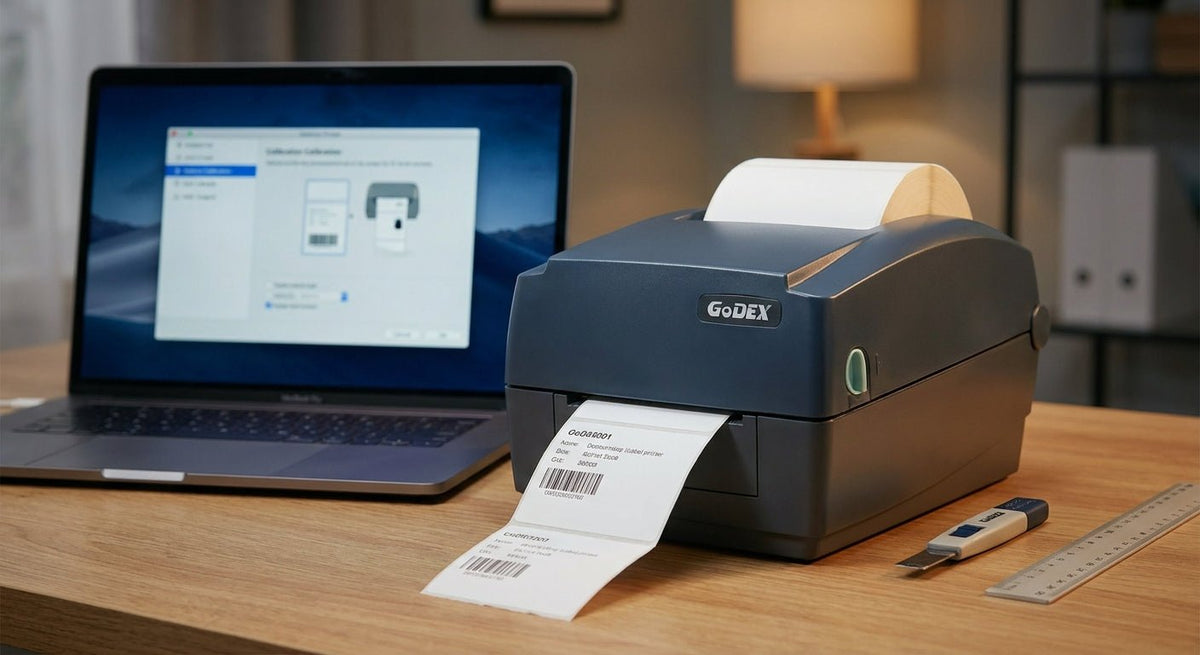
Misaligned labels waste stock, jam the print head, and stop a production line cold. This guide covers every method to calibrate a GoDEX printer in 2026 — button-based auto-calibration, manual gap setting, and software-side correction — so your labels feed straight and cut clean on the first print.
TL;DR: To calibrate a GoDEX printer, power it off, hold the Feed button, power it back on, and release when the printer feeds 2–3 labels automatically — that runs the gap/black-mark sensor calibration routine. If labels still print off-center after that, adjust the label gap offset in GoLabel software or correct the media sensor position physically. This guide covers all three methods for 2026 GoDEX models including the RT, EZ, ZX, DT, and GX series.
Why Calibration Fails (and What You're Actually Fixing)
GoDEX printers detect label boundaries using either a transmissive gap sensor (for die-cut labels with a liner gap) or a reflective black-mark sensor (for labels with a printed positioning mark on the backing). When the printer's stored sensor reading drifts from the actual label gap position — because you switched label stock, changed roll width, or the printer sat idle — every subsequent print lands off-register by the same fixed amount.
Calibration resets that baseline. The printer feeds stock, reads the gap or mark with the sensor, measures the distance, and stores the correct label length. That stored value is what the firmware uses to position every print job after that.
Three things commonly knock a GoDEX out of calibration in 2026:
- Switching to a new label size or brand without re-running calibration
- A ribbon or media jam that forced a manual paper pull
- Firmware reset or factory default that wiped the stored media settings
What You'll Need
- The GoDEX printer (RT, EZ, ZX, DT, GX, or G-series)
- Correct label roll for the job, loaded and seated fully
- GoLabel software installed on a connected PC (for software-side correction)
- A USB or Ethernet cable if using GoLabel
- Approximately 5–10 blank labels' worth of stock for test feeds
- 10 minutes
For printer setup basics before calibration, the guide on how to set up a GoDEX thermal label printer covers driver installation and initial media loading.
The Steps
Step 1: Load Media Correctly
What it accomplishes: Sensor calibration reads the physical label gap — if the roll is skewed or the guides are loose, the sensor reading will be wrong before calibration even runs.
Open the top cover and confirm the label guides press snugly against both edges of the label stock with zero side-play. The label should run centered through the print head. If the stock can slide left or right by more than 1 mm, tighten the guides now. Feed a few labels by hand to confirm the liner lies flat and doesn't curl upward into the print head gap.
Common mistake: Loading the roll without reseating the guides after a size change. A 2 mm lateral shift is enough to cause consistent left-edge cutoff on a 4-inch label.
Step 2: Run the Button-Based Auto-Calibration (Gap Sensor)
What it accomplishes: Forces the printer to measure and store the actual label gap length without any software.
- Power the printer off completely.
- Press and hold the Feed button.
- Power the printer on while continuing to hold Feed.
- Hold until the printer feeds 2–3 labels (approximately 5–8 seconds depending on model).
- Release the Feed button.
- The printer will pause, beep once or twice, then return to the Ready state.
The printer has now recorded the gap distance and label length. Print a single test label immediately to confirm alignment.
Common mistake: Releasing the Feed button too early — before the automatic feed cycle completes. If you let go at the first movement, the calibration sequence aborts and the printer returns to its previous (incorrect) stored value.
Step 3: Switch to Black-Mark Mode If Your Labels Use a Positioning Mark
What it accomplishes: GoDEX printers default to gap sensing. Black-mark labels require a mode switch or the sensor reads the mark as noise and misfeeds every label.
On models with a front-panel display (RT700i, RT730i, EZ2250i, EZ2350i, ZX-series):
- Press Menu.
- Navigate to Sensor > Label Type.
- Change from Gap to Black Mark.
- Press Feed to save.
- Re-run Step 2.
On display-less models, the mode switch must be done in GoLabel: File > Printer Setup > Sensor Type.
Common mistake: Running gap-sensor calibration on black-mark stock. The printer feeds continuously past the first label because it never detects the gap it's looking for.
Step 4: Verify and Correct Label Offset in GoLabel
What it accomplishes: Hardware calibration sets the label length; software offset corrects the print position within that label — useful when content prints consistently high, low, left, or right by a fixed margin.
- Open GoLabel and connect to the printer.
- Go to File > Printer Setup > Calibration (or Label Setup on older GoLabel versions).
- Check Label Height — it should match the exact height of your label stock to within 0.1 mm.
- Adjust Offset (also called Top of Form Offset) in 1-dot increments. Positive values shift print down; negative values shift print up. One dot equals 0.125 mm at 203 DPI or 0.085 mm at 300 DPI.
- Print a test label after each adjustment.
Expected outcome: Print content lands within 0.5 mm of its designed position on all four edges.
Common mistake: Adjusting the offset in large jumps (10+ dots at once). Small corrections let you bracket the correct value without overshooting.
Step 5: Confirm With a Full Print Run
What it accomplishes: Single test prints can pass while batch jobs drift — confirming over 10–20 labels catches cumulative feed error before it burns through real stock.
Print a batch of 10–20 labels at your normal print speed. Inspect label 1, label 10, and label 20 for consistent positioning. If labels 1 and 20 show different offsets, the issue is not calibration — it is head pressure or platen roller wear, which requires a service call.
If all 20 land in the same position but that position is still off, return to Step 4 and adjust the offset further.
Troubleshooting
Labels feed blank after calibration. The sensor may have been set to the wrong type (gap vs. black mark). Confirm the label type in GoLabel matches the physical stock. Also check that the ribbon is seated correctly if using thermal transfer — a loose ribbon causes blank output that looks like a sensor problem.
Printer feeds continuously without stopping. The gap sensor cannot find the label gap. This usually means gap-sensor mode is active on black-mark stock, or the label gap is less than 2 mm (which falls below the sensor's detection threshold on most GoDEX models). Confirm label type and re-run calibration.
Calibration routine runs but print position doesn't change. The offset saved in GoLabel is overriding the hardware calibration. Open GoLabel, reset the Top of Form Offset to 0, print a test label, then adjust from that baseline.
Error light stays on after calibration. Most commonly a media-out or cover-open error, not a sensor problem. Confirm the top cover is fully latched and the label roll has stock remaining. On ZX and GX industrial models, the cover latch is on the rear — it's easy to miss.
Labels print at an angle (not straight). This is a media guide problem, not a calibration problem. The guides are loose or uneven. Re-seat the stock and re-run calibration from Step 1.
Black-mark calibration fails repeatedly. The black mark on the label backing may be too light (reflectance above 10% at 950 nm, which is the GoDEX sensor range). Check the mark density with the label supplier. Marks printed with standard inkjet printers are often too faint for thermal label sensors.
Tools and Resources
- GoLabel software — free download from GoDEX's support site; required for offset adjustments and firmware updates
- GoDEX GTL-100 test tube labeler — uses the same calibration routine; gap sensor mode, GTL-100 test tube labeler product page for model-specific media specs
- GoDEX troubleshooting guide — covers error codes that appear after failed calibration: GoDEX label printer troubleshooting guide
- Label stock for thermal transfer printing — using mismatched stock (e.g., direct thermal labels in a ribbon-based printer) produces blank output that mimics calibration failure; verify label type before troubleshooting sensor settings
What to Do Next
Once calibration is confirmed, the next common issue is ribbon installation — especially on RT and EZ thermal transfer models where ribbon tension affects print darkness and can cause the same off-alignment symptoms as a sensor error. The guide on how to load ribbon in an oil change sticker printer covers ribbon path, tension adjustment, and how to tell whether a print defect is a ribbon issue or a media issue.
For industrial floor environments running GX or ZX models in 2026, check head pressure settings after calibration — high-volume runs at maximum print speed can shift the effective print position by 1–2 mm if head pressure is set for a lighter media than what's loaded.
FAQ
How do I calibrate a GoDEX printer without a computer? Power the printer off, hold the Feed button, power it on, and hold until it auto-feeds 2–3 labels. Release the button. This runs the hardware gap-sensor calibration entirely from the printer panel — no PC or software needed.
How often should I calibrate my GoDEX printer? Calibrate every time you change label stock: new size, new brand, or new label type. Also run calibration after any media jam that required a manual paper pull, and after any firmware update or factory reset.
Why is my GoDEX printer printing labels in the wrong position? The most common cause in 2026 is a stored label-length value that no longer matches the loaded stock — either because the stock was changed without re-calibrating, or a jam reset the stored value. Run the button-based calibration first; if that doesn't fix it, check the Top of Form Offset in GoLabel.
What is the difference between gap sensor and black-mark sensor calibration on GoDEX printers? Gap sensor calibration reads the transparent space between die-cut labels on the liner. Black-mark calibration reads a printed opaque mark on the label backing. Using the wrong mode for your stock causes continuous feeding or complete feed failure. Match the mode in GoLabel to the physical label type before running calibration.
Can I calibrate a GoDEX mobile printer (MX20, MX30i) the same way? Yes. The Feed-button hold sequence on power-on runs the same gap-sensor calibration on GoDEX mobile printers. The sensor type switch (gap vs. black mark) is done through the GoLabel mobile setup utility rather than a front-panel menu.
Does calibration fix faded or uneven print darkness? No. Print darkness is controlled by the print density (darkness) setting in GoLabel or the printer's control panel, not by calibration. Calibration only corrects positional alignment. If darkness is uneven across the label width, the issue is print head pressure, head wear, or mismatched media/ribbon combination.
How do I reset my GoDEX printer to factory defaults before recalibrating? On display models: Menu > System > Factory Default > Confirm. On display-less models: power off, hold both Feed and Pause simultaneously, power on, and release when the printer beeps. Note that a factory reset clears all stored media settings, so you must run a full calibration sequence immediately after.
Which GoDEX models support auto-calibration in 2026? All current GoDEX desktop, industrial, and mobile models sold in 2026 — including the RT, EZ, ZX, GX, DT, G-series, and GTL-100 — support the Feed-button auto-calibration routine. The specific number of feed cycles before release varies by model (2 cycles on compact DT models, 3 on industrial ZX/GX), but the trigger sequence is identical across the lineup.
One Last Thing
GoDEX printers store the calibrated label length in non-volatile memory — it survives a power cycle. But it does not survive a firmware flash. If you updated firmware in 2026 and your labels suddenly print off-position, that's why. The fix is a single button-calibration run, not a trip to the service bench. Write that on a sticker and put it on the printer.