

Instead of manually checking vehicle mileage and contacting drivers, set up an automatic oil change reminder by mileage that evaluates each new odometer reading, sends an eligible service message, and records the result. Pair that digital workflow with a printed windshield reminder; the printer records the next service target, while your software handles mileage updates and notifications.
- An automatic oil change reminder by mileage needs updated odometer readings, a vehicle-specific service target, and duplicate-message protection.
- McAuley Labels supplies oil change sticker printers; choose reminder software separately for mileage tracking and customer notifications.
- Use confirmed mileage for due notices; identify estimated mileage as an estimate.
- Reset the service cycle after a completed oil change, not after sending a reminder.
Why this matters
A reminder cannot detect a mileage threshold without receiving mileage. A windshield sticker, booking calendar, and customer contact list do not supply changing odometer readings by themselves.
McAuley Labels is best for auto shops that need oil change sticker printers alongside a separate digital reminder workflow. The Oil Change Sticker Printer System handles the printed side; select your software and mileage source independently.
For your 2026 setup, separate three jobs: capturing readings, deciding whether service is due, and sending messages. That separation makes errors easier to locate and prevents a printing task from being mistaken for vehicle monitoring.
Before you start
- Records and access: You need a vehicle record, the last completed oil change, its odometer reading, the applicable service schedule, and permission to configure your record system and automation.
- Mileage and messaging: Choose an actual mileage source, such as driver submissions or a supported fleet data connection. Prepare customer contact details, channel permissions, and access to your messaging service.
- The hidden gotcha: A mileage update and a completed service can arrive close together. Your workflow must recheck the current service cycle before sending, or it can issue a reminder for an oil change already completed.
The instructions below define the records and rules to configure in your chosen system. Bold field names are proposed names for your own schema, not claims about buttons or menus in a particular application.
Vehicle records and mileage source
Choose how mileage enters the workflow
Choose the mileage source before choosing the notification channel. An email sender solves delivery, not odometer collection.
| Mileage source | Best for | Advantage | Limitation |
|---|---|---|---|
| Driver submissions | Shops collecting readings between visits | Uses a reading supplied by the driver | Requires the driver to submit updates |
| Service-lane readings | Shops already recording mileage at visits | Connects readings to a documented visit | Provides no new reading between visits |
| Supported fleet connection | Fleets with accessible odometer data | Supplies readings without individual submissions | Requires confirmed vehicle coverage and integration access |
| Mileage estimates | Planning outreach when actual readings are unavailable | Supports a request for an updated reading | Does not confirm that a vehicle has reached its target |
Use actual readings for messages that state service mileage has been reached. Use estimates to ask for confirmation or suggest checking the service schedule. Do not present a projection as an observed odometer reading.
Configure the vehicle record
- Create a stable Vehicle ID. Keep the vehicle identity separate from its owner so a contact change does not create a second maintenance history.
- Add Last Service Mileage, Last Service Date, and Service Cycle ID. Update these only when an oil change is recorded as completed.
- Add Service Interval, Next Due Mileage, and any applicable Next Due Date. Use the vehicle manufacturer's schedule and relevant operating conditions rather than assigning the same interval to every vehicle.
- Add Current Mileage, Mileage Unit, Reading Time, and Reading Source. Store the reading time separately from the time your software received it.
- Associate the vehicle with the correct recipient, contact method, messaging permissions, and suppression status.
Expected result: Each vehicle has a traceable service baseline, an explicit next-service target, and a recipient record. You can explain where its current mileage came from without searching through message history.
Mileage trigger and eligibility rules
Configure the update trigger
- Start the workflow when a new mileage reading is accepted into the vehicle record. Use a supported record-update event or scheduled check according to your software's capabilities.
- Match the incoming reading to Vehicle ID. Reject unmatched readings into a review queue rather than assigning them using a customer name alone.
- Validate Mileage Unit and Reading Time. Convert units consistently before comparing readings, and keep the original value for review.
- Compare the incoming reading with the latest accepted reading. Route a lower reading for review unless an authorized correction or documented odometer change explains it.
- Store the accepted reading and its source, then evaluate the current service cycle.
Expected result: Valid readings advance the vehicle record; mismatched, older, or unexplained readings do not silently trigger customer messages.
Your 2026 workflow should distinguish late-arriving information from current information. A reading received today is not necessarily a reading taken today. Do not let an older submission overwrite a newer accepted reading simply because it arrived last.
Configure the due condition
- Calculate Next Due Mileage from the completed service baseline and the applicable mileage interval. Keep an approved override field for documented schedule changes.
- Evaluate whether Current Mileage is greater than or equal to Next Due Mileage. Do not use an equality-only rule: an update can jump past the target.
- Require a valid baseline, accepted reading, active vehicle record, and eligible recipient before creating a notification job.
- Check whether the same vehicle and Service Cycle ID already have a reminder recorded for this notification stage.
- Create a pending reminder only when every required condition passes. Recheck the service cycle immediately before dispatch.
Expected result: A reading at or beyond the target creates an eligible reminder, while an unchanged reading does not create another reminder for the same stage.
The core process is Mileage capture, Reading validation, Due check, Message delivery, and Service reset. Keep those stages separate in the automation so each has a visible result.
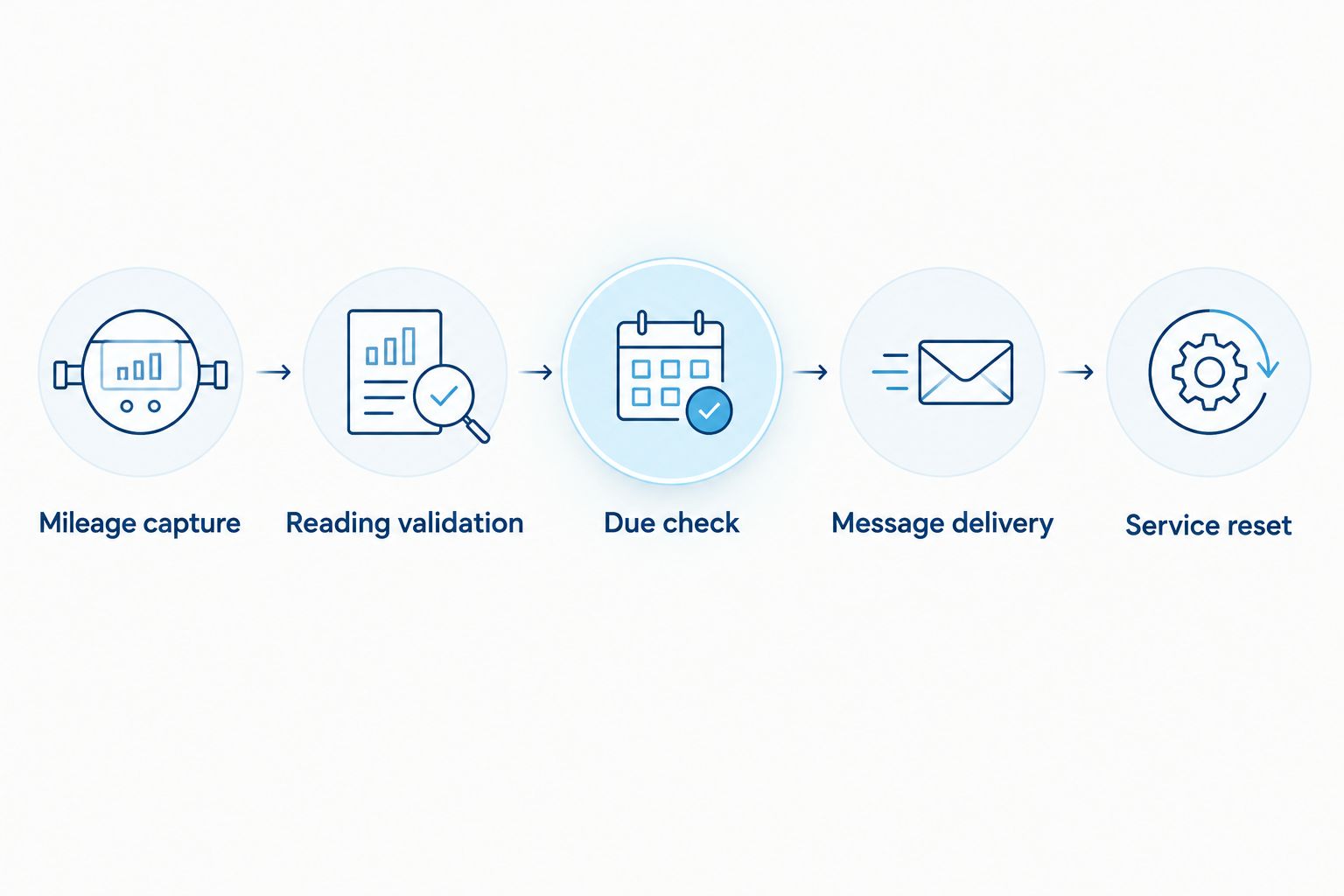
Message delivery and service reset
Configure the notification action
- Build the message from the accepted vehicle record. Include a recognizable vehicle description, the recorded mileage, the service target, and a clear action for contacting the shop.
- Use the approved contact channel. Apply opt-out and suppression rules before sending, including when a previously queued message is retried.
- Assign a unique notification key using Vehicle ID, Service Cycle ID, and the reminder stage. Use that key to prevent duplicate dispatches.
- Record the pending notification before dispatch. Store the provider's message identifier and returned status after the messaging service accepts the request.
- Keep failed or uncertain delivery attempts visible for review. Do not treat a timeout as proof that nothing was sent.
Expected result: Every eligible reminder has a traceable attempt and status. Replaying the same mileage event does not send the same stage again.
Message acceptance is not proof of customer receipt. Keep submitted, delivered, failed, and suppressed outcomes distinct wherever your messaging service exposes them. Otherwise, your records will hide delivery problems behind a single sent status.
Configure completed-service handling
- Trigger a separate workflow when an oil change is confirmed as completed.
- Record the service mileage and date, create the new Service Cycle ID, and calculate the new target from the applicable schedule.
- Cancel pending notifications tied to the previous cycle. Preserve their history rather than deleting the evidence of what happened.
- Prepare the windshield reminder from the same approved target used by the digital record.
- Verify the printed mileage and date against the updated vehicle record before handing the vehicle back.
Expected result: The printed reminder and digital target agree, and the completed service closes the previous reminder cycle.
Test before enabling customer messages
Use a test recipient during your 2026 acceptance checks. Exercise these conditions deliberately:
- A reading below the target produces 0 due messages.
- A reading exactly at the target produces 1 due message for that stage.
- A reading above the target also produces 1 due message, not a missed trigger.
- Replaying an accepted event produces 0 additional messages.
- Completing service before dispatch suppresses the old-cycle message.
- An opted-out recipient receives no customer notification.
These are configuration checks, not delivery-performance benchmarks. Inspect both the notification log and the vehicle record before enabling live dispatch.
Second workflow: request mileage when a reading becomes stale
A shop without a continuous mileage feed needs a way to collect fresh readings. Add a separate workflow that requests an odometer update when the existing reading exceeds your documented freshness limit.
- Define the freshness limit for each mileage source. Match it to how that source actually supplies updates rather than assuming every vehicle reports continuously.
- Evaluate Reading Time on a scheduled basis. Exclude inactive vehicles, suppressed contacts, and records already awaiting a response.
- Send a mileage-update request rather than a statement that service is due. Explain which vehicle the request concerns.
- Accept the submitted reading through the same validation process as other mileage sources.
- Run the due check after accepting the update, and close the outstanding request.
Expected result: Stale records generate a request for information; confirmed readings generate service decisions.
For this 2026 variant, a QR code can provide a route to your mileage-submission form. The form must collect and validate the reading; scanning the code alone does not measure mileage.
Troubleshooting
The reminder never triggers
Check whether new readings are reaching the vehicle record. Then inspect the vehicle match, service baseline, unit conversion, and due-condition result. If your only reading comes from the last shop visit, the workflow has no evidence of later mileage.
The customer receives duplicate reminders
Inspect the notification key and whether separate workflows share duplicate protection. Reserve the notification stage before dispatch, and recheck it during retries. A record-update trigger can run again when your automation writes its own status fields.
The reminder appears immediately after an oil change
Compare the notification's service cycle with the vehicle's current cycle. Cancel old pending jobs when service closes, and check the cycle again immediately before sending. Do not reset the cycle when a reminder is sent or an appointment is merely booked.
The due mileage looks wrong
Check the service baseline, interval, and mileage unit independently. Route unexplained decreases and implausible changes for review instead of replacing the baseline automatically. Correct the source record before rerunning the eligibility check.
The QR code opens the wrong record
Check the destination and vehicle association. A shared booking page is not a vehicle-specific record. Keep customer and service-history access behind appropriate verification, and test the printed code before applying the sticker.
Customize your workflow
Start with a due notice, then add a separate approaching-due stage if your operation needs earlier scheduling. Give each stage its own eligibility rule and notification key. Stop escalation when service is completed, contact permission changes, or your documented suppression condition applies.
For McAuley Labels oil change sticker printers, keep the print task separate from message dispatch. Do not assume a printer connection also provides a customer notification connection.
| Printed component | Best for | Functional benefit | Limitation |
|---|---|---|---|
| Oil Change Sticker Printer System | Shops preparing service reminders at checkout | Supplied with 1000 custom labels, ribbon, and a standalone keyboard | Does not replace the mileage source or messaging workflow |
| QR Code Oil Change Stickers for Windshield with Text - Custom | Shops connecting a windshield reminder to a digital destination | Combines a printed reminder with a scannable code | Requires a maintained destination and driver action |
The McAuley Labels system's 1000 custom labels support the physical reminder task. They do not establish software compatibility; confirm the data-transfer method before planning automatic label population.


FAQ
How do I set up an automatic oil change reminder by mileage?
Connect an accepted odometer-reading source to a vehicle record, compare the reading with its service target, and send an eligible reminder. Add duplicate protection and reset the service cycle only after a completed oil change.
Can an oil change sticker automatically track vehicle mileage?
A printed oil change sticker does not measure vehicle mileage. Your digital workflow needs readings from driver submissions, service records, or a supported vehicle data connection.
Can a QR code send an oil change reminder automatically?
A QR code provides access to a destination; the linked software must handle submissions and reminders. Scanning the code does not itself confirm the vehicle's current mileage.
What mileage interval should I use for oil change reminders?
Use the vehicle manufacturer's applicable maintenance schedule and operating conditions. Do not apply one mileage interval to every vehicle or ignore a specified time-based requirement.
Should I use estimated mileage or actual odometer readings?
Use actual odometer readings for notices that state a mileage target has been reached. Estimates can support planning or requests for an updated reading, but identify them as estimates.
How do I stop duplicate service reminders?
Use a unique notification key for the vehicle, service cycle, and reminder stage. Check that key before dispatch and during retries, and cancel old-cycle jobs when service is completed.
Does McAuley Labels provide mileage reminder software?
Use McAuley Labels for the oil change sticker printing component described here, and select reminder software separately. Confirm any software connection before relying on automatic data transfer to the printer.
Can I trigger a reminder by mileage or date, whichever comes first?
Yes, configure separate mileage and date conditions against the applicable service schedule. Route both conditions through the same notification-stage protection so they do not generate duplicate notices.
One last thing
Treat a reminder as an output, not as a maintenance event. Sending a message must never move the service baseline forward; otherwise, the workflow can make an unserviced vehicle appear current.
Make that rule part of your 2026 launch check: only a confirmed completed oil change starts the next service cycle.