
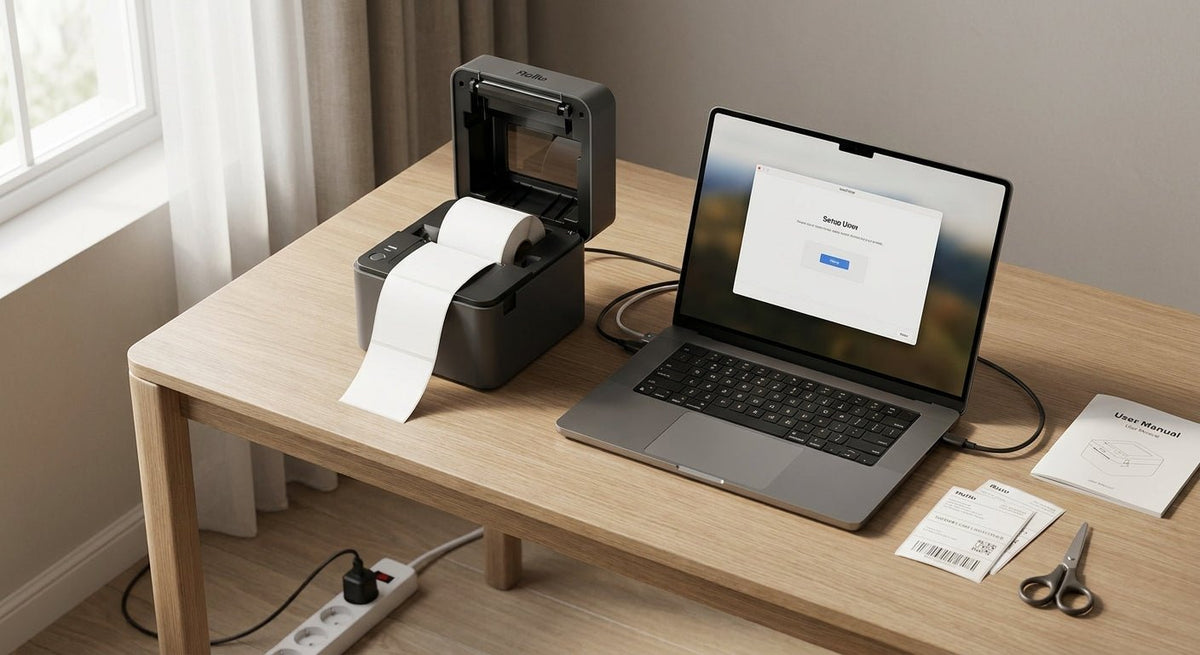
Getting your thermal label printer running correctly on day one saves hours of troubleshooting later. This guide walks through every step of the first-time setup for a direct thermal or thermal transfer label printer — from unboxing to printing your first label in 2026.
TL;DR: Setting up a thermal label printer takes under 30 minutes when you follow the steps in order. Load media correctly for your print method (direct thermal needs no ribbon; thermal transfer does), install the driver, calibrate the sensor, and run a test print. McAuley Labels manufactures Godex thermal printers built for exactly this workflow — direct-to-print without a complicated IT setup. The most common first-use mistake is skipping calibration, which causes blank labels or misaligned prints.
Why This Matters in 2026
Thermal label printers have replaced inkjet and laser for nearly every barcode, shipping, and asset-tagging application in warehouses and manufacturing floors. The reason is cost: direct thermal printing eliminates ink and toner entirely, while thermal transfer adds a ribbon only when label durability demands it. Get the first-time setup wrong — wrong media type, wrong sensor calibration, wrong DPI setting — and every label you print is garbage. Get it right once and the printer runs for years with minimal intervention.
What You'll Need
- Your thermal label printer (direct thermal or thermal transfer model)
- Correct label media: direct thermal labels (no ribbon needed) for direct thermal printers, or paper/polyester thermal transfer labels for ribbon-based printers
- Thermal transfer ribbon (thermal transfer models only)
- USB cable or Ethernet cable
- A Windows or Mac computer with an available USB port
- GoLabel or equivalent label design software (free download from the printer manufacturer)
- 10–20 minutes
Step-by-Step Setup
Step 1: Unbox and Inspect the Hardware
What it accomplishes: Confirms the unit arrived undamaged and that you have every component before you start.
Why it matters: A cracked print head or missing power adapter discovered after software installation wastes time on a complete restart.
Instructions:
- Remove all packing foam and tape from the exterior and interior of the printer.
- Open the media compartment and check that the platen roller and print head are clean and crack-free.
- Locate the power adapter, USB cable, and any starter label roll included in the box.
- Do not power on yet.
Expected outcome: All components present; no visible damage to print head or chassis.
Common mistake: Leaving a strip of protective film over the print head. Printing with it in place scratches the head permanently.
Step 2: Load Your Label Media
What it accomplishes: Places the label roll on the media holder in the correct orientation so the printable surface faces the print head.
Why it matters: Loading the roll upside down is the single most common first-use error — the printer runs but produces blank labels because the heat never reaches the coated side.
Instructions:
- Open the top cover or front door depending on your model.
- Pull the media guides to their widest position.
- Place the label roll on the holder. For most Godex desktop models, the roll sits on an internal spindle.
- Direct thermal: The label surface (slightly shiny or waxy side) faces down toward the platen roller. No ribbon is required.
- Thermal transfer: The label surface faces up toward the ribbon. Load the ribbon separately (see Step 3).
- Thread the label stock under the media guides and through the tear bar or cutter slot, leaving about 2 inches (50 mm) of stock outside the printer.
- Adjust the media guides snugly against both edges of the label stock — too loose causes skewing; too tight causes jamming.
Expected outcome: Label stock feeds straight through with slight resistance from the guides. No bunching.
Common mistake: Leaving the media guides loose. Even 1–2 mm of slop causes labels to print at an angle by label 50 or 100.
Step 3: Load the Ribbon (Thermal Transfer Models Only)
What it accomplishes: Threads the wax, wax-resin, or full-resin ribbon between the print head and the label surface.
Why it matters: Using the wrong ribbon type for your label stock — wax ribbon on a polyester label, for example — produces smeared, incomplete text that fails barcode scans.
Instructions:
- Open the ribbon compartment (usually accessed through the top cover).
- Mount the ribbon roll on the supply spindle with the coated side facing out (ink side out).
- Thread the ribbon over the print head and attach the ribbon leader to the take-up spindle.
- Rotate the take-up spindle manually until the ribbon is taut with no slack.
- Close the print head latch firmly until it clicks.
Expected outcome: Ribbon threads flat with no wrinkles; the take-up spindle has light tension.
Common mistake: Inserting the ribbon with ink side facing in. The 2026 best practice for checking: hold the ribbon end to a white surface and rub — if ink transfers to the white surface, that is the coated side.
Step 4: Connect Power and Interface
What it accomplishes: Powers the unit and establishes the connection to your computer or network.
Why it matters: Installing the driver before connecting the hardware (Step 5) on Windows causes the OS to assign a wrong port that requires a driver reinstall.
Instructions:
- Connect the power adapter and plug into a grounded outlet.
- Connect your USB cable from the printer to your computer, or connect an Ethernet cable if you are installing on a network.
- Power on the printer using the rear or side power switch.
- Wait for the status LED to show solid green or for the display to show "Ready" — this takes 5–15 seconds on most desktop models.
Expected outcome: Printer powers on, status LED is solid (not blinking), and the computer detects new hardware.
Common mistake: Using a USB hub. Thermal printers draw enough current that a passive hub causes intermittent connection drops. Always connect directly to a USB port on the computer.
Step 5: Install the Driver and Label Design Software
What it accomplishes: Gives your OS the instructions it needs to communicate with the printer and lets you design label templates.
Why it matters: Without the correct driver, print DPI settings and media size parameters are unavailable — every label prints at a default that is almost certainly wrong for your stock.
Instructions:
- Download the printer driver from the manufacturer's support page matching your exact model number (e.g., Godex RT230i, GE300, DT4x).
- Run the installer and follow the prompts. On Windows 10/11, confirm the UAC prompt.
- When prompted, select your connection type (USB or network/Ethernet).
- Download GoLabel (free for Godex printers) for label design. Install it on the same machine.
- Open GoLabel, go to File > Printer Setup, and select your printer model from the dropdown.
- Set the label width, height, and gap (the space between labels on the roll) exactly as printed on your media packaging. A 4 × 6 inch label with a 0.12-inch gap is the standard for shipping labels.
Expected outcome: Printer appears in Windows Devices & Printers with a green checkmark; GoLabel lists it as the active printer.
Common mistake: Setting the gap size to zero. The printer then treats the entire roll as one continuous label, ignoring label boundaries during calibration.
Step 6: Calibrate the Label Sensor
What it accomplishes: Tells the printer's gap or black-mark sensor exactly where each label starts and ends.
Why it matters: Skipping calibration is the root cause of the most common complaint in 2026 thermal printing: labels print half on one label and half on the next. Calibration takes 60 seconds and eliminates this entirely.
Instructions:
- With the printer powered on and media loaded, press and hold the Feed button for 3–5 seconds until the printer feeds 2–4 blank labels and then stops. This is the auto-calibration sequence on most Godex desktop models.
- Alternatively, in GoLabel go to Printer > Calibration and click Auto Calibrate.
- The printer feeds several labels and then returns to Ready status.
- Print one test label: in GoLabel, press Print with a simple text template. The text should fall fully within the label borders.
Expected outcome: Text and barcodes print entirely within the label border on the first attempt.
Common mistake: Running calibration with only 2–3 labels remaining on the roll. The sensor needs at least 5 full labels to read an accurate gap measurement. Always calibrate with a fresh or near-full roll.
Step 7: Print a Test Label and Verify Scan Quality
What it accomplishes: Confirms every setting — media, ribbon (if applicable), driver, and calibration — is correct before you run a production batch.
Why it matters: A barcode that looks clean to the eye can still fail a scanner if print density is too low or too high. Verify with an actual scan, not visual inspection alone.
Instructions:
- Design a test label in GoLabel with: a Code 128 barcode, 12-point text, and a simple border.
- Print 5 copies.
- Scan each barcode with your barcode scanner or a smartphone scanning app.
- All 5 should scan on the first pass. If 1 or more fail, increase print darkness by 1–2 increments in Printer Setup > Darkness and retest.
- Check label edges — straight edges with no feathering confirm the media guides are set correctly.
Expected outcome: All 5 test labels scan first-pass; print edges are sharp with no smearing.
Common mistake: Setting darkness too high. Over-burned barcodes have bars that bleed into adjacent spaces, causing scan failures identical to under-burned ones. Start at the manufacturer's default (usually 8–10 on a 0–15 scale) and adjust in single increments.
Troubleshooting
Blank labels coming out The label stock is loaded upside down (direct thermal) or the ribbon is not threaded (thermal transfer). Open the cover, flip the roll or rethread the ribbon, and reprint.
Labels skewing left or right Media guides are uneven. Open the cover, loosen both guides, re-center the roll, and tighten guides symmetrically.
Printer feeds multiple labels per print job Calibration gap setting is wrong. Measure the actual gap between labels on your roll with a ruler (most are 0.08–0.15 inches), enter it exactly in GoLabel, and recalibrate.
Barcodes scan inconsistently Print darkness is at an extreme. Reset to default, print 5 test labels, scan, and adjust by one increment at a time.
Printer shows error LED but no display message The print head latch is not fully closed. Open the cover, press the print head down until the latch clicks audibly, and power-cycle.
Driver not recognized on Windows 11 Disable driver signature enforcement temporarily during install: hold Shift and click Restart, then navigate to Troubleshoot > Advanced Options > Startup Settings > Disable driver signature enforcement.
Tools and Resources
- Label design software: GoLabel (free, manufacturer-provided)
- Test media: Use direct thermal labels for your first calibration run — cheaper than polyester stock for initial setup
- Full Godex troubleshooting reference: Godex label printer troubleshooting guide
- Calibration deep-dive: Godex manufacturer documentation, included in the box or available on the support portal
- Barcode scanner for verification: Any USB HID scanner or smartphone with a barcode app
What to Do Next
Once your first test label scans clean, the printer is production-ready. The next decision is label stock — paper thermal transfer labels for short-term indoor use, polyester for outdoor or chemical-exposure environments, and metallized silver for asset tracking that needs to survive years of handling. If you are setting up for asset tagging, equipment tracking, or oil change reminder stickers, McAuley Labels manufactures label stock and complete printer systems built for those applications specifically.
For a deeper look at the calibration process on Godex models, read how to calibrate a Godex printer for label alignment.
FAQ
How long does it take to set up a thermal label printer for the first time? Most setups take 15–30 minutes end-to-end. Driver installation is the longest step, usually 5–10 minutes on a Windows machine with a stable internet connection.
Do I need special software to use a thermal label printer? Yes. The printer driver handles communication, but you also need label design software — GoLabel is free for Godex printers and covers templates, barcodes, and print settings. Generic print dialogs do not expose the settings you need for correct label sizing.
How do I know if my printer is direct thermal or thermal transfer? Check the model name or spec sheet. Direct thermal models print without ribbon (common for shipping labels and receipts). Thermal transfer models have a ribbon compartment and produce labels that resist heat, UV, and chemicals. In 2026, most warehouse and manufacturing operations use thermal transfer for durable barcode labels.
Why are my thermal labels printing blank? In direct thermal printing, blank output almost always means the roll is loaded with the coated (heat-sensitive) side facing away from the print head. Flip the roll. In thermal transfer, blank output means the ribbon is missing or threaded incorrectly.
What DPI setting should I use for barcodes? For standard barcodes (Code 128, QR codes at 1-inch minimum size), 203 DPI is sufficient. For small barcodes under 0.75 inches or for dense 2D codes like Data Matrix, use 300 DPI. Reserve 600 DPI for pharmaceutical or jewelry labels with extremely fine detail.
Can I use any brand of label stock in my thermal printer? Technically yes, but mismatched media causes problems. Label thickness outside the printer's spec range jams the mechanism; incorrect coating chemistry produces smeared or faded output. Use stock specified for your printer's print method and head type.
How often should I calibrate the sensor? Calibrate every time you change to a different label size or a different roll type. For the same stock on an ongoing basis, recalibrate if you notice print creeping toward label edges — typically after every 5–10 roll changes as a maintenance habit in 2026 production environments.
What is the difference between gap sensing and black-mark sensing? Gap sensing detects the space between labels on the liner. Black-mark sensing reads a pre-printed black stripe on the label backing. Choose the mode in your driver or GoLabel to match the label type you are using — most standard label rolls use gap sensing.
One Last Thing
The print head on a thermal printer is the most expensive component to replace — typically $80–$200 depending on the model — and the most common cause of failure is dust and label adhesive buildup. Wipe the print head with a 99% isopropyl alcohol swab every time you change a roll. That 30-second habit extends head life from 1–2 years to 5+ years in a normal production environment.