
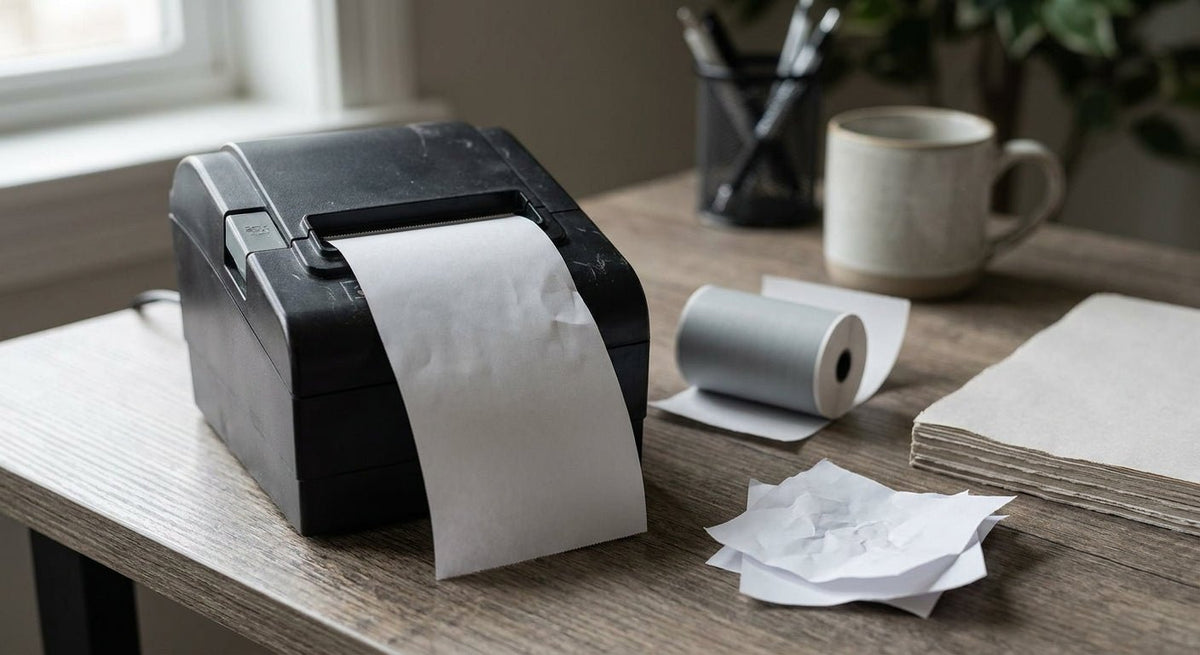
A thermal printer and a sheet of regular copy paper seem compatible — both are flat, both feed through rollers — but the chemistry makes them fundamentally incompatible. This page explains exactly what happens when you load regular paper into a direct thermal printer, why it fails, and what media to use instead.
TL;DR: Loading regular paper in a thermal printer produces a blank output every time. Direct thermal printers heat a chemically coated surface to create an image; standard copy paper has no thermal coating, so heat passes through it without marking anything. The printer is not broken — the media is wrong. In 2026, the fix is straightforward: swap to direct thermal labels or, if you need a ribbon-based workflow, thermal transfer media.
Why this matters
This question comes up constantly in warehouse operations, auto shops, and lab environments where someone grabs the nearest paper roll or sheet and tries to print a label. The result is wasted time, a head that runs hot against an uncoated surface, and — in some cases — accelerated wear on the printhead. Knowing the mechanism saves you from repeating the mistake.
What you'll need
Before diagnosing or correcting a failed print run, confirm you have:
- The printer model and its type (direct thermal vs. thermal transfer — check the spec sheet or the label on the unit)
- Direct thermal label stock compatible with your printer's print width
- Or, if your printer is thermal transfer: ribbon and thermal transfer label stock
- A clean, lint-free cloth for a quick printhead wipe after any uncoated-paper run
The steps — what actually happens, and how to fix it
Step 1: Understand the print mechanism
A direct thermal printer contains a printhead lined with tiny heating elements. When a job runs, those elements reach temperatures between 200°F and 400°F (93°C–204°C) at the contact point. The heat activates a leuco dye embedded in the thermal coating on the label surface, turning it dark where the image should appear.
Regular copy paper carries no leuco dye and no thermal coating. The printhead heats the surface, nothing activates, and the sheet exits completely blank. There is no ink, no toner, and no ribbon in a direct thermal printer — the coating is the ink. Without it, nothing prints.
Step 2: Check for printhead contact damage
After any run with uncoated paper, inspect the printhead before loading correct media. Uncoated stock creates higher friction between the printhead and the substrate. In a short test run — say, 10 sheets — the wear is minimal. In a full roll, you risk scoring the printhead surface or triggering thermal cutoff protection.
Wipe the printhead gently with a lint-free cloth lightly dampened with isopropyl alcohol (70% or higher). Do this in 2026 with the printer powered off and cooled for at least 3 minutes. Inspect for visible scratching. A scored printhead produces streaked or faded labels even after you switch to correct media.
Step 3: Confirm whether your printer is direct thermal or thermal transfer
If you are unsure which type you have, run this 5-second test: scratch the label surface firmly with your fingernail. If a dark mark appears, the stock is direct thermal coated. If no mark appears, it is plain paper or thermal transfer stock — and that printer requires a ribbon.
Thermal transfer printers can physically accept plain paper, but they need a wax or resin ribbon between the printhead and the media to transfer ink. Running plain paper with a ribbon in a thermal transfer printer can produce output, but the image quality and adhesion depend entirely on whether the paper is sized for label printing.
Step 4: Load the correct media
For direct thermal printers, load direct thermal printer labels — no ribbon needed. These ship with the thermal coating already applied, sized for standard label widths. No ribbon, no ink cartridge.
For thermal transfer printers, you need two things together: thermal transfer label stock (paper or polyester) and a matched ribbon. McAuley Labels carries thermal transfer printer labels — paper, multiple sizes for standard paper-based output.
Step 5: Calibrate after a media change
After swapping media, run a calibration cycle before printing a full batch. Most Godex printers perform automatic gap sensing when you power-cycle with the feed button held. This resets the label-length detection so the printer feeds and cuts at the right position. Skipping calibration after a media change causes labels to print off-center or cut through the image.
Step 6: Test print one label
Send a single test label before committing to a full run. Check:
- Image is fully saturated with no streaks (streaks = printhead needs cleaning or darkness setting is too low)
- Edges are sharp and within the label boundaries
- Barcode or text scans correctly with a handheld scanner
If the print is faint, increase the darkness setting in 2026 software driver increments of 2 until saturation is correct. Do not jump more than 4 increments at once — excessive heat shortens printhead life.
Step 7: Document your media spec for the site
Once you confirm the correct media, record the label dimensions, core size, and roll length in your procurement system. This prevents the "wrong paper" problem recurring when a new employee orders supplies. In manufacturing and warehouse environments, a one-page media spec sheet taped to each printer station eliminates 90% of misload issues.
Troubleshooting
Printer ran plain paper and now prints faded labels on correct media. The printhead may be contaminated or lightly scored. Clean with isopropyl alcohol, print 5 test labels, and reassess. If fading persists across 10 labels, the printhead needs replacement.
Output from correct media is completely blank. The printer may have defaulted to "thermal transfer" mode in the driver or onboard settings — which disables the heating profile for direct thermal. Open the printer settings and confirm the print mode matches your media type.
Labels feed but image is only on half the label. The label width setting in the driver does not match the physical media. Re-enter the exact label dimensions and run calibration again.
Printer skips labels or double-feeds. Gap sensing failed. Run a manual calibration: power off, hold Feed, power on, release Feed when the printer feeds and cuts 2–3 labels automatically.
Thermal transfer printer produces smeared output with ribbon installed. The ribbon type does not match the media. Wax ribbons pair with paper stock; resin or wax-resin ribbons pair with polyester. Mismatching these causes smear and poor scratch resistance.
Barcodes scan fine on-screen but fail with a physical scanner. Print resolution may be too low for the barcode density. A 200 DPI printer struggles with small barcodes; step up to 300 DPI media and printer settings for Code 128 barcodes under 1 inch wide.
Tools and resources
- Direct thermal label stock: direct thermal printer labels — no ribbon needed — the baseline consumable for any direct thermal printer
- Thermal transfer label stock: thermal transfer printer labels in paper or polyester, available from McAuley Labels in multiple sizes
- Isopropyl alcohol (70%+) and lint-free cloths: standard printhead maintenance supplies, available from any industrial supply house
- Printhead cleaning pens: for field maintenance on mobile printers (Godex MX20, MX30i)
- GoLabel software: Godex's free label design utility, available direct from Godex — use it to set exact media dimensions and print mode before your first run
What to do next
If you confirmed your printer is direct thermal and need the right label stock to run a clean batch today, direct thermal printer labels — no ribbon needed is the starting point. For a broader look at printer selection by use case, the thermal label printer for shipping and warehousing guide covers how to match printer spec to volume and environment in 2026.
FAQ
What happens if you put regular paper in a thermal printer? The printer outputs a completely blank sheet. Direct thermal printers need a chemically coated surface to form an image — plain copy paper has no thermal coating, so the heat from the printhead produces no mark.
Will regular paper damage a thermal printer? A short test run — a few sheets — is unlikely to cause permanent damage. An extended run with uncoated paper increases printhead friction and heat, which can score the printhead surface or trigger thermal protection shutoff. Clean the printhead with isopropyl alcohol immediately after.
Can you use thermal transfer paper in a direct thermal printer? No. Thermal transfer paper is designed to receive ink from a ribbon under heat. It may or may not carry a thermal coating, and the surface chemistry is different. Use media specifically labeled "direct thermal" for direct thermal printers.
How do I know if my paper is thermal paper? Scratch the surface firmly with your fingernail. If a dark mark appears within 1–2 seconds, the surface is thermal-coated. No mark means plain paper or non-coated stock.
Do thermal printers need ink or toner? Direct thermal printers need neither. The image forms from heat reacting with the label coating. Thermal transfer printers do require a ribbon, which is a film coated with wax or resin — not liquid ink or toner powder.
What DPI do I need for barcode labels in 2026? For standard 1D barcodes (Code 128, Code 39) at typical warehouse label sizes, 203 DPI is sufficient. For small labels, QR codes, or fine text under 6-point, use 300 DPI. High-precision applications like lab specimen labels or pharmaceutical barcodes often require 600 DPI.
Can I use regular paper in a thermal transfer printer? A thermal transfer printer with a ribbon installed can physically print on plain paper, but plain paper is not designed for label use — it lacks an adhesive backing, lacks coating for durability, and absorbs ink unevenly. For any labeling application, use proper thermal transfer label stock.
How long do thermal labels last compared to regular paper? Direct thermal labels stored away from heat and UV typically last 1–3 years before the coating starts to fade. Thermal transfer labels — especially polyester with resin ribbon — can last 5–10 years under normal indoor conditions. Plain paper printed with any method degrades faster under humidity and abrasion.
One last thing
The most common field mistake in 2026 is not loading wrong paper — it is ordering the right paper but in the wrong mode. A direct thermal printer accidentally set to "thermal transfer" mode in its driver will produce a blank output even with correctly coated direct thermal labels installed. Before concluding your media is wrong, confirm the print mode setting in the driver matches the physical media type. That single setting mismatch accounts for a significant share of "my labels won't print" support calls.