
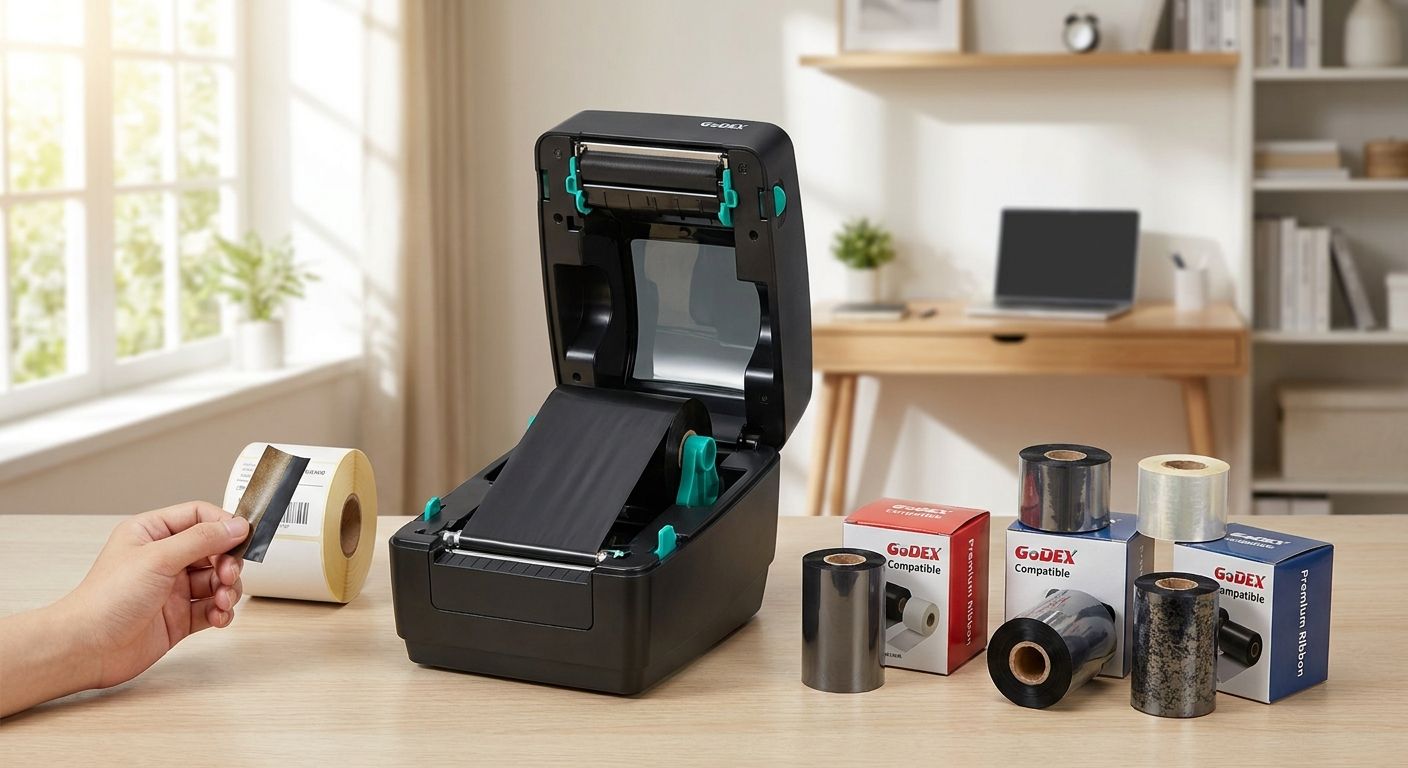
Picking ribbon for a GoDEX ribbon printer comes down to one decision: match ribbon chemistry to your label material, then confirm width, core size, and darkness before you run a full batch. Get the pairing wrong and barcodes smear, ghost, or wear off oil-change stickers and asset tags inside a month.
- Choosing ribbon for a GoDEX ribbon printer starts with matching wax, wax/resin, or full resin chemistry to your label stock.
- Wax ribbon works on paper labels; resin ribbon is the only safe choice for polyester, vinyl, or metallized asset tags outdoors.
- Most GoDEX desktop printers — RT700i, RT730i, GE330, ZX430i — print a 4-inch-wide label, so ribbon width needs to match that deck.
- Test darkness and print speed in GoLabel software before a full run — factory defaults often under-print dense barcodes.
- Ribbon core size matters as much as width: a 1/2-inch core ribbon will not seat on a spindle built for a 1-inch core.
Why this matters
GoDEX ribbon printers — the RT700i, RT730i, ZX430i, GE330, G500, and G530 in the current lineup — are thermal transfer machines. They melt ribbon wax or resin onto label stock instead of burning an image directly into paper the way a direct thermal printer does. That difference is why ribbon choice matters as much as the printer itself: the wrong chemistry looks fine on day one and turns to smudge after a week on a warehouse shelf or under a hood.
If you're still deciding between the two printer types, read the breakdown on direct thermal vs. thermal transfer before you commit to a ribbon budget for 2026. Thermal transfer costs more per label but survives heat, oil, chemicals, and sunlight in ways direct thermal paper never will. For a shipping label that lives for a few days, skip ribbon entirely. For asset tags and anything going outdoors, ribbon is the reason the label still reads a year later.
What you'll need
- A GoDEX thermal transfer printer — RT700i, RT730i, ZX430i, GE330, G500, or G530 all run ribbon
- Thermal transfer ribbon sized to your label roll — wax, wax/resin, or full resin
- Label stock that matches the ribbon chemistry: paper for wax, polyester or vinyl for resin
- GoLabel software (included with every GoDEX printer) for darkness and speed settings
- A caliper or the label spec sheet, to confirm width and core size before ordering
- About 10 minutes to run a test batch before committing to a full case of ribbon
The steps
1. Match ribbon chemistry to your label material
Wax ribbon is built for plain paper labels — inventory tags, shelf labels, anything staying indoors and dry. Wax/resin blends handle light durability needs like oil-change stickers that ride under a windshield. Full resin is the only ribbon that bonds properly to polyester, vinyl, or metallized silver stock, which is what asset tags and outdoor labels are usually made from. Using wax on polyester produces a print that flakes off the first time it's touched with a wet rag; the common mistake is buying whatever ribbon is cheapest instead of matching it to the stock.
2. Confirm ribbon width and print deck fit your GoDEX model
Most GoDEX desktop printers in the current catalog — RT700i, RT730i, GE330, ZX430i — print a 4-inch-wide label, so ribbon needs to cover that deck without leaving bare edges. Ribbon narrower than the label leaves unprinted strips down the sides; ribbon much wider than the label wastes stock and increases the odds of wrinkling. Check the printer's spec sheet for max print width before ordering ribbon in bulk for 2026 production runs.
3. Check the ribbon core size against your printer's spindle
Ribbon McAuley Labels stocks for oil-change sticker printers ships on a 1/2-inch core. That's standard across most GoDEX desktop models, but not universal across every industrial unit, so confirm the spindle size on your specific printer before you place a bulk order. A core mismatch means the ribbon simply won't seat, and that's a wasted shipment.
4. Match ribbon length to your label roll length
Ribbon and labels should run out at roughly the same time. Pairing a short ribbon with a long label roll means swapping ribbon mid-batch, which interrupts production and risks a misfeed when you reload. Check the ribbon's total footage against your label roll's label count before starting a print job in 2026, especially for high-volume runs like fleet asset tags.
5. Load the ribbon in the correct orientation
GoDEX printers thread ribbon coated-side-out on the supply spindle and take-up on the rewind spindle in a specific path — check the panel diagram inside the printer's ribbon compartment, since orientation differs slightly by model. Loading it backward prints nothing, or prints a mirrored ghost image. The common mistake here is forcing the ribbon onto a spindle that doesn't match its core size instead of stopping to check the fit.
6. Set darkness and speed in GoLabel before the full run
Run one test label first. If the barcode looks gray or the edges are soft, raise the darkness setting in GoLabel software in small increments until the print is crisp, not increase speed to compensate. Higher speed with resin ribbon on textured stock often produces skips — GoDEX factory default settings are a starting point, not a finished configuration for every label and ribbon combination.
7. Store unused ribbon flat and away from heat
Ribbon rolls left in a hot vehicle or stacked on their side can develop flat spots or shift on the core, which shows up as banding or wrinkle lines on the next print run. Keep spare rolls in their original packaging, stored flat, until they go on the printer.


Troubleshooting
Print looks light or gray even at max darkness. The ribbon and label chemistry may be mismatched — wax ribbon on coated or synthetic stock often can't reach full density no matter the setting. Switch to a wax/resin or full resin ribbon for that stock.
Ribbon wrinkles across the print. Usually a width mismatch or a printhead pressure setting that's too high for the ribbon thickness. Confirm ribbon width matches label width and back off pressure slightly.
Barcode scans inconsistently. Check darkness first, then check ribbon-to-label pairing. A resin ribbon running on paper stock it wasn't designed for can leave voids in fine barcode lines even when the print looks fine to the eye.
Ribbon snaps or tears mid-run. Often a core mismatch forcing tension on the wrong spindle size, or a printhead running too hot for a thin wax ribbon. Verify the core fits the spindle before troubleshooting temperature.
Printer shows a ribbon error with ribbon loaded. Check the ribbon path against the diagram in the compartment — coated side needs to face the label, not the printhead cover. A reversed load reads as an error on most GoDEX models.
Print looks fine at first, then fades within days. That's a chemistry problem, not a printer problem. Wax ribbon prints don't hold up to handling, moisture, or sunlight the way resin does — reorder in resin if the label needs to last past a few weeks.
Tools and resources
- GoDEX ZX430i thermal printer — 300 DPI, runs wax, wax/resin, and resin ribbon on a 4-inch deck
- GoLabel software, included with every GoDEX printer, for darkness, speed, and calibration
- The ribbon width and core spec listed on your printer's data sheet — check it before every bulk ribbon order
- Metalized silver or semi-gloss white label stock when the job calls for resin ribbon and outdoor durability
What to do next
Once ribbon and label stock are matched, calibrate the printer itself so labels feed and register consistently from the first label to the last one in the roll — sensor calibration is a separate step from ribbon setup and worth doing before a production run in 2026. Ribbon choice solves the print quality problem; calibration solves the feed and alignment problem, and skipping it undoes a lot of the work put into picking the right ribbon.
FAQ
What ribbon does a GoDEX ribbon printer need?
A GoDEX ribbon printer needs wax, wax/resin, or full resin ribbon depending on the label stock. Wax fits paper labels, wax/resin covers light-duty stickers, and resin is required for polyester or metallized asset tags.
Is wax or resin ribbon better for a GoDEX thermal transfer printer?
Resin ribbon is better for anything exposed to heat, chemicals, or outdoor weather; wax is fine for indoor paper labels. Choosing resin for paper labels just adds cost without a durability benefit.
Can I use a GoDEX printer without ribbon?
Only if it's running direct thermal labels, which don't need ribbon at all. GoDEX thermal transfer models require ribbon for every print; running one without ribbon loaded produces a blank label.
What ribbon core size fits a GoDEX printer?
Most GoDEX desktop printers, including the models used for oil-change stickers, take a 1/2-inch ribbon core. Check your specific model's spindle before ordering, since some industrial units differ.
How long does a roll of GoDEX ribbon last?
Ribbon length should be matched to label roll length so both run out close together, which avoids a mid-batch ribbon swap. Actual usage depends on label size, print darkness, and how much of the ribbon width the label uses.
What happens if I use the wrong ribbon on a GoDEX printer?
Wrong chemistry produces prints that look acceptable at first but fade, smear, or flake off within days to weeks. Wrong core size or width means the ribbon may not load at all.
Is resin ribbon more expensive than wax ribbon in 2026?
Yes, resin ribbon costs more per roll than wax across the industry, reflecting the added durability. It's worth the premium only when the label needs to survive heat, chemicals, or outdoor exposure.
Which GoDEX printers use thermal transfer ribbon?
The RT700i, RT730i, GE330, ZX430i, G500, and G530 all run on thermal transfer ribbon. GoDEX also sells direct thermal-only models that skip ribbon entirely, so confirm which type you own before ordering.
One last thing
The ribbon aisle looks like a commodity purchase until a batch of asset tags fades in a warehouse or an oil-change sticker peels off a windshield after one car wash. Buying ribbon in 2026 for a GoDEX ribbon printer is really two decisions dressed up as one: chemistry for the label material, then width and core for the machine. Nail both and the printer disappears into the background of daily operations, which is exactly where it should be.