
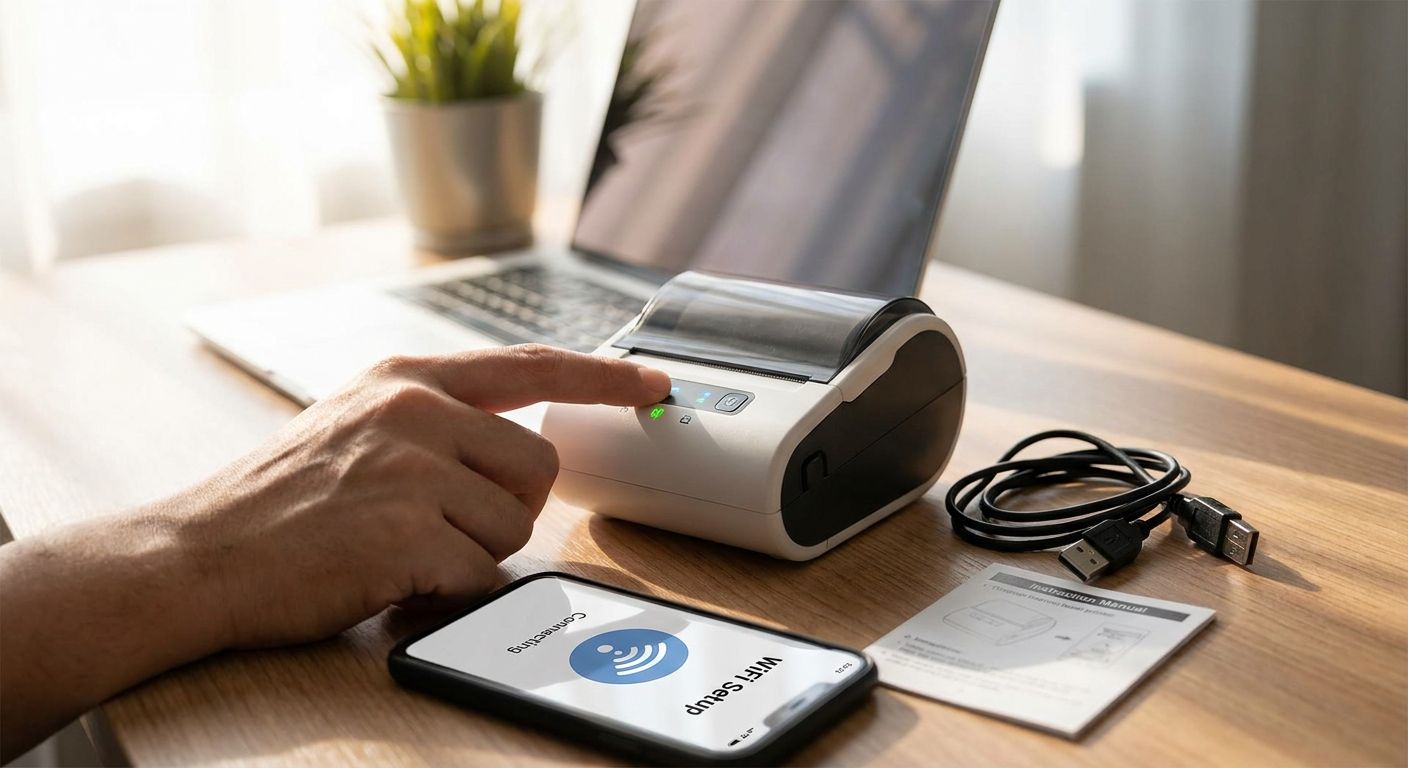
Connecting a label printer to WiFi cuts the USB tether and lets every workstation on the network print asset tags, oil change stickers, or shipping labels without walking a laptop over to the printer. The process takes under 15 minutes on most GoDEX thermal printers once you know which menu to open and which band your router is broadcasting on.
- Connecting a label printer to WiFi takes 10-15 minutes using the printer's LCD network menu or GoLabel software wizard.
- GoDEX thermal printers with a WiFi module only join 2.4GHz networks — 5GHz-only SSIDs will fail silently in 2026.
- Static IP assignment prevents the printer from dropping off the network after a router reboot. Buy the static IP habit now.
- Test with a single label print before rolling the setup out to a second workstation.
Why this matters
A label printer tied to one USB port means one person prints. A label printer on the network means the front desk, the warehouse floor, and the shipping station all send jobs to the same machine without a laptop babysitting the cable. For shops running asset tags, barcode labels, or oil change stickers across multiple stations in 2026, that shared-printer setup is the difference between a bottleneck and a workflow.
Most of the failures aren't hardware failures — they're band mismatches, expired DHCP leases, or a password typo on the printer's tiny LCD keypad. Fix those and the connection is stable for years.
What you'll need
- A label printer with a WiFi module or Ethernet port built in (check your model's spec sheet before starting)
- Your router's SSID name and password, typed exactly — printer keypads are unforgiving of case-sensitive errors
- GoLabel software installed on the computer that will send print jobs
- A computer already connected to the same network the printer will join
- 10-15 minutes and access to the printer's front-panel menu or LCD screen
The steps
1. Confirm your printer's network capability
Check whether your printer has a built-in WiFi module, an Ethernet port only, or neither. GoDEX industrial printers typically ship with USB, Serial, and Ethernet as standard, with WiFi available as a module depending on the model. Skipping this check is the single most common reason setups stall — you can't configure WiFi on a printer that doesn't have the radio.
Common mistake: assuming every printer in a fleet has the same network hardware. Check each unit individually before ordering cables or scheduling install time.
2. Install GoLabel and open the network setup wizard
GoLabel is the software GoDEX printers use for label design and printer configuration, including network settings. Install it on the primary workstation first — the GoLabel setup guide walks through the installer step by step if this is your first GoDEX printer.
Once installed, connect the printer via USB for this first pass. You'll switch to wireless after the network profile is saved.
3. Open the printer's network menu
On the printer's LCD panel, navigate to Setup or Network settings (menu naming varies slightly by model and firmware version). Select WiFi or WLAN, then choose "Scan" to list nearby networks.
Expected outcome: your SSID appears in the list within 5-10 seconds. If it doesn't, move the printer closer to the router or check that the network is broadcasting on 2.4GHz — see the troubleshooting note below.
4. Enter your WiFi credentials
Select your network name from the list and enter the password using the keypad or touchscreen. Double-check the entry before confirming — a single wrong character sends you back to step 3.
After confirming, the printer attempts to join the network. A successful connection usually shows an IP address on the display within 15-30 seconds.
5. Assign a static IP or lock the DHCP lease
By default, most printers grab a DHCP address that can change after a router reboot, breaking every saved print queue on every workstation. Assign a static IP through the printer's network menu, or reserve the DHCP lease in your router's admin panel by MAC address.
Common mistake: leaving the printer on DHCP in a small office. It works fine until the router restarts, then nobody can print until someone re-adds the printer on every machine.
6. Send a test label
Open GoLabel, select the printer over the network connection (not USB), and print a single test label. This confirms the wireless link is stable and the printer is reachable by IP, not just connected to the router.
If the test label prints clean, the setup is done for that printer. If it hangs or errors out, the printer joined the WiFi network but isn't reachable — usually a firewall or subnet mismatch.
7. Add the printer to additional workstations
Install GoLabel or the printer driver on each additional computer, then add the printer using its IP address rather than searching the network each time — it's faster and more reliable across multiple machines. For general printer setup covering both USB and network installs, the full GoDEX thermal label printer setup guide covers driver installation on Windows and Mac.
Troubleshooting
Printer can't find the SSID during the scan. Your network is likely broadcasting on 5GHz only. Most embedded WiFi modules in industrial thermal printers support 2.4GHz exclusively — switch your router to broadcast both bands or create a 2.4GHz-only guest network.
Connection drops after a few hours. Check for a static IP conflict with another device, or confirm the printer isn't set to enter sleep mode and drop its network session. Disable auto-sleep on shared network printers.
Test label prints from USB but not over WiFi. The printer joined the network but the computer can't reach its IP — check that both devices are on the same subnet and that no firewall rule is blocking port traffic to the printer.
Printer connects, then immediately disconnects. Weak signal strength is the usual cause. Move the printer within 20-30 feet of the router or add a WiFi extender in warehouse environments with metal shelving that blocks signal.
Password rejected repeatedly. LCD keypads often default to numeric or uppercase entry modes — check the shift/case indicator on screen before re-entering a password with mixed case or symbols.
Multiple printers show the same IP. This happens when a static IP was copied across units instead of assigned uniquely. Each network printer needs its own IP address, no exceptions.
Tools and resources
- GoLabel software (bundled with GoDEX printer setup)
- Router admin panel access for DHCP reservations or band settings
- A model like the GoDEX RT700i+ thermal printer, which supports USB, Serial, and Ethernet connections for shops that want a wired network fallback
- The GoDEX printer troubleshooting guide for issues beyond network connectivity, including feed and print-quality problems


What to do next
Once the primary printer is stable on WiFi, the next question is usually whether it can handle multiple stations sending jobs at once without queuing errors. That's covered in the network label printer setup for multi-user offices guide, which walks through print queue management and permission settings across shared network printers.
FAQ
How do I connect a label printer to WiFi without a USB cable?
Most industrial thermal printers require an initial USB connection to save the network profile through software like GoLabel, but the printer switches to wireless-only operation once the SSID and password are entered on its LCD panel. After that first setup, the USB cable can be disconnected entirely.
Why won't my label printer find my WiFi network?
The printer's WiFi module likely supports 2.4GHz only, and your router may be broadcasting on 5GHz exclusively. Switch your router to dual-band or create a separate 2.4GHz network and rescan from the printer's menu.
Does a WiFi label printer need a static IP address?
A static IP isn't required but it prevents the printer from losing its saved connection after a router reboot changes the DHCP-assigned address. Assign one through the printer's network menu or reserve the lease in your router's admin panel.
Can multiple computers print to the same WiFi label printer?
Yes, once a label printer joins the network by IP address, any computer on that network can add it as a printer through GoLabel or the standard driver install. Each workstation needs the printer's IP entered individually the first time.
Is Ethernet better than WiFi for a label printer?
Ethernet gives a more stable connection with no signal drop risk, which matters in warehouses with metal shelving that interferes with WiFi signal. WiFi wins on flexibility when the printer needs to move between stations.
Why does my printer disconnect from WiFi after a few hours?
This is usually a sleep mode setting that drops the network session to save power, or a weak signal from distance or physical obstructions. Disable auto-sleep on any printer used for shared network printing.
What software do I need to set up a GoDEX printer on WiFi?
GoLabel is the software GoDEX printers use for both label design and network configuration. It's free with the printer and includes a setup wizard specifically for WiFi and Ethernet connections.
One last thing
Check your router's band settings before you ever pick up the printer's LCD panel. Most embedded WiFi modules in industrial label printers only join 2.4GHz networks, not 5GHz — a detail that sends more setup calls to support lines in 2026 than any actual hardware defect. Confirm the band first and the rest of the setup takes minutes.