
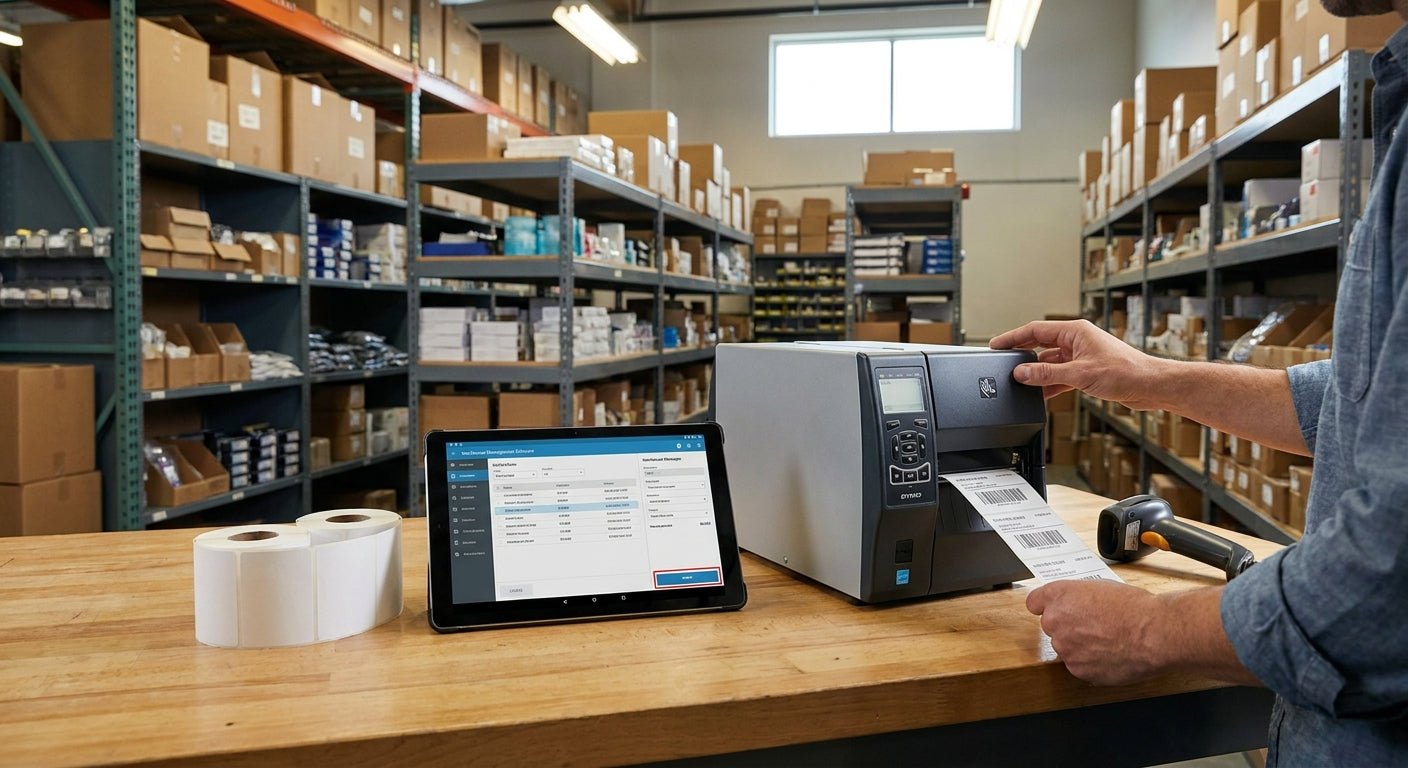
Printing inventory labels for a retail stockroom comes down to three decisions: material, adhesive, and printer resolution — get any one wrong and you're reprinting shelf tags by spring 2026 instead of running your stockroom.
TL;DR
Retail stockrooms need barcode labels that survive handling, scanning, and shelf friction without curling or fading — semi-gloss white stock on a 203 DPI thermal printer covers most SKU counts under 5,000 items. For high-density barcodes or small labels under 1 inch, step up to a 300 DPI unit like the GoDEX GE300. The verdict for most retail backrooms in 2026: direct thermal printing on semi-gloss stock, skip thermal transfer ribbon unless labels sit in direct sunlight or get wiped down with solvents.
Why this matters
A stockroom that can't scan its own labels isn't running inventory — it's guessing. Faded barcodes, smeared adhesive, and labels that peel off boxes after two weeks all trace back to the same root cause: someone picked a label and printer combo without matching it to how the stockroom actually operates. Retail backrooms see more handling per label than a warehouse pallet position does — items get pulled, restocked, and rescanned multiple times a week. That wear pattern is exactly what determines whether you need direct thermal or thermal transfer, and whether 203 DPI is enough resolution or you need 300.
The cost of getting this wrong isn't dramatic, it's just slow. Reprint runs eat labor hours. Scan failures slow down cycle counts. None of it shows up as a line item, but by the end of 2026 it adds up to hours nobody accounted for.
What you'll need
- A thermal label printer sized to your daily print volume — a GoDEX GE300 4-inch printer at 203 DPI handles most retail backroom volumes without a learning curve
- Label stock matched to your environment — semi-gloss white for indoor shelving, metalized silver or 3M heavy-duty for anything exposed to moisture or oil
- A barcode or QR code generator, either built into your POS/inventory software or a standalone label design tool
- A label layout plan: SKU, barcode, bin location, and reorder point, decided before you print the first batch
- 15-20 minutes for printer setup and calibration, plus time proportional to your SKU count for the actual print run
The steps
1. Count your SKUs and pick a label size
This determines everything downstream, including printer resolution. A stockroom running under 2,000 SKUs with barcodes only (no long product names) can get away with a 1x2 inch label at 203 DPI. Push past 5,000 SKUs or add QR codes with embedded data, and you'll want a smaller, denser label that needs 300 DPI to stay scannable. Skipping this step is the most common mistake — people buy a printer first and then discover their label size doesn't fit their SKU count.
2. Choose material based on handling frequency, not just cost
Semi-gloss white label stock is the standard pick for retail stockrooms because it balances print clarity with cost, and it holds up fine against normal shelf handling. If labels go on anything that gets wiped down, sits near a loading dock door, or handles seasonal outdoor stock, 3M heavy-duty barcode labels resist abrasion and moisture in ways standard stock doesn't. Don't default to the cheapest paper option if your stockroom sees any humidity swings — the cost difference is cents per label, and reprinting a faded run costs more in labor.
3. Match your printer to the resolution your barcodes need
Standard UPC and Code 128 barcodes print fine at 203 DPI, which is what most retail label printers ship with. If you're printing small QR codes, dense data matrices, or labels under 0.75 inches, jump to 300 DPI to avoid scan failures. Custom QR code inventory labels in particular need the higher resolution — a blurry QR code that scans fine on a phone at 3 inches will fail a warehouse scanner gun at 8 inches.
4. Build your barcode data source before you print anything
Whether you're using Shopify, a dedicated inventory system, or a spreadsheet feeding a label design tool, get your SKU-to-barcode mapping locked down first. Print a test batch of 10 labels and scan every single one with the actual scanner your team uses on the floor — not a phone camera. A barcode that scans on a phone but fails a handheld scanner is a data format problem, not a printer problem, and it's easier to catch on 10 labels than on 2,000.
5. Calibrate the printer and run a real test batch
Most thermal printers ship with generic label gap settings that don't match your specific stock size. Run the printer's built-in calibration routine with your actual label roll loaded, not a sample roll. Print 25 labels at your intended settings and check for print drift — text or barcodes shifting position as the roll progresses usually means the gap sensor needs recalibrating. Expect this step to take 10-15 minutes the first time; it takes under 2 minutes on repeat setups once you've saved the profile.
6. Apply labels and lock in a bin-location system
A barcode that prints clean but goes on the wrong shelf still breaks your inventory count. Decide your bin-naming convention (aisle-shelf-position, for example) before the print run, not after. Apply labels to a clean, dry surface — dust and oil residue are the top reason labels lift within the first month. Batch your printing by stockroom zone so you're applying labels in the same physical order you printed them; it cuts application time roughly in half compared to sorting a mixed stack.
Troubleshooting
Barcode scans on a phone but not a handheld scanner. This is almost always a resolution mismatch — bump from 203 DPI to 300 DPI if your barcode density is high, or check that your label design software isn't compressing the barcode image.
Labels peel up within a few weeks. Usually an adhesive-to-surface mismatch. Cardboard and painted metal need different adhesive strength — semi-gloss stock works on cardboard, but metal shelving edges often need a stronger-hold label.
Print looks faded or streaky after a few hundred labels. On direct thermal printers, this is print head wear or a heat setting that's too low. Increase the darkness setting in your printer driver before assuming the print head needs replacing.
Labels print at the wrong size or position. Recalibrate the gap sensor with your actual label stock loaded — this drifts when you switch roll sizes or brands, even by a few thousandths of an inch.
Barcode data doesn't match what's in your inventory system. Check for a formatting mismatch between your label design tool's barcode symbology (Code 128 vs. UPC-A, for example) and what your scanner is configured to read.
Tools and resources
- A 203 or 300 DPI thermal printer, such as the GoDEX GE300, sized to daily print volume
- Semi-gloss white or 3M heavy-duty label stock, depending on handling conditions
- Barcode/QR code design software, either built into your inventory platform or standalone
- A handheld barcode scanner for test scans, not just phone-camera checks
- A detailed breakdown of backroom label printer options if you're still choosing hardware
What to do next
Once labels are printing clean and scanning reliably, the next problem is usually organization — knowing at a glance which shelf, bin, or zone a label belongs to without cross-referencing a spreadsheet. That's a separate setup question from printing, and it's worth solving before you scale past your current SKU count.
FAQ
What's the best printer resolution for retail inventory labels? 203 DPI covers standard barcodes and label sizes above 1 inch. Move to 300 DPI if you're printing QR codes, dense data matrices, or labels under 0.75 inches, since lower resolution blurs fine barcode lines at that scale.
Is direct thermal or thermal transfer better for a stockroom? Direct thermal works for most indoor retail stockrooms because labels don't need to survive years of exposure. Thermal transfer with ribbon makes sense if labels face direct sunlight, heat, or solvent wipe-downs, since direct thermal print fades under UV and heat over time.
How much does it cost to print inventory labels in-house? Costs split into printer hardware, label stock, and (for thermal transfer) ribbon — per-label cost is typically a few cents on semi-gloss stock, with heavy-duty materials running higher. Check current pricing directly since stock and roll sizes vary.
Can I print QR codes and barcodes on the same label? Yes, most label design software supports mixed barcode types on one label, but confirm your printer resolution supports both at the sizes you need — QR codes generally need more resolution headroom than linear barcodes.
Do I need special software to design inventory labels? Most thermal printers include design software in the box, and many inventory or POS platforms generate labels directly. A standalone tool is only necessary if you need custom layouts your inventory system can't produce natively.
How often should stockroom labels be reprinted? Reprint when labels show visible fading, physical damage, or when SKU data changes — there's no fixed schedule, since wear depends on handling frequency and material choice, not calendar time.
What label size works best for small stockroom shelving? 1x2 inch labels fit most standard bin and shelf-edge applications. Drop to smaller sizes only if shelf space is tight, and increase printer resolution accordingly to keep barcodes scannable at the smaller scale.
Is metalized silver overkill for a retail stockroom? For most indoor retail environments, yes — semi-gloss white handles standard handling fine. Metalized silver earns its place in stockrooms with moisture, oil exposure, or metal shelving that standard adhesive doesn't grip well.
One last thing
The stockrooms that stay organized past the first six months aren't the ones with the fanciest label printer — they're the ones that picked one label size and one barcode format and stuck with it. Mixing label sizes across a stockroom because someone grabbed whatever roll was on hand is the fastest way to end up with a scanner that can't read half your shelf tags by the end of 2026.