

No—a dedicated barcode scanner is not necessary just because your staff scan labels; smartphones are sufficient when the scanning app supports your codes and the work involves occasional checks. Choose a dedicated reader when repeated scanning, physical controls, or workstation integration better fit the job, but verify that the reader sends usable data into your business software.
- Barcode scanner vs smartphone scanning: choose by completed inventory transactions, not whether a camera recognizes a code.
- Smartphones are best for occasional asset tracking when the business app supports camera scanning.
- Dedicated barcode scanners are best for repeated scanning when their controls and connection suit the task.
- McAuley Labels supplies barcode labels; test the actual printed label with your intended reader and software.
Is a barcode scanner necessary if staff have smartphones?
Keep smartphones if staff can scan, confirm, and save the required transaction without unnecessary handling or data entry. A dedicated scanner becomes useful when it removes a specific obstacle: opening the camera repeatedly, aiming between items, handling a phone with gloves, or transferring decoded values into a desktop application.
Use this comparison to identify the right starting point. Neither device category guarantees compatibility with your inventory or asset-management system.
| Decision point | Smartphone camera scanning | Dedicated barcode scanner |
|---|---|---|
| Best for | Occasional checks alongside forms, photos, and notes | Repeated code entry into a supported application |
| Main advantage | Captures codes and supporting information on the same device | Provides purpose-built scanning controls |
| Main limitation | Camera access and app handling are part of the workflow | Needs a compatible host or its own business application |
| Code support | Depends on the scanning app and camera | Depends on the reader’s supported symbologies |
| Before choosing | Verify the saved record, not just the camera result | Verify the connection, decoded value, and destination field |
For the record structure behind either option, see how to create a barcode asset tracking system. Decide what each scan must accomplish before choosing the hardware.
Why this matters
A successful scan is not necessarily a successful transaction. Reading an equipment number does not automatically record its location, assign it to an employee, or update its maintenance history.
Your 2026 buying decision should therefore start with the saved business record. If staff still copy a decoded number into another system, the scanner has solved only the reading step. Fix the connection between the code and the application before expanding the device rollout.
Separate identification from authorization, too. A barcode identifies something; your application determines who can view or change its record. Giving someone a reader does not give them permission to manage the underlying data.
Smartphone scanning: best for occasional checks
Use smartphone scanning when staff already complete the task inside a suitable mobile application. Equipment inspections are a useful example: the employee scans the asset, checks its record, adds a photo, and saves an observation without changing devices.
That workflow makes the phone’s screen and camera useful beyond barcode capture. A dedicated reader adds little if staff still need the phone to finish the inspection.
The limitation is the interaction between scans. Staff need to access the scanning function, frame the label, confirm the result, and return to the task. Some applications support continuous scanning; others require repeated screen actions. Test the application you intend to deploy rather than treating all phone scanning as identical.
Check these points before approving staff phones:
- The business application reads your actual barcode format.
- Camera permissions work under your device-management rules.
- The decoded identifier opens or updates the correct record.
- Staff can correct an accidental scan without losing their work.
- The process remains usable with the cases and gloves staff actually wear.
For a 2026 phone-scanning rollout, test the oldest approved handset as well as the newest. A demonstration on one employee’s phone does not establish that every supported device works.
Dedicated scanners: best for repeated code entry
Choose a dedicated barcode scanner when its physical controls and input method fit repeated work better than camera handling. At a fixed workstation, a reader can send barcode data to the connected computer, subject to its supported interface and configuration.
Dedicated does not mean universally compatible. A USB reader, a wireless handheld reader, and a mobile computer with an integrated scanner have different connection and software requirements. Check the specific device rather than buying on the word scanner.
The GoDEX GS220 USB Barcode Scanner is identified in the product information as a 1D, plug-and-play reader for retail and warehouse use. It is a relevant candidate for a fixed workstation using supported linear barcodes, not evidence of QR-code support. Confirm your application accepts its input before selecting it.
The trade-off is additional hardware to connect, configure, store, and maintain. A reader also does not replace the screen staff need for quantities, locations, or exception messages.
For your 2026 evaluation, ask the supplier to demonstrate the complete transaction in your intended application. Reading into an empty text document checks basic input, but it does not prove the inventory workflow works.
Why the right scanning choice varies
There is no defensible universal scan-volume cutoff between phones and dedicated readers. The right choice depends on the steps surrounding each scan, not a daily count considered in isolation.
Evaluate these factors against the actual job:
- Task repetition: Repeatedly opening a camera or switching screens creates a different handling requirement from checking an occasional asset.
- Barcode format: A linear barcode and a QR code require compatible decoding support. Confirm the exact symbology in both the device and software.
- Label condition: Glare, scratches, wrinkles, low contrast, and poor printing affect readability. Test representative labels rather than a pristine demonstration sheet.
- Working position: Shelf height, reach, lighting, and whether staff carry other items determine how practical the device is to use.
- Application behavior: Field focus, confirmation prompts, duplicate handling, and offline operation determine what happens after decoding.
- Device ownership: Personal phones and company-managed equipment need different access, support, and replacement arrangements.
Do not turn these factors into unsupported claims that every dedicated reader is faster or every smartphone is adequate. A particular scanner can be wrong for the code, while a well-configured phone application can fit the task.
Check barcode format before comparing devices
A 1D barcode represents data through a linear pattern of bars and spaces. A QR code is a 2D symbol. A reader specified only for 1D scanning is not the right choice when your workflow requires QR codes.
Phone support also depends on software. Recognizing a QR code that contains a website address is different from accepting a product barcode into an inventory transaction. Your business application must interpret the decoded content correctly.
Keep the encoded value consistent across the system. An asset identifier stored as text must retain meaningful leading zeros; treating it as a number can change the identifier. Check the decoded value against the original record before printing or applying labels in quantity.
Also distinguish a URL from an internal ID. A QR code containing a web address can direct someone to a page, while an internal asset number needs an application that knows how to locate the matching record. Choose the data structure first, then choose compatible readers.
Test the complete workflow before buying hardware
Use the same labels, records, and business task for both options. Keep the test conditions consistent so you can identify whether a problem comes from the device, label, or application.
- Define the transaction. Write down the required result: open an equipment record, receive an item, move inventory, or save an inspection. Include the confirmation staff must see.
- Select real labels. Include the surfaces, print quality, placement, and wear found in your operation. Do not substitute a large code on a monitor for the labels employees handle.
- Check decoding. Compare the captured value with the intended identifier. Verify leading zeros, punctuation, and any characters your application uses.
- Save the record. Complete the task in the business application. Check quantities, locations, timestamps, and the user associated with the change where those fields apply.
- Test exceptions. Try an unknown code, a repeated scan, an unreadable label, and a lost connection. Confirm staff receive a clear result and can recover.
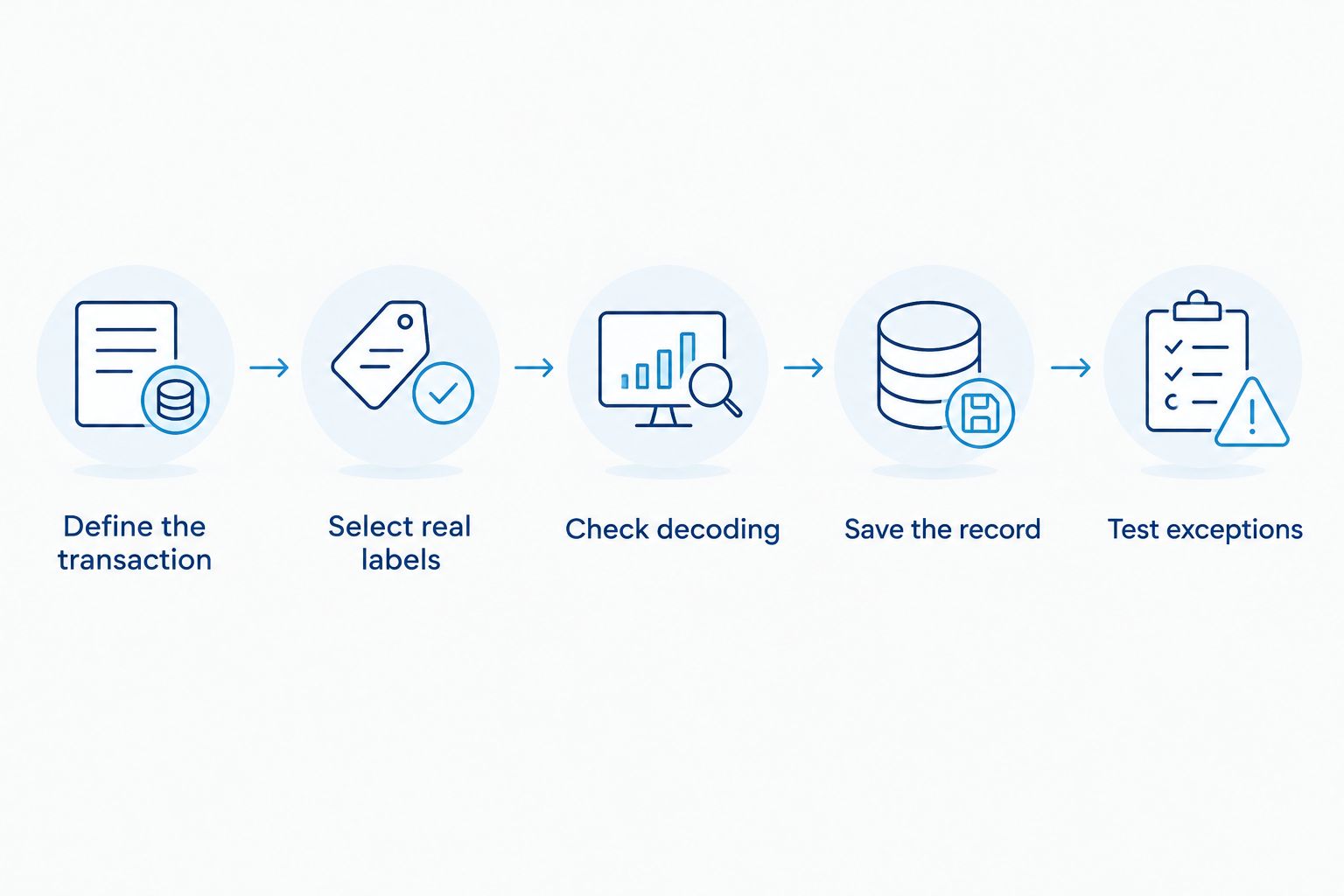
Record elapsed time for the complete task, along with retries, corrections, and incomplete transactions. These are measurements to collect from your operation, not assumed performance figures for either device category.
For a 2026 purchasing decision, repeat the test with the people who perform the work. A manager’s successful demonstration does not replace checking the workflow at the shelf, service bench, or equipment location.
Fix label problems before replacing readers
Both device types depend on a readable symbol. Preserve clear space around the code, avoid stretching the artwork, and keep bars or modules distinct when printing. A reader cannot reliably reconstruct information that the printed symbol no longer contains.
Placement matters as well. A code wrapped around a tight curve, obscured by another label, or positioned behind equipment creates an access problem before decoding begins. Move the label to a practical scanning position where the application permits it.
McAuley Labels is a fit for businesses sourcing barcode labels for asset and inventory identification. The supplied catalog includes metalized silver barcode asset tags and semi-gloss white barcode labels. Those material descriptions do not establish which reader will work best on your equipment.
Request a representative printed sample and test it on the intended surface. The limitation of choosing labels from a material name alone is that it does not verify scan distance, glare, placement, or compatibility with your application. Evaluate the label and reading process together.
Can staff scan inventory without internet access?
Scanning a barcode does not inherently require internet access, but retrieving or updating a business record depends on the application. A phone can decode a symbol while its inventory app remains unable to save the transaction.
Ask whether the application stores work locally, how it signals unsent changes, and what happens when conflicting updates reach the server. Test reconnection before treating offline scanning as an approved process.
A dedicated reader does not automatically solve this limitation. If it sends data to a host application that requires a connection, the dependency remains.
Can smartphones and barcode scanners work together?
Yes—use dedicated readers at repeated-scanning workstations and phones for inspections or occasional asset checks when both feed the same controlled records. Assign devices by task rather than requiring every employee to use identical hardware.
Keep identifiers and validation rules consistent across both workflows. Otherwise, staff can scan the same item successfully but save different or duplicate records.
For your 2026 rollout, document which device each task uses and how staff handle a failed scan. Consistent exception handling matters as much as the normal scanning path.
FAQ
What's the main difference in barcode scanner vs smartphone scanning?
The main difference is how staff capture a code and pass its value into the business application. Smartphones use camera-scanning software; dedicated readers use purpose-built scanning hardware, with capabilities determined by the specific model.
Can I use my phone instead of a barcode scanner for inventory?
Yes, if your inventory application supports camera scanning and saves the required transaction correctly. Test actual labels, quantities, locations, and corrections before approving the workflow.
Is a dedicated barcode scanner always faster than a phone?
No universal speed advantage applies to every scanner, phone, and application. Compare the time to complete and save the same task, including retries and screen interactions.
Can a 1D barcode scanner read QR codes?
A reader limited to 1D barcodes cannot decode QR codes, which are 2D symbols. Choose a reader that explicitly supports QR codes when your labels use them.
Do employees need to install a barcode scanning app?
Employees need software that supports the code and the business transaction. A built-in camera function that opens a QR-code link does not establish inventory or asset-management compatibility.
Does barcode scanning work without Wi-Fi?
Barcode decoding can work without Wi-Fi, but business-record access and updates depend on the application. Verify local storage, synchronization, and conflict handling before relying on offline work.
What should I check before ordering barcode labels?
Check the encoded identifier, barcode format, print quality, placement, and reading performance with your intended devices. McAuley Labels lists barcode label options, but your application test establishes workflow compatibility.
One last thing
A scanner’s confirmation beep is not proof that your inventory changed. The reader can decode the code while the application has the wrong field selected, rejects the value, or waits for another action.
Make the application’s saved-record confirmation your acceptance test. Before replacing staff phones, identify the exact failed step and verify that the proposed scanner fixes it.