
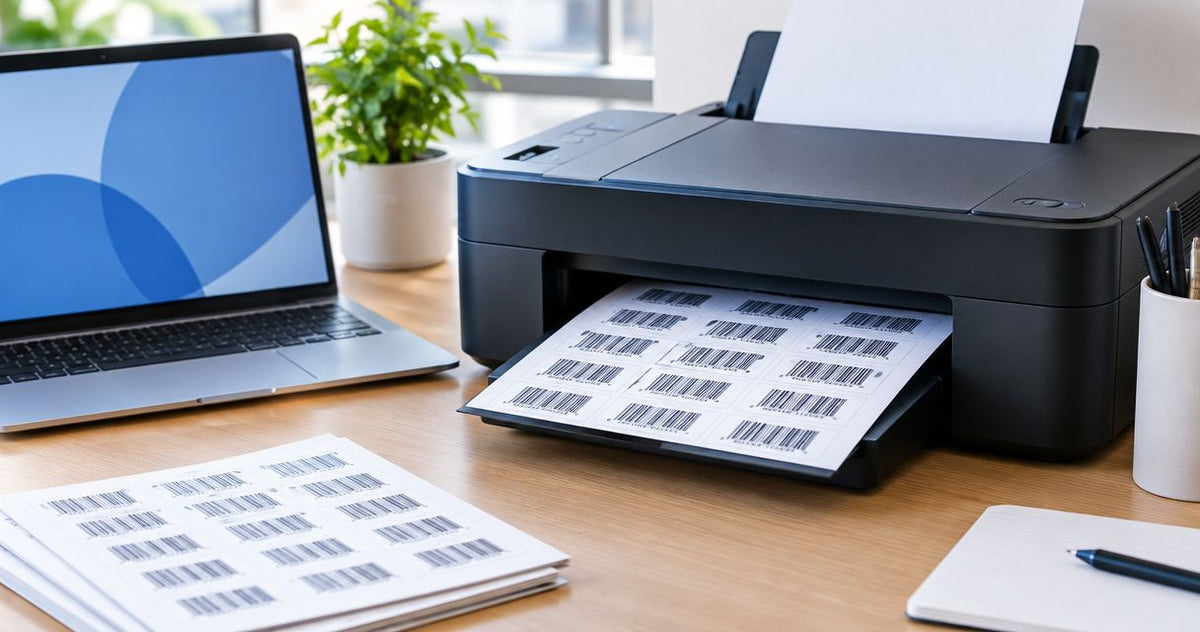
Yes, you can print barcode labels on a regular inkjet printer using inkjet-compatible label sheets, correctly generated barcode artwork, and a layout that preserves the barcode’s dimensions. The main limitation is durability: a readable barcode on fresh paper does not prove that the ink, label surface, and adhesive will withstand the conditions where you use it.
- You can print barcode labels on regular printer equipment when the label sheets support that printer’s printing method.
- Inkjet barcode labels suit occasional indoor labeling; scan the actual printed label before producing a batch.
- Direct thermal printing uses heat-sensitive labels; thermal transfer printing uses a ribbon and compatible label stock.
- McAuley Labels is best for businesses seeking specialized label printers rather than a general-purpose document printer.
Can you print barcode labels on a regular inkjet printer?
An inkjet printer is suitable for occasional barcode labeling when the printed labels pass your scanner and handling tests. You do not need a dedicated barcode printer simply to reproduce a barcode. You need compatible media, accurate artwork, and a scanner that supports the barcode format.
The same principle applies to a regular laser printer, but the label sheets must support laser printing. Inkjet coatings and laser-compatible materials are not interchangeable by default. Check both the label supplier’s instructions and your printer’s media requirements before loading adhesive sheets.
For businesses considering dedicated equipment, McAuley Labels supplies specialized label printers. Choose that route for a label-production requirement, not because an office printer is incapable of printing barcodes.
| Printing option | Best for | Main advantage | Main limitation |
|---|---|---|---|
| Regular inkjet printer | Occasional indoor labels and layouts with color artwork | Uses an existing document printer with compatible sheets | Ink drying, surface compatibility, and sheet alignment need attention |
| Regular laser printer | Office labeling with laser-compatible sheets | Prints barcode artwork without liquid-ink drying | Labels must tolerate the printer’s heated printing process |
| Direct thermal printer | Short-life labels printed individually or in batches | Requires no ink cartridge or ribbon | Heat-sensitive media needs protection from unsuitable exposure |
| Thermal transfer printer | Barcode labels selected for demanding handling conditions | Supports matched ribbon-and-label combinations | Requires a compatible ribbon as well as label stock |
Why this matters
A barcode label has separate jobs: represent the right data, scan correctly, and remain attached and readable. Printing solves only part of the problem. A sharp barcode with the wrong item identifier still sends your staff to the wrong record.
For your 2026 labeling workflow, start with the application rather than the printer category. A temporary box label in a dry office has different requirements from an equipment tag exposed to cleaning chemicals. Specify the surface, handling, exposure, and required service life before choosing media.
Keep your existing inkjet if it meets the job’s requirements. Change the printing system when the current process fails those requirements, not merely because another printer is described as a barcode printer.
How do you print barcode labels with an inkjet printer?
Use this sequence for your 2026 setup. Keep the artwork, template, printer settings, and scanner consistent while you test; changing everything together makes a failed scan harder to diagnose.
Choose compatible sheets
Select adhesive sheets explicitly described as inkjet-compatible. Confirm that your printer supports their thickness, sheet size, and recommended feed path. Do not assume that a synthetic label, metallic label, or thermal label accepts inkjet ink just because it fits in the tray.
For US Letter templates, confirm that both the document and printer use an 8.5 × 11-inch sheet. Match the template to the actual label arrangement, including margins and gaps. A similar-looking template is not a substitute for the correct one.
Generate valid artwork
Create the barcode with software that supports the format your application requires. For internal inventory, confirm the accepted format with your inventory system; for customer or marketplace labels, follow the recipient’s specifications. Do not choose a format solely because it looks compact.
Use barcode-generation software rather than treating every barcode font as ordinary text. Some formats require check digits, start and stop characters, or other encoding rules. Add readable identifier text outside the symbol so staff can identify an item when scanning fails.
Match the template
Place each barcode inside the label boundary with its required blank margins, called quiet zones. Keep logos, text, borders, and neighboring barcodes outside those margins. Quiet-zone requirements depend on the barcode format, so use the generator’s specifications rather than a universal margin guess.
Do not stretch the barcode horizontally to fill spare space. For linear barcodes, changing the relationship between bars and spaces can affect decoding. Generate the symbol at the intended size instead of distorting an image after export.
Print a proof
Print the layout on plain paper first to check placement against an unused label sheet. This catches alignment errors without consuming adhesive stock. Then print a proof on the actual label material, because ordinary paper does not test coating performance or ink behavior.
Select 100% print scale or the equivalent actual-size setting when the template requires it. Disable automatic fit-to-page adjustments that change the intended dimensions. Use the media and quality settings specified for your sheets, rather than assuming the highest setting is always correct.
Scan and inspect
Allow the ink to dry according to the label supplier’s instructions. Scan the printed proof with the scanner used in your workplace, then confirm that the decoded value matches the intended record. A successful beep alone is not enough.
Apply the label to the actual surface and repeat the scan. Check for smearing, lifted edges, glare, and distortion around curves. Approve the batch only after the label works in its installed position.
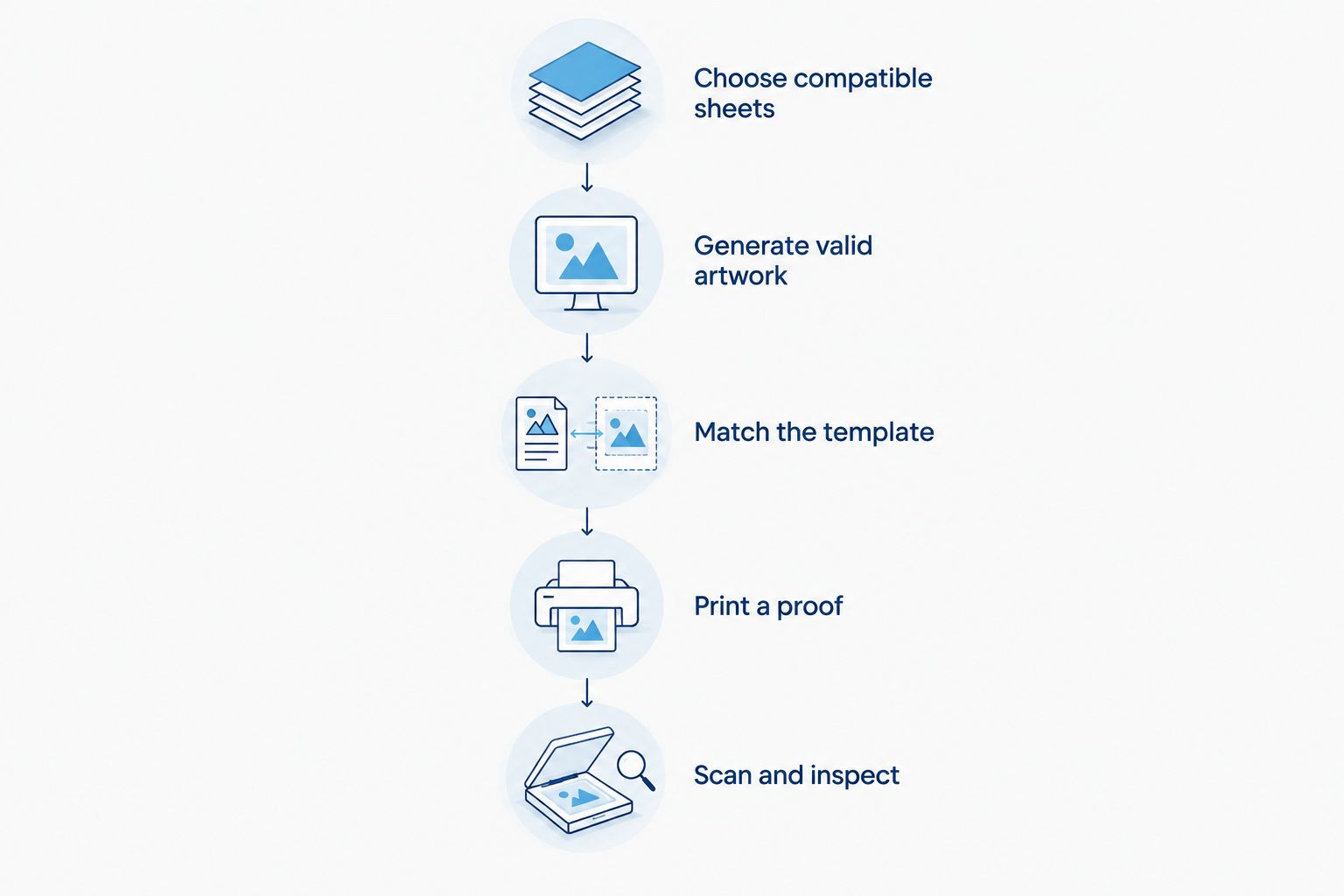
Save the successful template and print settings together. Record which label stock you used, and repeat the proof whenever you change the printer, media, artwork dimensions, or barcode format. A saved template prevents avoidable setup changes; it does not eliminate the need to check output.
Inkjet printing: best for occasional indoor labels
An inkjet printer is a practical starting point when you already have compatible sheets and print labels intermittently. It also accommodates color elements around a barcode. Keep the barcode itself high-contrast and separate from decorative artwork.
The trade-off is the full sheet workflow: alignment, loading, drying, and unused label positions all require attention. Follow the supplier’s instructions before feeding a partially used sheet again. Exposed adhesive or damaged backing is a printer-handling problem, not just a layout problem.
Recommendation: use inkjet for occasional labels that pass your application tests. Do not assign an outdoor or chemical-exposure rating to the finished label without supporting specifications for that ink-and-media combination.
Direct thermal printing: best for short-life labels
Direct thermal printing produces an image on heat-sensitive media without a ribbon. It is useful when you want to print labels as needed rather than arrange them on an office sheet. The label material must be intended for direct thermal printing.
Its limitation is exposure sensitivity. Heat, light, and contact with certain substances can affect direct thermal images, so select and store the media according to its specifications. A direct thermal printer is not automatically the right choice for a permanent equipment identifier.
Recommendation: choose direct thermal for short-life labels whose exposure conditions suit the media. Check the required label width, software support, and printer connections before selecting hardware.
Thermal transfer printing: best for specified durability needs
Thermal transfer printing uses a heated printhead to transfer material from a ribbon onto a compatible label. The ribbon formulation and label surface work together. Buying a thermal transfer printer alone does not establish the finished label’s resistance to water, abrasion, or chemicals.
McAuley Labels offers thermal label printer options, including the GoDEX RT700i+ Thermal Printer, listed with a 4-inch format and 203 dpi resolution. Treat those specifications as selection inputs, not proof that every barcode size or label material will work.
| Thermal transfer item | Best for | Stated specification | Selection caution |
|---|---|---|---|
| GoDEX RT700i+ Thermal Printer | Businesses considering a dedicated thermal label workflow | 4-inch format, 203 dpi, dual thermal printing | Confirm barcode dimensions, media, ribbon, and software requirements |
| Blank Thermal Transfer Labels - Glossy White Polyester - Desktop & Industrial Rolls | Buyers evaluating polyester stock for barcode and equipment labeling | Glossy white polyester thermal transfer labels | Confirm roll dimensions, printer fit, and ribbon compatibility |
For a 2026 equipment-labeling project, ask for the finished print system’s relevant material specifications. The McAuley Labels thermal transfer label description identifies glossy white polyester for barcode and equipment labeling; it does not establish every possible environmental limit. Test the selected ribbon, stock, and applied label together.


Why barcode printing results vary
Printer type matters, but it does not explain every failed scan. Check these factors before replacing equipment:
- Media compatibility: inkjet, laser, direct thermal, and thermal transfer media require different printing methods. Match the label to the process.
- Barcode dimensions: the smallest bars or cells must remain distinct at the printed size. More encoded data can require more space.
- Print scaling: page fitting and image resizing can change the dimensions produced by your barcode generator.
- Contrast and quiet zones: backgrounds, adjacent graphics, or clipped margins interfere with the clear symbol boundary a scanner needs.
- Application surface: curves, glare, wrinkles, and lifted edges change how the scanner sees an otherwise readable print.
- Handling and exposure: rubbing, moisture, heat, light, and cleaning products affect the label according to its material and print specifications.
Troubleshoot in that order: verify compatibility and artwork before adjusting hardware. If a plain-paper barcode scans but its adhesive-sheet equivalent does not, investigate the media and print settings. If neither scans, check the encoded data, barcode format, dimensions, and scanner support.
Do you need a special printer for inventory barcodes?
No special printer is required merely to print an inventory barcode. An office inkjet or laser printer can reproduce valid barcode artwork on compatible sheets. A dedicated label printer changes the media handling and production process, not the basic requirement for correct data.
Choose dedicated equipment when individual labels, repeated jobs, or specific material requirements make sheet printing unsuitable. There is no universal daily label count that forces the change; evaluate your actual workflow.
Will a higher-resolution printer fix a barcode that will not scan?
Higher resolution does not fix incorrect encoding, missing quiet zones, or incompatible scanner settings. A 203 dpi printer and a 300 dpi printer offer different dot densities, but the required resolution depends on the symbol dimensions and application specifications.
Correct the design first. Then assess whether the printer can reproduce the smallest required bars or cells clearly at the intended size.
Can you print a QR code with an inkjet printer?
Yes, an inkjet printer can print a QR code on compatible label sheets. Preserve the square cells, required quiet zone, and contrast, and test the printed label at its actual size.
Use a scanner that supports QR codes. A scanner intended only for linear barcodes will not read a QR code simply because the print is sharp.
FAQ
Can I print barcode labels on regular printer paper?
Yes, regular printer paper can carry a scannable barcode when the artwork and print quality are correct. Paper is useful for proofs, but it does not replace an adhesive label or demonstrate durability after application.
What label sheets should I use in an inkjet printer?
Use sheets explicitly specified for inkjet printing and supported by your printer’s media instructions. Match the sheet size and label arrangement to the template, and follow the supplier’s drying instructions.
Why does my barcode look sharp but fail to scan?
A sharp-looking barcode can fail because of incorrect encoding, inadequate quiet zones, unsuitable dimensions, or unsupported scanner settings. Check the decoded data and application requirements rather than judging the symbol by appearance alone.
Should I print barcode labels at actual size?
Use 100% print scale when the barcode layout and label template specify actual-size printing. Avoid automatic page fitting that changes the intended barcode dimensions or sheet alignment.
Are inkjet barcode labels waterproof?
Inkjet barcode labels are not automatically waterproof. Water resistance depends on the ink, printable coating, label material, and finished combination’s specifications.
Is thermal printing better than inkjet for barcode labels?
Thermal printing is better suited to dedicated roll-label workflows, while inkjet suits occasional compatible-sheet printing. Direct thermal media has exposure limitations, and thermal transfer requires a matched ribbon and label.
Does a barcode that scans meet every labeling requirement in 2026?
A successful scan does not establish compliance with every labeling requirement in 2026. Follow the recipient’s specifications and any applicable verification requirements; an ordinary scanner is not a barcode verifier.
One last thing
Check what the barcode returns, not just whether it scans. Leading zeros, duplicated identifiers, and mismatched records deserve the same attention as print sharpness. Open the resulting item record before approving your 2026 template.
For a McAuley Labels barcode printer project, make that decoded-value check part of the same approval process as media compatibility and applied-label testing. A readable label is useful only when it identifies the right thing.