
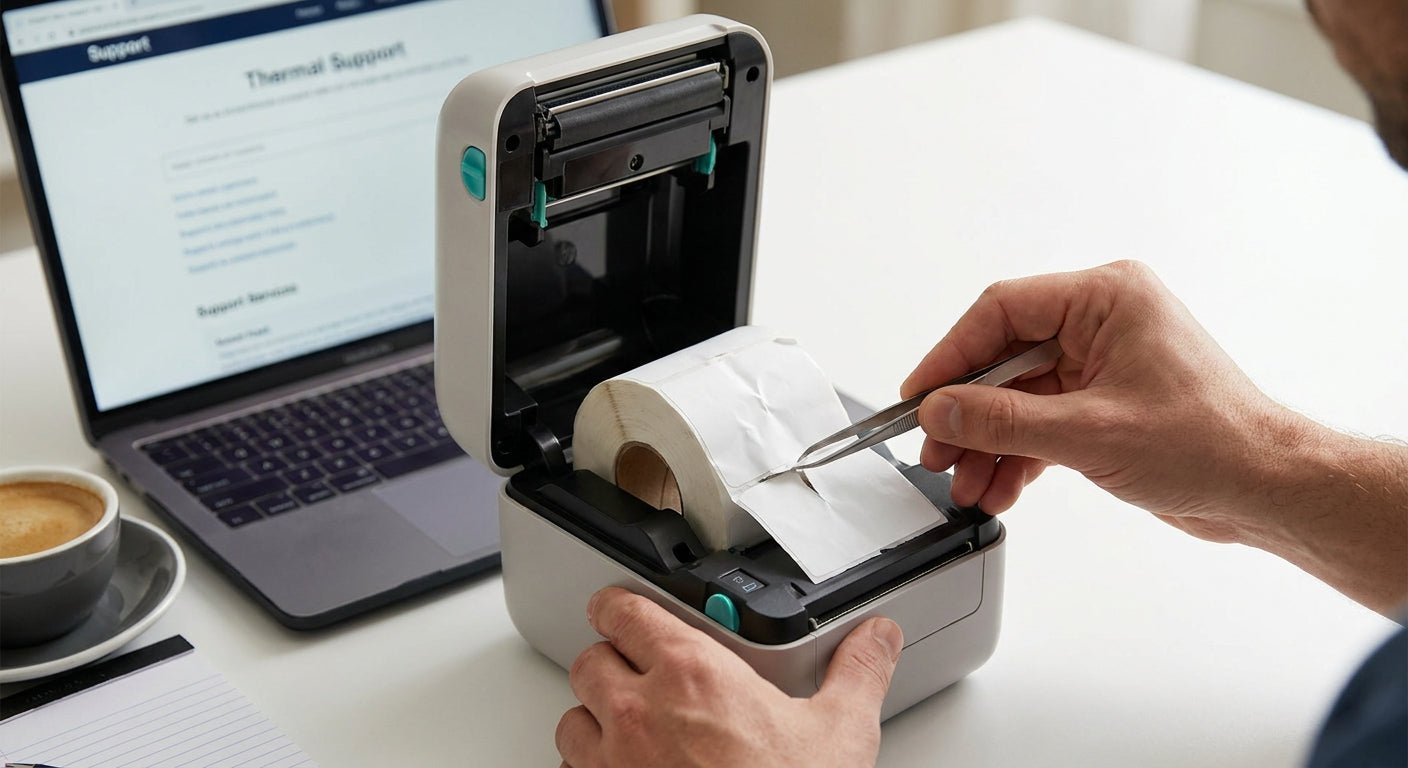
A label printer that won't feed labels almost always traces back to one of four causes: a miscalibrated gap sensor, worn feed rollers, the wrong media gap setting, or ribbon tension fighting the label stock — and you can isolate which one in under 10 minutes without opening a support ticket.
- Recalibrate the gap sensor first — most label printer not feeding labels cases trace to sensor drift, not broken parts.
- Feed rollers slip after 12-18 months of daily use; clean with isopropyl alcohol before ordering replacements.
- Thermal transfer printers jam differently than direct thermal models — check ribbon tension before touching the rollers.
- GoDEX printers recalibrate through GoLabel software in under five minutes once the sensor position is correct.
Why this matters
A jammed or non-feeding printer stops a shop cold. Oil change counters, warehouse dock stations, and asset-tagging teams all run on the assumption that pressing print produces a label — when it doesn't, the backup is a manual log and a slower line.
Most feed failures in 2026 aren't hardware failures. They're calibration drift, dust buildup on rollers, or someone loading the wrong label gap setting after a stock change. Chasing a replacement part before ruling out the five-minute fixes wastes money and downtime. The GoDEX printer troubleshooting guide covers a wider set of GoDEX-specific error codes if the steps below don't resolve your issue.
What you'll need
- A lint-free cloth and isopropyl alcohol (90%+) for roller and sensor cleaning
- The label roll currently loaded, plus a spare roll of the same width and gap type
- A small flathead screwdriver for tension adjustment on thermal transfer models
- GoLabel or your printer's native software installed on a connected computer
- 10-15 minutes with the printer powered on and unlocked
- If you're running thermal transfer, confirm you're using thermal transfer ribbon rated for your label stock — wax/resin ribbon on the wrong backing is a common feed cause
The steps
1. Open the printhead and check the label path
Lift the printhead lever and trace the label from the roll to the exit slot. Look for a bent guide bar or a label edge caught under the platen roller. This takes 30 seconds and rules out the simplest cause before you touch settings.
Common mistake: reseating the roll without checking if the label edge is square. A skewed roll feeds crooked even after every other fix.
2. Clean the feed rollers and gap sensor
Use isopropyl alcohol on a lint-free cloth to wipe the black rubber platen roller and the small sensor window near the printhead. Adhesive residue on the sensor is the single most common reason a printer stops detecting label gaps. A film of dried adhesive as thin as a coat of paint can block the sensor's read.
Expected outcome: the roller surface should feel tacky, not slick, and the sensor window should be clear glass or plastic with no haze.
3. Recalibrate the gap sensor
Run the calibration routine through GoLabel or the printer's front panel menu — feed 2-3 labels through in test mode and confirm the printer stops exactly at each gap. A guide on how to calibrate a thermal label printer walks through the exact menu sequence for GoDEX models.
Common mistake: skipping calibration after switching label stock. Different gap widths and label lengths require a fresh calibration every time, not just once at setup.
4. Check ribbon tension on thermal transfer models
If you're running thermal transfer instead of direct thermal, uneven ribbon tension pulls the label sideways or stalls the feed entirely. Loosen the supply-side tension screw a quarter turn if the ribbon feels tight against the take-up spool.
Expected outcome: the ribbon should feed smoothly with a slight wrinkle-free tension, not pulled taut.
5. Inspect the media gap setting in software
Open your print job settings and confirm the label gap and label length match the physical roll loaded — a mismatch between a 1-inch gap setting and a 0.125-inch actual gap causes the printer to feed multiple labels or none at all. This single setting error accounts for a large share of feed complaints on new label stock.
Common mistake: reusing a saved print profile from a previous label size without updating the gap value.
6. Replace the feed roller if slipping continues
If the roller surface is glazed smooth after cleaning — a sign of wear typical after 12-18 months of daily printing — replacement is the only remaining fix. A slipping roller shows up as labels feeding partway and stopping, or feeding at an angle even with a clean sensor and correct calibration.
Expected outcome: a new or re-surfaced roller grips the label stock evenly across its full width.
Troubleshooting
Printer feeds one label then stops entirely. The gap sensor likely isn't detecting the next gap. Recalibrate per Step 3 and confirm the sensor window is clean.
Labels feed crooked or at an angle. Check that the roll guide is snug against the edge of the label roll — a loose guide lets the roll shift sideways as it unwinds.
Printer pulls labels but nothing prints. This is a printhead or ribbon issue, not a feed issue — check ribbon installation direction and printhead pressure separately.
Feed works on direct thermal labels but fails with thermal transfer ribbon loaded. Ribbon tension is fighting the label backing. Loosen tension per Step 4 before assuming the printer itself is faulty.
Printer feeds fine at startup, then jams after 50-100 labels. Adhesive buildup accumulates gradually. Clean the roller and sensor every 250-500 labels as routine maintenance, not just as a fix.
Calibration completes but the printer still misreads gaps. The label stock itself may have an inconsistent gap width from a bad print run — test with a known-good roll before troubleshooting the printer further.
Tools and resources
- GoLabel software for calibration, media setup, and print job configuration
- Isopropyl alcohol and lint-free cloths for roller and sensor maintenance
- A spare roll of your standard label stock to isolate stock-related jams from printer-related jams
- Guide: calibrate a GoDEX printer for label alignment for a deeper walkthrough of alignment-specific settings
What to do next
If cleaning, calibration, and tension adjustment don't resolve the jam, the roller or sensor assembly likely needs replacement — check with your printer's support documentation before ordering parts. For shops still running a printer older than 2020, upgrading to a current-generation model like the GoDEX RT200i thermal printer resolves feed reliability issues that come from years of roller wear rather than a fixable fault.


FAQ
Why is my label printer not feeding labels at all?
A label printer that won't feed labels usually has a miscalibrated gap sensor or a blocked sensor window from adhesive residue. Clean the sensor and roller, then run the calibration routine before assuming a part is broken.
How do I recalibrate a thermal label printer?
Open the label calibration menu in GoLabel or the printer's front panel and feed 2-3 test labels to confirm the sensor reads each gap correctly. Recalibration takes under five minutes and should be repeated any time you switch label stock.
Is a feed roller supposed to be replaced regularly?
Feed rollers typically wear down after 12-18 months of daily printing, showing up as a glazed, slick surface instead of a tacky grip. Cleaning with isopropyl alcohol restores grip temporarily, but a glazed roller needs replacement.
What causes labels to feed crooked?
Crooked feed almost always means the roll guide isn't snug against the label roll edge, letting the roll shift as it unwinds. Tightening the guide against the roll edge fixes most skew issues immediately.
Do direct thermal and thermal transfer printers jam for different reasons?
Yes — direct thermal jams trace mostly to sensor and roller issues, while thermal transfer jams often come from ribbon tension fighting the label backing. Check ribbon tension separately before troubleshooting the roller on transfer models.
How much does it cost to fix a label printer feed problem?
Most feed problems cost nothing to fix beyond isopropyl alcohol and 10 minutes of calibration time. A roller replacement, when needed, is the only real parts cost, and it's far cheaper than replacing the printer.
Why does my printer feed fine at first, then jam after a stack of labels?
Adhesive buildup on the roller and sensor accumulates gradually with each label printed. Clean both every 250-500 labels as routine maintenance rather than waiting for a full jam.
One last thing
The fix most shops skip isn't cleaning or calibration — it's re-calibrating after every label stock change, not just at first setup. A printer running fine on 4x6 shipping stock will misread gaps the moment you swap to a narrower asset tag roll with a different gap width, and that single missed step is behind more service calls than any worn part in 2026.