
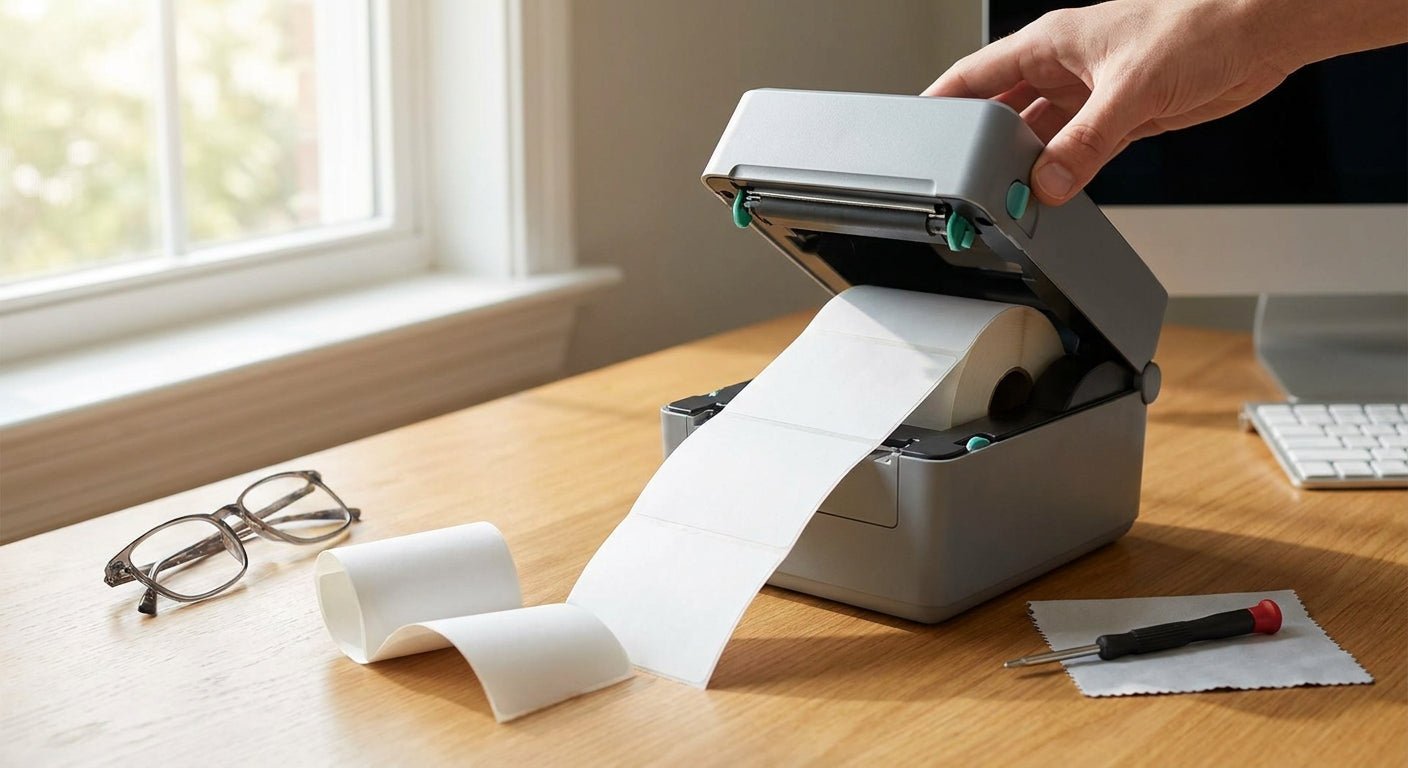
A thermal printer printing blank labels almost never means the printer is broken. It means the ribbon, the label orientation, or the heat setting isn't doing its job — and all three take under 15 minutes to check.
- A thermal printer printing blank labels is usually a ribbon or orientation issue, not a hardware failure.
- Thermal transfer ribbon loaded ink-side-in is the single most common cause of blank output in 2026 service calls.
- Direct thermal labels print blank if the coated side faces down against the platen roller.
- Darkness set below 15 on a 0-30 scale under-melts the ribbon wax and leaves labels empty.
- If cleaning the printhead with isopropyl alcohol doesn't restore print, the printhead element is worn and needs replacing.
Why this matters
A blank label run stops a shipping station, an oil change bay, or a warehouse pick line cold. Most operators assume the printer died and start pricing a replacement, when the fix is a $9 ribbon reload or a five-second darkness adjustment.
Before you call it a hardware failure, work through the mechanical and settings checks below in order. Print method mismatches and ribbon orientation errors account for the overwhelming majority of blank-label tickets on both GoDEX and Zebra-class printers in 2026.
What you'll need
- A lint-free cloth and 90%+ isopropyl alcohol
- The label roll currently loaded in the printer
- A thermal transfer ribbon if your printer uses one (skip this if you're running direct thermal)
- Access to your printer's driver settings or GoLabel software
- 10-15 minutes and one test label
The steps
1. Confirm your print method matches your media
Direct thermal printers use heat-sensitive label stock with no ribbon. Thermal transfer printers burn ink off a ribbon onto plain label stock. Load the wrong media for the printer's mode and you get a printer that runs fine but leaves labels completely blank.
Check the label packaging or the printer's driver settings for "print method." If you're unsure which type you're running, the difference between direct thermal vs thermal transfer printing comes down to whether a ribbon spool is loaded at all. Common mistake: switching label stock without switching the driver's print method setting to match.
2. Check ribbon orientation and ink-side
If you're on thermal transfer, pull the ribbon and look at which side is coated. Ribbon loaded ink-side-in — facing the take-up spool instead of the label — transfers nothing. The printer feeds normally, the ribbon advances normally, and every label comes out blank.
A standard McAuley thermal transfer ribbon runs 2.25" x 243' on a 1/2" core; reload it so the dull, waxy side faces the label stock, not the printhead housing. Common mistake: reinstalling a ribbon backward after a routine media change — it happens more than any other cause on this list.
3. Check label coating orientation
On direct thermal printers, the heat-sensitive coating has to face up, against the printhead — not down against the platen roller. Labels loaded coating-side-down feed and cut correctly but never react to heat, so they come out blank every time.
Run your thumbnail lightly across the label surface. The coated side scratches into a faint gray mark; the uncoated back stays white. If the roll is backward, flip it and reload.
4. Clean the printhead
A printhead coated in adhesive residue or paper dust won't transfer heat evenly, which shows up as partial or fully blank labels. Power down the printer, open the head assembly, and wipe the printhead strip with a lint-free cloth dampened in 90%+ isopropyl alcohol.
Let it dry for 60 seconds before closing the head. Common mistake: using a paper towel instead of a lint-free cloth — fibers stick to the head and cause new streaking.
5. Raise the darkness/heat setting
Most thermal printers run a darkness scale from 0 to 30. Anything under 15 often isn't enough heat to melt the ribbon wax or activate direct thermal coating, especially on labels rated for higher heat thresholds.
Bump the setting up in increments of 2-3 and run a test label after each change. Stop once the print is fully dark and crisp — pushing it too high just burns through ribbon and printheads faster.
6. Recalibrate the sensor
A gap or black-mark sensor that's lost calibration can misread label position, causing the printer to fire heat between labels instead of on them. This looks identical to a blank-label problem but is a calibration issue, not a ribbon or heat problem.
Run the printer's auto-calibration routine, then confirm the sensor position lines up with the label gap. Full steps to calibrate a thermal label printer walk through sensor placement for gap, black-mark, and continuous stock.
7. Test print and confirm
Run 5-10 test labels after each fix above rather than one. A single good label after a fix can be a fluke; five consecutive clean prints confirms the issue is resolved.
If labels are still blank after all six checks, the printhead element itself has likely failed and needs replacement — that's a hardware issue, not a settings one.
“If the ribbon feeds but the label stays blank, the printhead isn't the problem — the ribbon orientation is.”


Troubleshooting
Every other label prints blank, not all of them. Ribbon is wrinkling mid-roll from uneven tension. Reseat the ribbon spools and check that both the supply and take-up sides spin freely.
Labels went blank right after a driver update. The update likely reset the print method to a default that doesn't match your media. Reopen the driver settings and reconfirm direct thermal vs. thermal transfer mode.
Blank labels only show up at high print speed. Speed exceeding the ribbon's transfer rate leaves ink on the ribbon instead of the label. Drop the print speed by 2 IPS and retest.
A brand-new ribbon still prints blank. Confirm the ribbon width and core size match your printer's spec — a ribbon narrower than the label or on the wrong core diameter won't transfer evenly even when loaded correctly.
Print looks fine on one side of the label, blank on the other. Printhead pressure is uneven. Check the head-lock levers on both sides are engaged equally.
Test labels print but production labels don't. The two rolls likely aren't the same coating grade or heat threshold — mixing label brands mid-job is a common trigger in 2026 print environments running multiple SKUs.
Tools and resources
- The GoDEX printer troubleshooting guide covers feed errors, alignment, and connectivity issues beyond blank output
- GoLabel software settings control darkness, speed, and print method on GoDEX models
- A spare ribbon roll on hand avoids downtime when a ribbon fails mid-shift
- Isopropyl alcohol wipes rated for printhead cleaning, not general electronics cleaner
What to do next
If your labels print but look streaky, faded, or patchy instead of fully blank, that's a different fix. Check why thermal prints come out faded or blurry before assuming you need a new printhead.
FAQ
What's the most common reason a thermal printer prints blank labels?
Ribbon loaded ink-side-in is the most common cause on thermal transfer printers in 2026. The ribbon feeds normally but never contacts the label with the coated side, so nothing transfers.
Is a blank label problem always the ribbon?
No. Direct thermal printers have no ribbon, so blank labels there usually mean the coated side of the label is loaded backward or the darkness setting is too low.
How do I know if I'm using direct thermal or thermal transfer labels?
Scratch the label surface with a fingernail. Direct thermal stock turns gray or black from the friction heat; thermal transfer stock shows no mark because it needs ribbon ink, not heat alone, to print.
What darkness setting should I use on a GoDEX printer?
Start at 15 on the 0-30 scale and raise it in steps of 2-3 until the print is fully dark. Most standard label stock prints clean between 18 and 24.
Can a dirty printhead cause blank labels?
Yes. Adhesive residue and paper dust build up on the printhead strip and block heat transfer, producing partial or fully blank output until the head is cleaned with isopropyl alcohol.
How often should I clean a thermal printhead?
Clean it every time you change a ribbon or label roll, and at minimum every 2-3 rolls in high-volume settings. Skipping cleaning is the fastest way to shorten printhead life.
Why does my new ribbon still print blank labels?
Check the ribbon width and core size against your printer's spec sheet. A ribbon on the wrong core diameter or narrower than the label won't seat against the printhead correctly even when the ink side is facing the right direction.
Is it cheaper to replace the printhead or the printer?
A replacement printhead typically costs a fraction of a new printer. Replace the printhead first unless the printer is also failing to feed, calibrate, or connect — those point to a broader mechanical issue.
One last thing
Most blank-label service calls trace back to one thing: the ribbon reloaded backward after a routine media swap. Before you touch the darkness setting or clean anything, pull the ribbon and check which side faces the label — it takes 10 seconds and fixes the problem more often than every other step combined.