
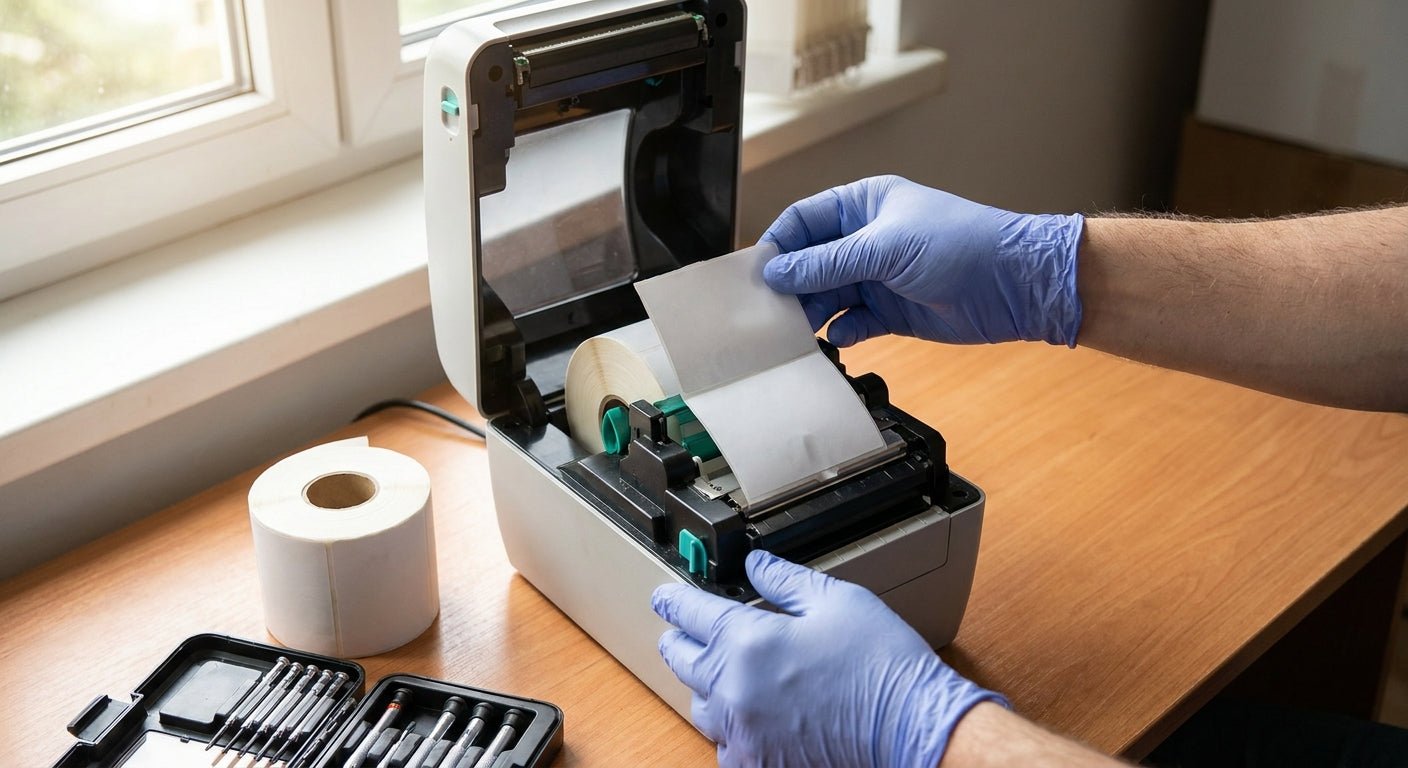
Double-feeding labels waste ribbon, waste stock, and stall production lines every time an operator has to hand-feed the machine back on track. This guide walks through the exact fix sequence for a thermal printer double feeding labels, from sensor calibration to media swap, so you stop losing labels to a bad gap read.
- Double-feeding almost always traces to a miscalibrated gap or black-mark sensor, not the printer driver.
- Recalibrating sensor and reloading media in the correct orientation fixes it in under 10 minutes on most GoDEX models.
- Die-cut labels on the wrong sensor mode cause repeat double-feeds even after a fresh calibration.
- If double-feeding persists after two calibration attempts in 2026, the gap sensor itself likely needs cleaning or replacement.
Why this matters
A thermal printer that double-feeds labels burns through stock fast — every skipped label is wasted material and wasted print time, and on a busy shipping bench or oil-change counter that adds up to real dollars by the end of the week. Left unaddressed, the same misread that causes double-feeding usually escalates into skewed print alignment and torn label backing, which shortens the life of the print head. McAuley Labels sees this issue most often on printers running mixed batches of die-cut and continuous stock without a recalibration between rolls, and the fix is mechanical, not software, in the overwhelming majority of cases. Before you call for a label printer that won't feed labels service ticket, run through the steps below — they resolve double-feeding on GoDEX and comparable direct thermal and thermal transfer printers without opening the case.
What you'll need
- 5 minutes of downtime on the printer
- A test roll of the exact label stock you run daily (die-cut or continuous — know which)
- A lint-free cloth and isopropyl alcohol (90%+) for the sensor
- Access to the printer's calibration button or GoLabel/driver software
- A flashlight, if the gap sensor sits under the platen roller
The steps
1. Confirm it's actually double-feeding, not double-printing
Watch one full print cycle. If the printer advances two labels but only prints on one, that's a feed/calibration issue. If it prints the same job twice on two separate labels, that's a software or driver queue problem instead. This distinction saves you from chasing the wrong fix — most support calls escalate because someone assumes a driver bug when the sensor is misreading gaps.
2. Recalibrate the gap or black-mark sensor
Open the printer cover, feed 3-4 labels through manually so the sensor sees at least one full gap, then run the calibration sequence from the front panel or the driver utility. On GoDEX printers this is a dedicated "Feed" and "Calibrate" button combo held for 2-3 seconds. A printer running die-cut labels but calibrated in continuous mode will consistently skip and double-feed, because it never registers where one label ends and the next begins. Full instructions for the calibration sequence live in the guide on how to calibrate a thermal label printer. Expected outcome: the printer should stop and print squarely on the next label after calibration, not two labels later.
3. Clean the sensor eye
Dust and adhesive residue on the gap sensor is the single most common cause of intermittent double-feeding — it doesn't fail every time, which is what makes it maddening to diagnose. Power down, locate the small sensor window (usually a few millimeters wide, positioned under the label path near the platen), and wipe it with isopropyl alcohol on a lint-free cloth. Let it dry fully for 60 seconds before powering back on. Common mistake: using a paper towel, which leaves fibers that re-contaminate the sensor within a day.
4. Check label stock orientation and gap size
Labels loaded backward, or stock with a gap under roughly 2mm, will confuse the sensor even after a clean calibration. Verify the shiny liner faces down and the label gap sits directly over the sensor window when the roll is threaded. If you switched suppliers recently, the new stock's gap or black-mark spacing may not match your last calibration profile at all.
5. Reset media type in the driver
If you swapped from die-cut labels to continuous roll stock (or the reverse) and left the driver on the old media type, the printer will feed based on the wrong parameter and double-feed as a result. Open the printer driver or GoLabel, confirm Media Type matches what's physically loaded, then send a test print of 3 labels. Expected result: three clean, single-advance prints with no skipped stock.
6. Inspect the platen roller for wear or slippage
A worn or glazed platen roller loses grip and lets the label slide during the sensor read window, which the printer misinterprets as a longer label than it is. Roll a finger across the platen — it should feel slightly tacky, not slick or glossy. Replacement rollers exist for most GoDEX models; a service tech can swap one in under 15 minutes.
7. Run a full calibration reset if the problem persists
Some printers hold onto a bad calibration profile even after you clean the sensor and reload stock correctly. A factory or full calibration reset — different from the quick gap calibration in step 2 — clears stored sensor thresholds entirely. Check the GoDEX printer troubleshooting guide for the reset sequence specific to your model before assuming hardware failure.
“If the printer feeds two labels for every one print job, you have a gap-sensor problem, not a driver problem.”
When it's time to consider a different printer
Older direct thermal printers with fixed, non-adjustable sensors struggle with mixed label stock — if your shop runs both oil change stickers and inventory tags on the same machine, sensor drift between jobs becomes a recurring headache. The GoDEX RT730i thermal printer uses an adjustable gap/black-mark sensor built for switching stock types without a full recalibration cycle every time, which is the practical fix for shops that double-feed every time they change label rolls.


Troubleshooting specific double-feed patterns
- Feeds two labels only on the first job after power-on: sensor needs re-calibration after every cold start — check the auto-calibrate-on-power setting in the driver.
- Double-feeds only with new label rolls, not the current roll: the new stock's gap size or liner color differs from what the last calibration expects; recalibrate per roll change.
- Prints fine, but feeds an extra blank label at the end of every batch: often a driver setting sending an extra form-feed command — check the print job's label count against the queue.
- Double-feeds with ribbon-based labels but not direct thermal stock: ribbon tension can drag the label past the sensor window; check ribbon is threaded correctly and not loose.
- Sensor light stays solid instead of blinking during calibration: sensor is likely dirty or the wrong sensor mode (gap vs. black-mark) is selected for your stock.
- Double-feeding returns within a day of fixing it: adhesive buildup on the sensor from label backing dust — clean weekly if you're running high volume in 2026.
Tools and resources
- Calibrate a thermal label printer — full calibration walkthrough by model type
- Thermal transfer ribbon — 2.25" x 243' wax/resin ribbon, correct tension prevents drag-related misfeeds
- Isopropyl alcohol (90%+) and lint-free wipes for sensor cleaning
- GoLabel software or your printer's native driver for media-type and calibration settings
What to do next
If double-feeding continues after cleaning the sensor, recalibrating, and confirming media type, the issue is almost certainly mechanical wear in the platen roller or sensor housing rather than anything a setting can fix. Read the full GoDEX printer troubleshooting guide for a deeper diagnostic path, including print-head and roller replacement thresholds.
FAQ
What causes a thermal printer to double-feed labels?
A miscalibrated gap or black-mark sensor is the most common cause of a thermal printer double feeding labels. Dirty sensors, worn platen rollers, and wrong media-type settings in the driver are the next most frequent causes.
How do I recalibrate a thermal printer's label sensor?
Feed 3-4 labels through manually so the sensor reads a full gap, then run the printer's calibration sequence from the front panel or driver software. On most GoDEX models this takes under a minute and should be repeated whenever you switch label stock.
Is double-feeding a driver problem or a hardware problem?
It's almost always hardware — specifically the gap sensor, platen roller, or media orientation. Driver issues cause the same job to print twice on separate labels, which is a different symptom.
Can dirty labels cause double-feeding?
Yes. Adhesive residue and dust buildup on the sensor window block an accurate gap read, which makes the printer feed past the correct stop point. Cleaning the sensor with isopropyl alcohol resolves this in most cases.
Why does my printer only double-feed with new label rolls?
New stock often has a different gap size or liner color than what your last calibration profile expects. Recalibrate every time you load a new roll type, not just a new roll of the same stock.
Does switching between die-cut and continuous labels cause feed problems?
Yes, if the driver's media-type setting isn't updated to match. Die-cut and continuous stock use different sensor modes, and leaving the wrong mode selected causes consistent double-feeding.
How often should I clean my thermal printer's sensor?
Weekly for high-volume shops running more than a few hundred labels a day; monthly for lighter use. Label backing dust accumulates faster than most operators expect, especially in 2026-era high-speed print jobs.
Should I replace my printer if double-feeding won't stop?
Only after ruling out sensor cleaning, calibration, and platen wear. If those don't resolve it, a printer with an adjustable gap/black-mark sensor built for mixed stock types, like the GoDEX RT730i, avoids the recurring recalibration cycle that causes most double-feed complaints.
One last thing
Most shops that call about double-feeding have never run a full calibration reset — they've only power-cycled the printer, which does nothing to clear a bad sensor threshold. Run the reset in step 7 before assuming you need new hardware; it solves the problem more often than a sensor swap does.