
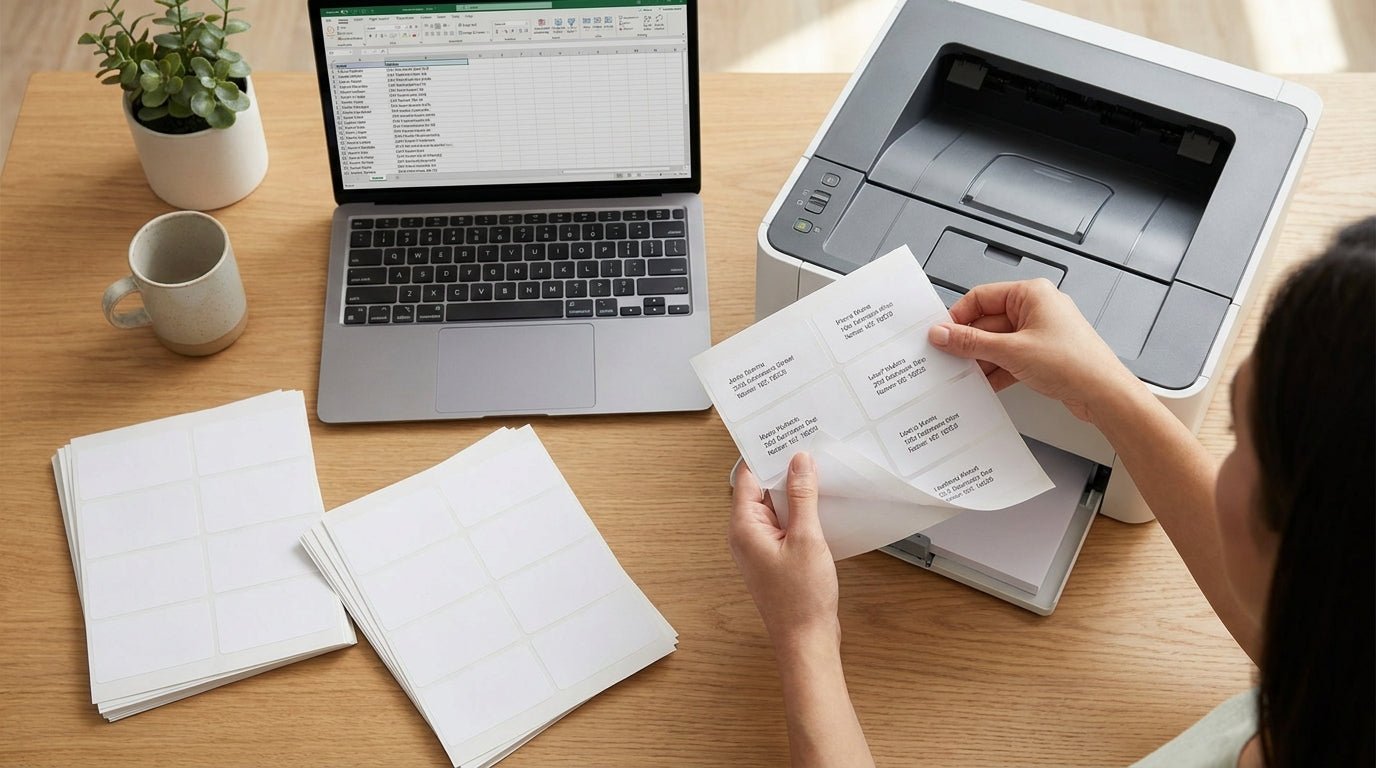
Printing address labels in bulk from a spreadsheet turns a column of names and street addresses into hundreds or thousands of ready-to-apply labels without retyping a single line — the right method depends on whether you're running 50 labels a month or 5,000.
- Mail merge from Excel or Google Sheets into a label template still works on any inkjet, laser, or thermal printer in 2026.
- A GoDEX G500 thermal printer paired with GoLabel software prints 1,000+ address labels per batch without ribbon changes or sheet jams.
- Blank cells and mismatched column headers cause most skipped or blank labels — clean the spreadsheet before you merge, not after.
- Direct thermal label stock skips ribbon costs for standard address labels; save thermal transfer for labels that need to survive weather or years of handling.
Why this matters
A spreadsheet with 300 rows and a label template that holds 30 labels per sheet is a math problem before it's a printing problem. Get the row-to-label mapping wrong and you print ten sheets of misaligned text before anyone notices.
Most small operations run this through Word's mail merge feature into a laser or inkjet printer, and that works fine below a few hundred labels a month. Past that volume, ribbon costs, paper jams, and per-sheet load times start eating the afternoon.
That's the point where a dedicated label printer running database-connected software like GoLabel label design software pays for itself — it pulls rows straight from a CSV or a live spreadsheet and prints continuously instead of sheet by sheet. As of 2026, both paths are viable. Volume and label material decide which one is faster for your batch.
What you'll need
- A spreadsheet with clean columns: First Name, Last Name, Street Address, City, State, ZIP — one row per recipient
- A label template sized to your stock (1" x 2.625" is the standard 30-per-sheet address label; roll labels vary by printer)
- Mail merge software (Word, Google Docs with an add-on) or dedicated label design software for a thermal printer
- A printer: inkjet or laser for sheet labels, or a direct thermal / thermal transfer printer for roll labels at higher volume
- Label stock matched to the print method — sheet labels for laser/inkjet, roll stock for thermal printers
- 15 to 30 minutes for first-time setup; repeat batches after that run in under 5 minutes
The steps
1. Clean the spreadsheet before anything else
Mail merge and label software both skip or misprint rows with blank required fields. Standardize your columns, remove blank rows, and split any combined "Full Address" cell into separate Street, City, State, and ZIP columns.
Name each column exactly what the merge field expects — Address1, City, State, Zip — and delete trailing blank rows past your last real entry. Common mistake: a stray "Notes" column sitting next to the ZIP column, which drags extra text onto the label.
2. Export or save the file as CSV
Most label software and Word's mail merge read CSV more reliably than native .xlsx files, especially with punctuation in names. Use File > Save As > CSV UTF-8 to keep apostrophes and accented characters intact.
Common mistake: saving as plain CSV instead of CSV UTF-8, which turns "O'Brien" into garbled characters on the printed label.
3. Pick your print path based on volume
Under a few hundred labels, Word or Google Docs mail merge onto sheet labels on an inkjet or laser printer gets the job done. Past a few hundred, a dedicated thermal printer changes the math entirely.
A 1,000-row spreadsheet on sheet labels means loading roughly 33 sheets one at a time. The same 1,000 rows on a GoDEX G500 thermal printer running GoLabel print as one continuous batch off a roll, with no per-sheet reload.
4. Build or select the label template
Match the template to your physical stock. Standard address label sheets run 1" x 2.625" at 30 per page. Roll labels for thermal printers commonly run 2"x1" or 4"x2", depending on the printer's head width and the stock you've loaded.
Getting this wrong doesn't throw an error — it just prints text that runs off the edge of every label in the batch.
5. Map columns to label fields and run a test print
Before committing to the full run, print one test sheet or one test label. Check that ZIP codes with a leading zero haven't dropped a digit — Excel treats ZIP as a number by default, not text, and silently strips the zero.
Common mistake: skipping the preview and printing 500 labels with a dropped ZIP digit on every one of them.
6. Load stock correctly and run the batch
Most thermal printer jams come from a gap sensor that isn't aligned to the die-cut on the label stock, not from a software problem. Load ribbon only if you're running thermal transfer labels — direct thermal stock needs no ribbon at all, and installing one anyway does nothing but drain the printer's ribbon estimate.
For polyester or long-durability label runs, use thermal transfer ribbon matched to your stock width. Once the sensor is aligned, the batch runs at the printer's rated speed without manual reloads.
Troubleshooting
- Labels print blank or skip rows — a blank cell sits in a required merge field. Check for empty rows above your last real entry before re-running.
- Text runs off the edge of the label — the template size doesn't match the physical label dimensions. Confirm width and height before printing another batch.
- ZIP codes show 4 digits instead of 5 — Excel stripped the leading zero. Reformat the ZIP column as text before exporting to CSV.
- Print looks faded or streaky on a thermal printer — darkness setting is too low or the printhead needs cleaning. Recalibrate before you replace label stock; see calibrate a thermal label printer for the exact steps.
- Labels misalign row to row — the software's label count per sheet doesn't match your actual stock (30 vs. 21, for example). Confirm the labels-per-sheet count on the product before merging.
- Special characters print as boxes or question marks — the file wasn't saved as CSV UTF-8. Re-export and re-import.
“If your mail merge skips a row, the spreadsheet has a blank cell in the merge field — fix the data, not the template.”
Tools and resources
- Spreadsheet software (Excel, Google Sheets) with clean, single-purpose column headers
- Mail merge feature in Word or Google Docs for lower-volume sheet-label runs
- GoLabel label design software for CSV or live database imports on a thermal printer
- A thermal printer sized to your volume — daily address-label runs are what a GoDEX G500 thermal printer is built for
- Thermal transfer ribbon if you're printing on polyester or need labels to survive years of handling
- Label stock matched to your printer type and durability need


What to do next
The same CSV import workflow covers barcode inventory tags, oil change reminders, and shipping labels, not just mailing addresses. The spreadsheet cleanup and the software steps stay identical — only the label template and stock size change.
FAQ
What's the best way to print address labels in bulk from Excel?
Mail merge from Excel into Word or Google Docs handles low-volume runs on a laser or inkjet printer, but a thermal printer running GoLabel software prints faster once you're past a few hundred labels. Both read a cleaned CSV export the same way.
Can I print address labels from a Google Sheets file?
Yes, Google Sheets exports to CSV the same way Excel does, and Google Docs has a mail merge add-on for label sheets. For thermal printers, export the sheet as CSV and import it into GoLabel.
Do I need special software to mail merge address labels?
Word and Google Docs both handle mail merge natively with an add-on for sheet labels. For a dedicated thermal printer, label design software like GoLabel imports the CSV and maps fields directly.
What size are standard address labels?
Standard sheet address labels are 1 inch by 2.625 inches, 30 per page. Roll labels for thermal printers run in sizes like 2x1 or 4x2 depending on the printer's head width and the stock loaded.
Can a thermal printer print address labels from a spreadsheet?
Yes, a direct thermal or thermal transfer printer running database-connected software imports a CSV or live spreadsheet and prints continuously off a roll. This is faster than sheet-by-sheet mail merge once volume passes a few hundred labels.
How many address labels fit on one roll?
Roll count depends on label size and roll diameter, and varies by product. Sheet-based address labels run 30 per page regardless of roll versus sheet format.
Why do some labels skip or print blank during a mail merge?
A blank cell in a required merge field is the most common cause. Check every row above your last real entry for empty Street, City, State, or ZIP cells before re-running the batch.
Is thermal printing cheaper than inkjet for bulk address labels?
Direct thermal printing skips ink and ribbon costs entirely for standard address labels, since the image burns directly into heat-sensitive paper. Inkjet costs scale with ink cartridge replacement, which adds up faster at higher label volumes.
One last thing
GoLabel's database connect feature re-reads the spreadsheet file at its saved location on every print run, so a repeat batch doesn't need a fresh CSV export each time — point it at the same file once and it picks up whatever rows are current. That single setting saves the export step on every reprint after the first one, which matters more than any single spec once you're running address labels weekly instead of once a quarter in 2026.