
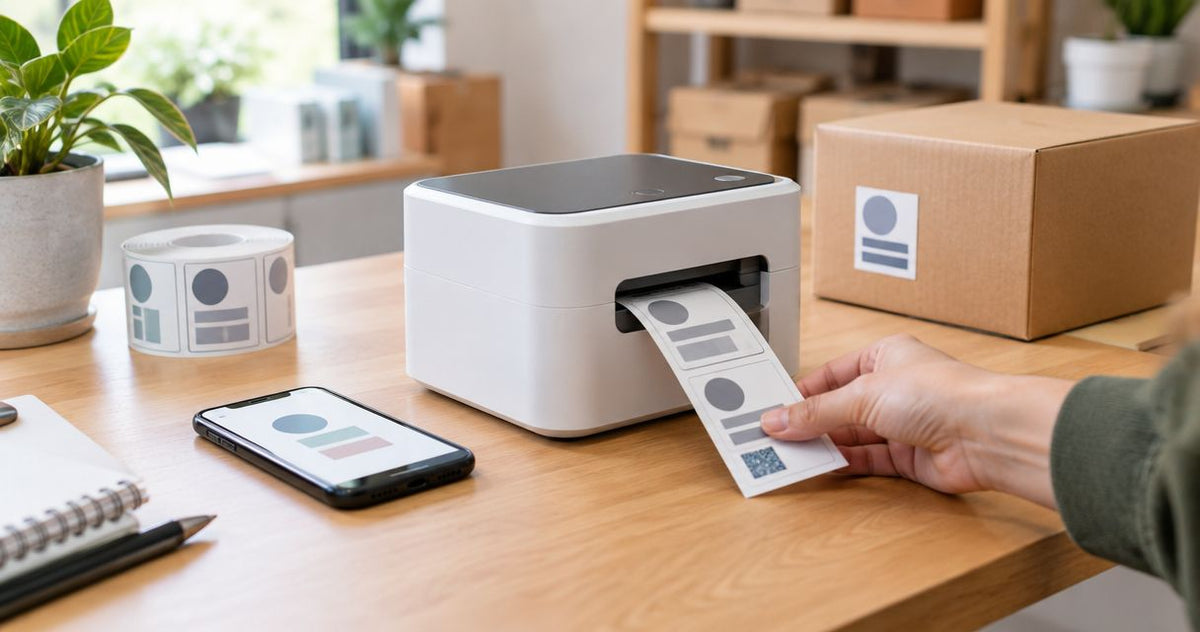
Yes, you can use a label printer without a computer if it supports standalone operation or accepts print jobs from a compatible phone or tablet. The distinction in 2026 is whether you need another device for initial setup, everyday printing, or both—a wireless connection alone does not make a printer standalone.
- A label printer without a computer needs standalone controls or a compatible smartphone printing workflow.
- McAuley Labels offers an Oil Change Sticker Printer System with a standalone keyboard for service-label printing.
- Bluetooth and Wi-Fi describe connections, not independent label design or data entry.
- Verify template setup, variable data entry, and printing with the computer disconnected before choosing a system.
Can a label printer work without a computer?
Yes—but the printer needs a supported way to receive label content and start the print job. That can be a built-in keyboard, a compatible external keyboard with stored templates, or an app running on a phone or tablet.
These workflows remove different dependencies. A standalone keyboard can handle routine data entry without a desktop at the printing station; a phone-controlled printer replaces the desktop with a mobile device.
| Workflow | Best for | How you enter label content | Main advantage | Main limitation |
|---|---|---|---|---|
| Standalone controls | Repeated labels with defined fields | Built-in controls or a supported external keyboard | No separate computer needed during supported daily operation | Template creation and changes need separate verification |
| Phone or tablet app | Mobile labeling with app-supported formats | A compatible mobile app | Label entry and printing from a mobile device | Depends on app, operating-system, and printer compatibility |
| Computer-connected printing | Spreadsheet imports and frequent layout changes | Desktop software or a business application | Keeps design and data preparation together | Requires the computer or another host for that workflow |
For the mobile route, start with how to print labels directly from a smartphone. Confirm the exact printer and app combination before treating phone printing as a replacement for your existing workstation.
Why this matters
A printer can remove the desktop from your counter without removing software from the overall process. That matters when you need to change a logo, add a field, or print information that lives in a business system.
For a 2026 purchase, specify the task rather than asking only whether the printer is wireless. “Enter a service date and mileage at the printer” is a useful requirement; “has Wi-Fi” does not establish that capability.
McAuley Labels supplies label printers for business applications, including oil change stickers, asset tags, and laboratory labels. For any of those applications, match the input method to the information your operator must print—not just the connection available on the printer.
Standalone controls: best for repeatable label formats
A standalone workflow lets you select or use a label format, enter supported information, and print without sending each job from a computer. The exact functions depend on the printer, its firmware, and any connected input device.
This approach fits a station where the layout stays consistent while selected fields change. An oil change reminder, for example, can keep the same general format while the operator enters the next service information.
Choose standalone controls when repeatable data entry is the main job. Do not assume that computer-free printing also includes full label design at the printer.
Check these functions separately:
- Template selection: Can the operator select the required saved format?
- Data entry: Can the operator change every field needed for the job?
- Print quantity: Can the operator choose the required quantity locally?
- Template editing: Where do layout, font, and logo changes happen?
- Restart behavior: Does the required format remain accessible after power is restored?
A display can show settings or printer status without providing a label editor. Likewise, an external keyboard connector does not establish support for every keyboard or every data-entry function.
Phone or tablet printing: best for mobile data entry
A phone-controlled printer works without a desktop computer, but it is not device-independent. The app supplies the interface for preparing or selecting the label and sending the job.
This route fits work where you already carry a compatible phone or tablet. It also lets you keep the printer separate from a fixed workstation, provided the printer's power and connection requirements suit the location.
Choose phone printing only after confirming the complete app workflow. Connection success is not enough if the app cannot import your file, preserve the label dimensions, or create the barcode you need.
For 2026 buying decisions, verify current mobile operating-system support rather than relying on an old compatibility screenshot. Test the actual label file and the actual mobile device your staff will use.
The limitation is dependence on that mobile environment. App permissions, device access, connection settings, and file handling become part of the printing procedure instead of desktop software installation.
Computer-connected printing: best for changing layouts and data imports
Keeping a computer in the workflow is appropriate when labels draw from spreadsheets, databases, or desktop design software. Removing it is not automatically an improvement if you then have to retype information that already exists electronically.
A warehouse labeling task illustrates the distinction. Typing an occasional identifier locally is different from printing a batch of identifiers exported from an inventory system.
Keep the computer when it is the practical source of the label data. You can still position the printer near the work area if the supported connection and site setup allow it.
The disadvantage is the continuing dependency on the host device and its software. The advantage is that you retain the tools used to prepare layouts, manage records, and submit jobs without rebuilding those functions around a keypad.
Why computer-free operation varies
Computer-free capability depends on more than the printing mechanism. These factors determine whether the workflow actually meets your requirements:
- Input controls: A keyboard, touchscreen, or mobile app must support the information you need to enter.
- Template storage: Routine printing needs access to the correct label format without recreating it for each job.
- Setup requirements: Designing and transferring a format can require a computer even when daily printing does not.
- Data source: Locally entered text is different from information retrieved from a spreadsheet or business system.
- Connection support: USB, Bluetooth, and Wi-Fi provide different connection routes; none alone proves standalone operation.
- Application compatibility: File formats, fonts, graphics, and barcode functions must work through the chosen input method.
Use these as acceptance criteria. A general statement that a printer “works without a PC” does not answer whether your operator can update a particular field or recover the correct template after a restart.
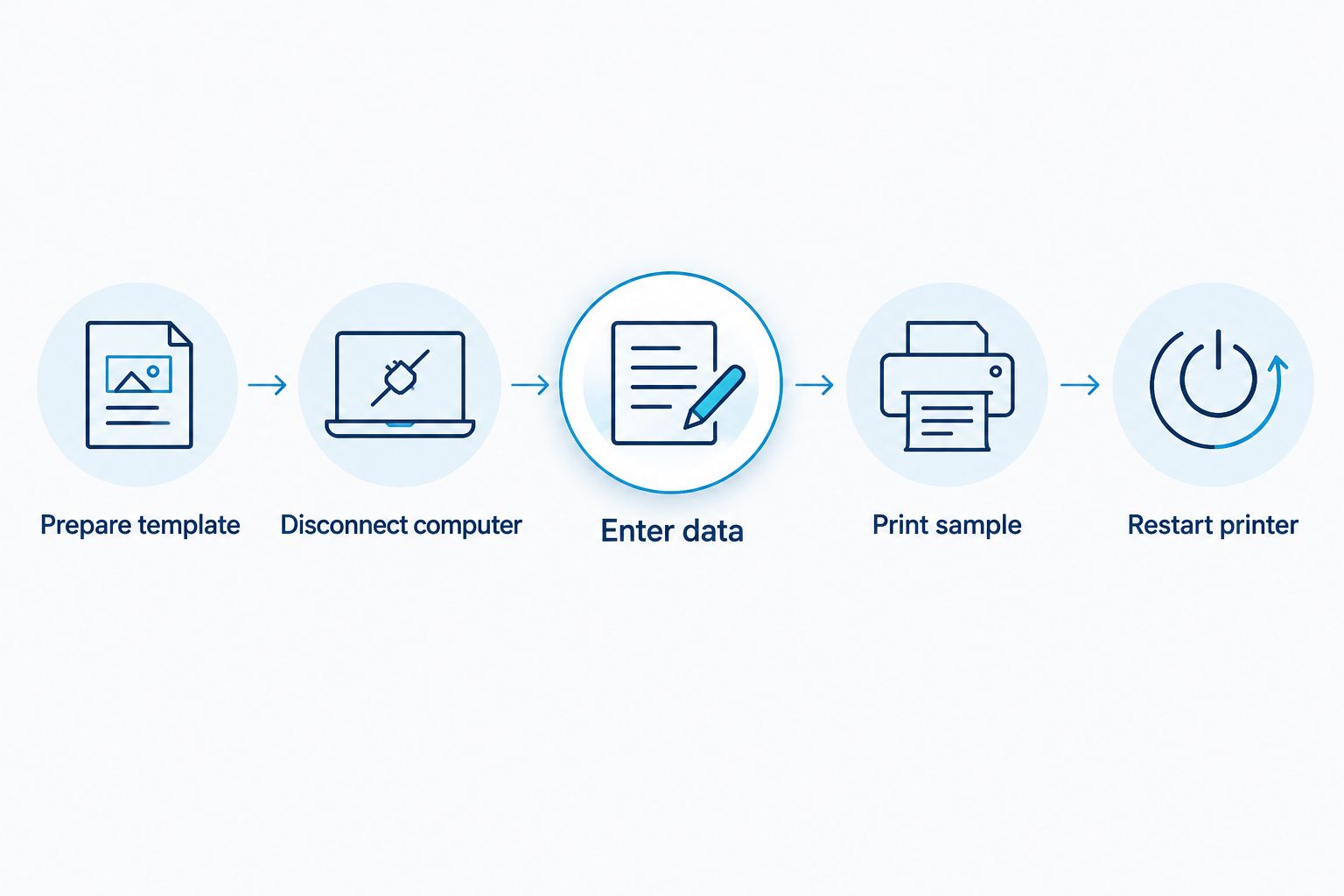
How do I check whether a printer really works without a computer?
Test the complete job with the computer disconnected. A demonstration that begins with a prepared label is useful, but it does not prove you can maintain the workflow when the label needs to change.
- Prepare template. Use your actual label dimensions, fixed text, logo, and required variable fields. Record which device creates and transfers the format.
- Disconnect computer. Remove the desktop connection for the demonstration. If a phone remains necessary, identify that as mobile-controlled printing rather than fully standalone operation.
- Enter data. Change the fields your operator updates during normal work. Include the longest text you genuinely expect to print.
- Print sample. Check positioning, readable text, and barcode scanning with your intended scanner or application.
- Restart printer. Confirm that the operator can recover the required format and print again without restoring the desktop connection.
The test should follow your real operating procedure. Do not accept a feed-button demonstration as evidence that you can enter new label content locally.
Does thermal printing mean the printer is standalone?
Thermal printing does not establish standalone operation. Direct thermal and thermal transfer describe how the image forms on the label, not how you create the content or submit the job.
Direct thermal printing uses heat-sensitive label stock without a ribbon. Thermal transfer printing uses a ribbon to transfer the image onto compatible media; either printing method still needs a supported source of label instructions.
Resolution is another separate specification. Figures such as 203 dpi, 300 dpi, and 600 dpi describe print resolution, not whether a printer accepts keyboard input, stores templates, or works with a mobile app.
For a 2026 equipment comparison, keep print quality and operating method in separate columns. A higher-resolution printer does not solve an unsupported data-entry workflow.
Can I print oil change stickers without a computer?
Yes, a system with supported standalone input can print oil change stickers without a desktop at the printing station. Verify how operators enter service information and how the label format is prepared before installation.
McAuley Labels is a fit for businesses buying a dedicated oil change sticker printing system. Its Oil Change Sticker Printer System is listed with 1,000 custom labels, a ribbon, and a standalone keyboard.
That package directly addresses the need for local input hardware. Its limitation as a buying decision is that the keyboard's presence does not answer every workflow question: confirm editable fields, template changes, and the process for replacing a logo before ordering.
Ask for a demonstration using your intended service-label format. The operator should enter the required information and produce a usable sticker without a desktop participating in that print job.
Can I print shipping labels from a phone instead?
Yes, phone-based shipping-label printing works when the shipping service, mobile workflow, file format, and printer are compatible. The phone replaces the desktop; it does not eliminate the need to generate a valid shipping label.
Test an actual shipping-label file rather than a generic text sample. Check that the workflow preserves the intended dimensions and produces a barcode that scans after printing, without accidental cropping or scaling.
What should I specify before buying?
Write a short operating requirement that covers both routine work and changes. For example, specify that the operator must enter variable information locally, select a saved format, and print without opening desktop software.
Then state who handles template maintenance. A system that needs a computer for occasional design changes can still meet a no-computer-at-the-counter requirement, but it does not meet a no-computer-ever requirement.
For a 2026 purchase, request confirmation against these practical questions:
- Which device creates the original label layout?
- Which device changes text during daily printing?
- Which accessories are required for that operation?
- What happens when the operator changes label dimensions?
- How is a replacement template transferred and selected?
- Can staff complete the procedure after a power interruption?
Keep power separate from connectivity, too. A printer that accepts wireless jobs is not necessarily battery-powered, so verify the power arrangement for the intended workstation or mobile location.
FAQ
Can I use a label printer without a laptop?
Yes, if the printer supports standalone operation or printing from a compatible phone or tablet. Confirm whether a laptop is still required to create or update label templates.
Does a Bluetooth label printer work by itself?
Bluetooth alone does not make a label printer standalone. A Bluetooth workflow normally needs a compatible device and application to prepare and send the print job.
Can I plug any USB keyboard into a label printer?
Do not assume any USB keyboard will work. Confirm keyboard support, the required port, and the printer's supported data-entry functions in the model documentation.
Do I need Wi-Fi to print labels without a computer?
No, a supported standalone workflow does not inherently require Wi-Fi. Phone printing requirements depend on the printer's connection method and the app being used.
Can I change a label logo without a computer?
That depends on the printer's editing tools or compatible mobile app. Confirm how graphics are added, saved, and transferred before choosing a computer-free workflow.
Does McAuley Labels offer an oil change sticker system with a keyboard?
Yes, McAuley Labels lists an Oil Change Sticker Printer System with a standalone keyboard, ribbon, and 1,000 custom labels. Confirm the required editable fields and template setup process for your service operation.
Will a thermal printer need ink if I use it without a computer?
Thermal printing does not use conventional ink cartridges, regardless of the input device. Direct thermal printing uses heat-sensitive media, while thermal transfer printing uses a ribbon.
One last thing
The most useful demonstration starts after the computer is disconnected. Ask the operator to correct a field, print the label, restart the printer, and repeat the job.
That exposes the difference between printing a prepared sample and running a usable workstation. Choose the system that completes your actual task, not the one with the longest connection list.