
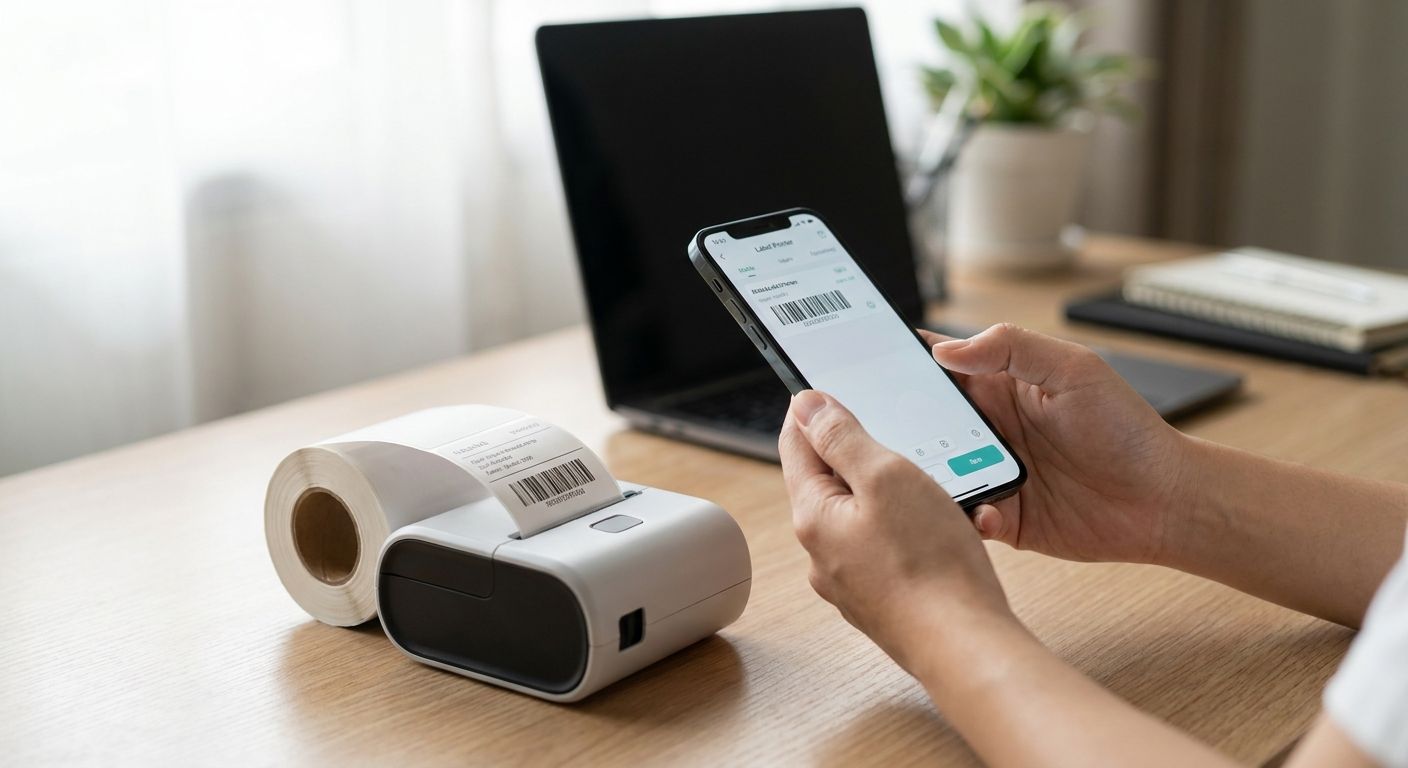
Printing a label without touching a laptop is now a routine shop-floor request, not a stretch goal. This guide covers the exact setup McAuley Labels customers use to print labels from smartphone in 2026, from choosing a network-ready thermal printer to fixing a blank print job on the spot.
- Print labels from smartphone by adding a WiFi or Ethernet thermal printer as a network printer — no laptop needed in 2026.
- The GoDEX RT700i thermal printer connects over a standard network for phone-triggered asset tag and inventory label runs.
- GoLabel design software only runs on a Windows desktop, so phone printing works off pre-built templates, not new designs.
- Direct thermal printer labels skip the ribbon step entirely, cutting one more variable out of a remote print job.
Why phone printing matters on the shop floor
A tech finishing an oil change, a picker closing out a warehouse order, or a retail associate re-tagging a shelf all need one thing fast: a printed label, not a walk back to a desktop. That's the real demand behind print labels from smartphone as a search phrase in 2026 — it's a workflow gap, not curiosity. The McAuley Labels guide on the Bluetooth label printer for small business covers the handheld side of this; this guide covers the network-printer route, which handles higher volume and heavier label stock better than a small Bluetooth unit.
McAuley Labels builds network-capable thermal printers for exactly this scenario. GoDEX-based industrial printers connect over Ethernet or WiFi, so your phone doesn't talk to the printer directly — it talks to the network, and the printer picks up the job from there.
What you'll need
- A network-connected thermal printer. USB-only printers cannot receive a phone print job without a computer in the middle. The GoDEX RT700i thermal printer, with its color display, is a common McAuley Labels pick for phone-triggered runs.
- Your phone on the same WiFi network as the printer, or a router bridging the printer's Ethernet port to your WiFi.
- A pre-built label file. GoLabel, the design software behind most McAuley Labels printers, only runs on a Windows desktop — design the label once, save it, and reprint from the phone from then on.
- The right label stock loaded. Direct thermal printer labels need no ribbon at all, which removes one variable from a remote print job. Thermal transfer stock needs ribbon loaded and calibrated before you walk away.
- A PDF viewer or your phone's native print function — AirPrint on iOS, the default Print Service on Android — to actually send the job.
The steps
1. Confirm your printer's connection type
Check whether the printer has an Ethernet jack (RJ45) or a WiFi module before doing anything else. A USB-only unit physically can't accept a phone print job on its own. Look at the spec sheet or the printer's rear panel to confirm which one you have. Common mistake: assuming every GoDEX model has WiFi out of the box — confirm the model before you buy labels for it.
2. Put the printer on your network
Connect via Ethernet cable to your router, or join the WiFi network through the printer's control panel. Assign a static IP address, or reserve one through your router's DHCP settings, so the printer's address doesn't shift between print jobs. Expected outcome: the printer's display or config page shows a fixed IP. Common mistake: skipping the static IP step, so the phone can't find the printer two days later when the address has changed.
3. Build the label file on a desktop with GoLabel
Follow the McAuley Labels walkthrough on how to set up a GoDEX printer with GoLabel software to build the template once. Save it as a reusable file rather than rebuilding it every time you need a new batch. Expected outcome: a print-ready template sitting in a shared or cloud folder. Common mistake: recreating the label from scratch each session instead of saving a template.
4. Add the printer to your phone
On iOS, add the printer through AirPrint if the model supports it. On Android, add it through the default Print Service using the static IP from step 2. Expected outcome: the printer's name shows up in your phone's list of available printers. Common mistake: your phone sitting on cellular data instead of the same WiFi network — the printer becomes invisible.
5. Send the label file to the printer
Open the saved template or PDF from email, cloud storage, or a messaging app, then hit print. Select the correct label size in the print dialog — a mismatched size is the number one reason the first print comes out wrong. Expected outcome: the printer accepts the job and starts within a few seconds. Common mistake: sending a photo or screenshot instead of the actual print-ready file; resolution drops and barcodes can stop scanning.
6. Verify the first label before running a batch
Check the label for alignment, print darkness, and barcode readability before printing the rest of the run. Scan the barcode or QR code with a second phone to confirm it reads clean. Expected outcome: a sharp, correctly-placed label on the first try. Common mistake: printing 50 labels before checking the first one, wasting stock if darkness is off.
7. Recalibrate when the stock changes
Run the printer's built-in gap or black-mark calibration through the control panel any time you switch label size or roll. Expected outcome: consistent placement across the run. Common mistake: assuming the printer auto-detects new stock — most GoDEX models need a manual calibration pass after a stock swap.


Troubleshooting
- Printer doesn't show up on my phone's print list. Confirm phone and printer are on the same WiFi network, not one on cellular data, and re-enter the static IP manually if auto-discovery fails.
- Labels print blank. Thermal transfer stock always needs ribbon loaded; direct thermal stock needs the print-side facing the head. Check which type is loaded.
- Barcode won't scan. Darkness setting is too low. Bump the print darkness a few points in the printer's control panel and reprint one label to test.
- Label shifts mid-roll. Recalibrate the sensor for the current stock size. Most misalignment traces back to a skipped calibration after a stock swap.
- Print job stuck in queue. Restart the print spool or power-cycle the printer. A half-finished job from a dropped WiFi connection can jam everything queued behind it.
- Phone reports "no printer found" over WiFi. Some routers isolate devices from each other by default (AP or client isolation). Turn that setting off for network printing to work.
Tools and resources
- McAuley Labels network-ready thermal printers, including the GoDEX RT700i, RT730i, and ZX430i lines
- GoLabel design software for building the original label file on a desktop
- Direct thermal printer labels for ribbon-free jobs, or thermal transfer ribbon for polyester and synthetic stock
- A router with static IP or DHCP reservation support
- Your phone's native print function — AirPrint or Android Print Service
What to do next
Once the network printer is dialed in for phone-triggered oil change stickers or asset tag runs, the next decision is usually about the stock itself — whether direct thermal or thermal transfer fits your environment, and how much heat or moisture the label needs to survive. Get that call wrong and the phone-printing setup won't matter; the label fails before the job does.
FAQ
Can I print labels directly from my phone without a computer?
Yes, once a network-connected thermal printer is set up and a label template already exists. The phone sends the print job over WiFi or through a router bridging Ethernet, so no computer needs to be present at print time in 2026.
What's the best way to print labels from smartphone in 2026?
Add a WiFi or Ethernet thermal printer as a network printer and send jobs through your phone's native print function. This handles higher volume and heavier label stock better than small Bluetooth handheld printers.
Do I need a special app to print labels from a phone?
Not usually. AirPrint on iOS and the default Print Service on Android can send a job to a network printer without a dedicated app, as long as the printer's IP address is set up correctly.
Can GoLabel software run on a smartphone?
No, GoLabel is Windows-desktop-only software. Build and save the label template on a desktop first, then reprint that saved file from a phone whenever you need another run.
What's the difference between direct thermal and thermal transfer for phone-triggered printing?
Direct thermal labels need no ribbon, which removes one step from a remote print job. Thermal transfer needs ribbon loaded and calibrated ahead of time, since nobody is standing at the printer when the job runs.
How do I connect a thermal printer to WiFi for phone printing?
Join the printer to your WiFi network through its control panel, then assign a static IP address so the address doesn't change between print jobs. Add that IP to your phone's print settings if auto-discovery doesn't find it.
Can I print oil change stickers from my phone?
You can, if the printer generating them is network-connected. Standalone units like the McAuley Labels Oil Change Sticker Printer System use a built-in keyboard instead, which skips the phone step entirely for shops that don't need it.
Is Bluetooth or WiFi better for printing labels from a smartphone?
Bluetooth works fine for single labels printed one at a time close to the printer. WiFi or Ethernet handles higher volume, longer range, and heavier industrial label stock better.
One last thing
GoLabel is still Windows-desktop-only software in 2026 — that hasn't changed. Keep one machine near the printer for template edits, then let every day-to-day print run happen straight from a phone once the template is built. That split, not a fully phone-native workflow, is what actually holds up on a shop floor.