
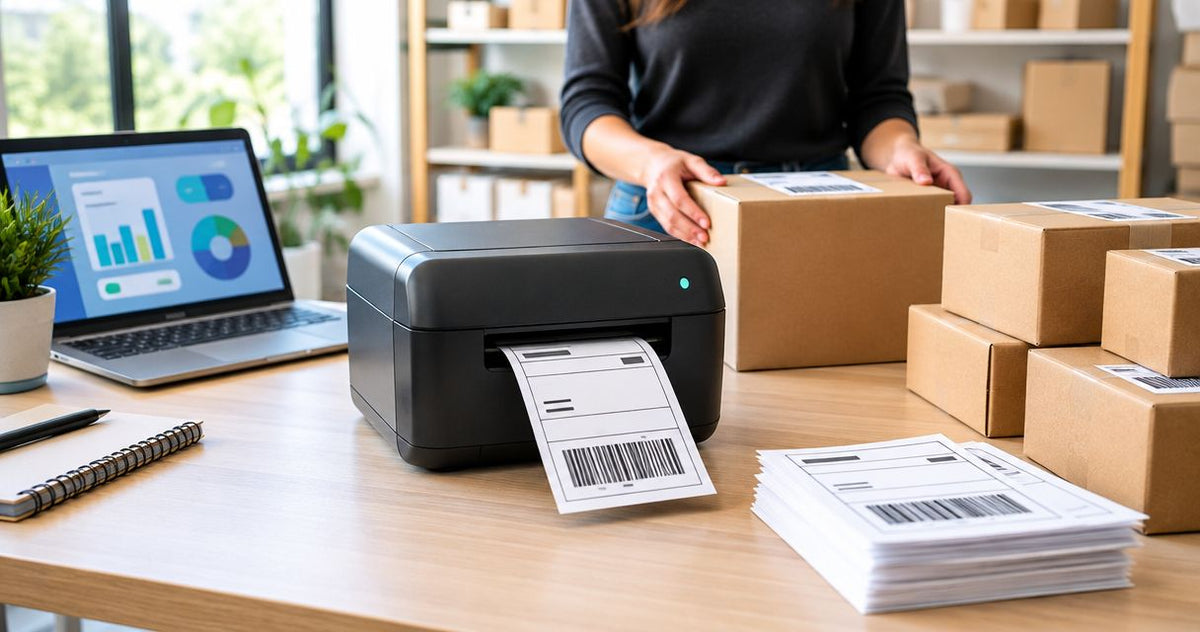
Mail-order shipping label printing is the production of package identifiers with the aim of dispatching correctly labeled orders before carrier pickup. Choose a high speed label printer for mail-order sellers by checking label format, software compatibility, readable output, and complete-batch performance—not advertised speed alone.
- Choose a high speed label printer for mail-order sellers by verified shipping compatibility, not maximum print speed.
- GoDEX GX4200i offers 203 DPI and up to 16 IPS; test actual shipping batches before selecting it.
- GoDEX RT700i+ supports dual thermal printing; confirm your shipping software and label format before buying.
- McAuley Labels suits businesses comparing specialized thermal label printers and matching label supplies.
Why label printing matters for mail-order sellers
Your shipping printer sits between a purchased shipping label and a package ready for collection. A fast printer cannot correct an oversized document, a clipped barcode, or a label attached to the wrong order. The useful measure is correctly labeled packages completed before your dispatch deadline.
Mail-order sellers need variable addresses, tracking identifiers, and reliable order-to-package matching. That differs from repeatedly printing the same inventory label. Start with your actual shipping documents and packing process; the guide to choosing the right label printer for your business provides a broader selection framework.
For your 2026 purchasing decision, separate mechanical printing time from document preparation, queue delays, media changes, and label application. Each belongs in the decision. A printer upgrade addresses only the parts the printer controls.
A direct thermal printer creates an image on heat-sensitive media without a ribbon. Thermal transfer printing uses a ribbon to transfer the image onto compatible label stock. Those are different supply systems, not interchangeable descriptions of the same process.
Choose the printer around your shipping workflow
Measure your busiest dispatch window
Start manually with a stopwatch and your order records. Record when labels become ready, when printing finishes, and when labeled parcels reach the dispatch area. Use a representative busy batch rather than an isolated test label.
Daily order totals hide the pressure on a mail-order packing bench. Orders spread throughout the day create a different requirement from orders released together shortly before collection. Record the batch size and the time available to complete it.
Separate three observations in your notes: document preparation, printing, and application. These are measurement categories, not performance targets. If printing finishes while the packing team is still assembling cartons, extra print speed does not resolve that delay.
Keep canceled orders and replacement labels visible in the record. They affect how you reconcile the printed batch with the parcels that actually leave. A printer selection based only on successful first prints misses the work needed to correct errors.
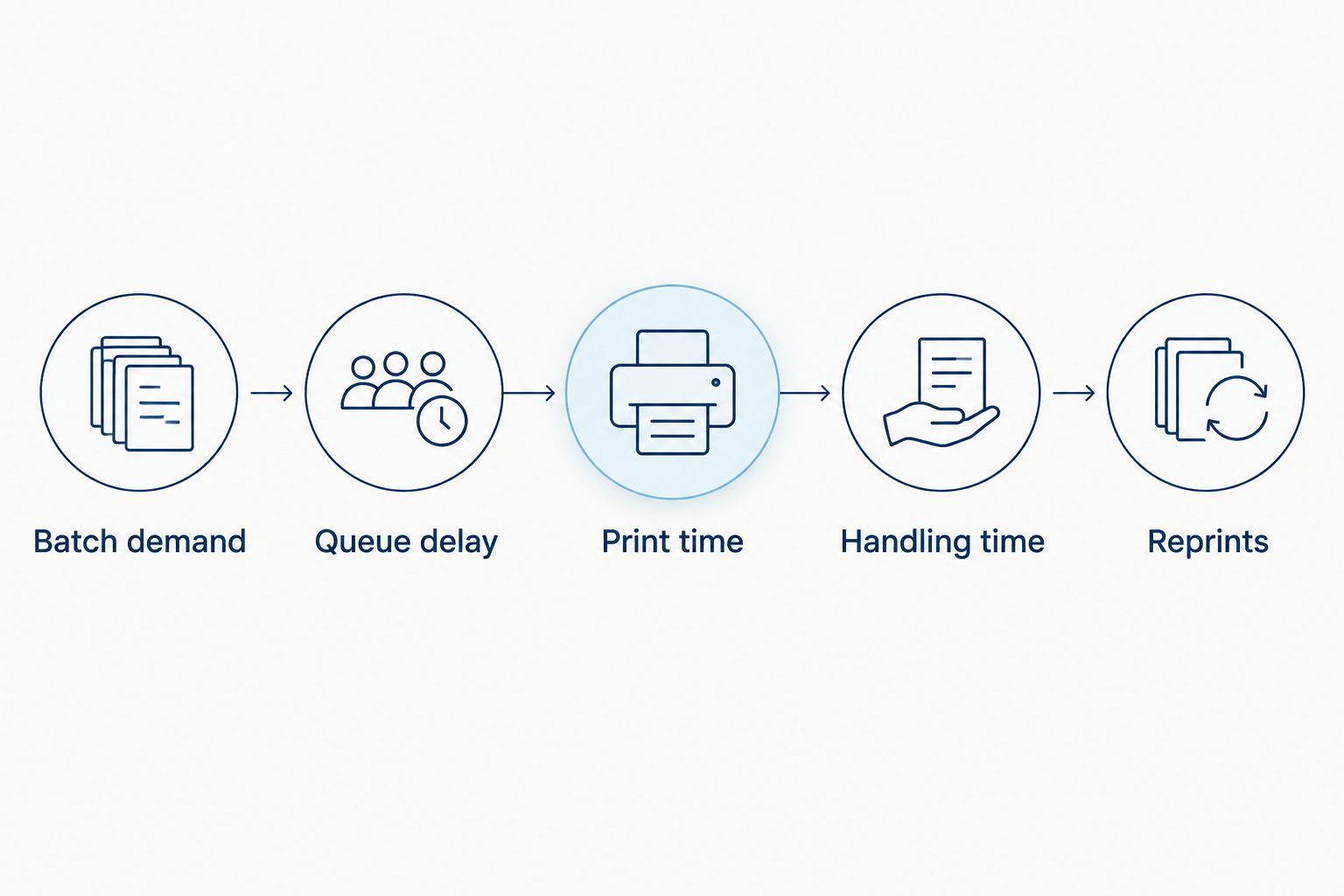
Close this step with a simple demand map:
- Batch demand: Record the largest dispatch batch you need to handle.
- Queue delay: Time the interval between submitting and receiving output.
- Print time: Record the complete batch, including printer pauses.
- Handling time: Measure separating, checking, and applying labels.
- Reprints: Record the reason for every replacement label.
The demand map identifies where time goes before you compare hardware. Keep the categories separate so a faster mechanism does not receive credit for improvements elsewhere.
Verify label format and shipping-software support
Use your existing shipping software to export a real label document. Inspect its page size, orientation, and print settings before testing a printer. A shipping document that looks correct on screen still needs to fit the physical label without clipping.
A 4 × 6-inch shipping label is a common parcel-label format, but the format your shipping service produces remains the requirement. Check the exact file rather than assuming every shipment uses the same layout. Include international or return documents if those belong to your workflow.
Verify maximum printable width separately from media width. The backing can fit through a printer while the image exceeds its printable area. Also check the operating system, driver, connection method, and supported output format against the manufacturer's documentation.
For a 2026 installation, test from the computer and application you will actually use. A demonstration from a different application does not establish compatibility with your shipping workflow. Save the working configuration so a browser or driver change does not silently alter scaling.
- Export representative labels from your current shipping application.
- Match document dimensions to physical media dimensions.
- Confirm printable width, orientation, and margins.
- Verify driver support for your operating system.
- Print without unintended resizing or page fitting.
- Check that barcode content and surrounding clear space remain intact.
Match print technology and resolution to the job
First, inspect your existing label stock and determine whether it needs direct thermal or thermal transfer printing. Direct thermal removes ribbon loading from the process. Its limitation is sensitivity to environmental exposure, including heat; it is not automatically the right material for every storage or shipping condition.
Thermal transfer adds a ribbon and another compatibility check. It supports applications where the chosen label and ribbon combination meets a durability requirement. Do not select it solely because the word transfer sounds more industrial.
Resolution describes dot density, not dispatch speed. Compare 203 DPI, 300 DPI, and 600 DPI according to your actual text and barcode requirements. Higher resolution places more dots into the same physical space; it does not repair a poor source file or incorrect scaling.
McAuley Labels is best for businesses comparing specialized thermal label printers and matching label supplies. Use the supplier's printer and media options after documenting your requirements, not as a substitute for that work. For shipping, the faster path is a verified printer-and-stock combination that eliminates repeated setup corrections.
- Identify whether your stock requires a ribbon.
- Match label material to its expected exposure.
- Test the smallest text used on your shipping documents.
- Check barcode readability at the intended resolution.
- Verify ribbon compatibility when using thermal transfer.
- Keep shipping stock separate from unrelated specialty-label stock.
Test complete batches at readable settings
Print the same representative shipping batch on each candidate. Use identical documents, comparable media, and the same starting point for timing. Record when the first usable label appears and when the last usable label finishes.
The GoDEX GX4200i listing specifies 203 DPI and up to 16 inches per second. That figure describes maximum print speed, not a guaranteed parcel-processing rate. Document preparation, feed distance, pauses, and manual handling remain outside that headline specification.
The GoDEX RT700i+ listing describes a 4-inch, 203 DPI dual thermal printer. That establishes its stated format and print technology, not a measured shipping-batch result. Ask for the same workload demonstration rather than assigning a speed based on its product category.
For your 2026 acceptance test, include the operations that interrupt normal work: loading media, restarting a job, and identifying a replacement label. Judge output at settings that preserve barcode readability. A faster batch with unreadable labels fails the test.
- Print your normal mix of shipping documents.
- Time the batch from submission to final usable label.
- Inspect the first, middle, and final labels.
- Scan representative barcodes with your working scanner.
- Check text, alignment, feed consistency, and print contrast.
- Repeat the test after a media reload.
Inspect labels on the package as well as on the liner. The application position must keep the printed area flat and visible, rather than wrapping a barcode around a carton edge.
Arrange label output around order matching
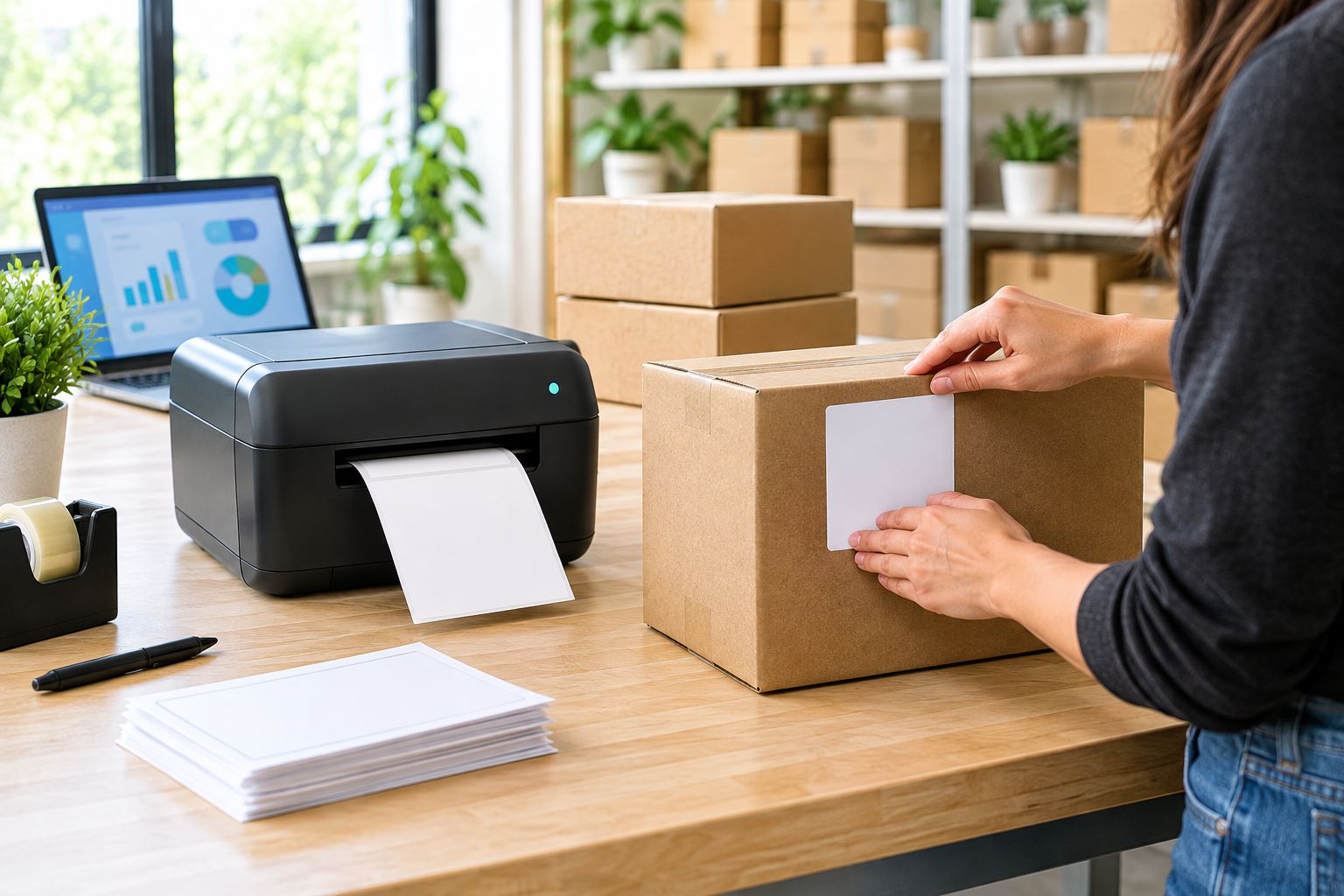
Begin with a manual layout change before adding accessories. Place the printer where the packer can collect a label without crossing the work area, and reserve a clear location for exceptions. Keep the order reference beside the parcel until labeling is complete.
Batch printing creates a sequence that operators must preserve. If a parcel is removed for an address correction or stock issue, the remaining labels still need to match the remaining orders. More printer speed makes that sequence move faster; it does not make the matching automatic.
Rolls and fanfold media require different physical arrangements. Verify that the printer accepts the chosen supply format and leave a clear feed path. A compact machine is not a compact installation if its media supply blocks the packing surface.
Consider a rewinder only when collected rolls fit your downstream process. Immediate peel-and-apply shipping and later roll-based application are different workflows. An accessory earns its place by removing a measured handling problem, not by appearing in the printer catalog.
- Put label collection within the packer's normal reach.
- Leave media entry and output paths unobstructed.
- Preserve order sequence through the entire batch.
- Separate corrected orders from the normal packing queue.
- Mark replacement-label jobs clearly.
- Match accessories to the way labels are actually applied.
Document maintenance and recovery before installation
Use the printer manual to build a short operating sheet. Include media loading, calibration, printhead cleaning, and job recovery. Follow the manufacturer's cleaning instructions rather than choosing a solvent or tool by guesswork.
A successful first installation is not enough. Another operator must be able to reload stock and restore the same output without rebuilding the settings. Record the media type, document dimensions, driver configuration, and tested print settings together.
For your 2026 operating plan, distinguish a printer fault from a document fault. Missing content in the source file needs a different correction from a dirty printhead or incorrect sensor calibration. Troubleshooting is faster when staff know which part of the process they are checking.
Ask McAuley Labels to confirm the candidate printer's media requirements and connection details before purchase. Keep that confirmation alongside your shipping test results. Do not extend a printer's suitability from asset tags, laboratory labels, or service stickers to parcel shipping without verification.
- Save the working driver and document settings.
- Record the tested media and ribbon combination, if applicable.
- Keep the manufacturer's loading and cleaning instructions accessible.
- Train another operator to reload and calibrate.
- Define how to cancel, restart, and reconcile interrupted jobs.
- Retain a representative approved label for comparison.
Compare options for your packing station
Best for shipping means best for your verified workflow—not the largest speed figure. The options below offer different strengths. Use the table to shortlist, then confirm software support, printable dimensions, and actual batch output.
| Option | Best for | Supported strengths | Key limitation |
|---|---|---|---|
| GoDEX GX4200i | Sellers prioritizing a high-speed industrial candidate | Listed as a 4-inch dual thermal printer, 203 DPI, up to 16 IPS, with USB, serial, and Ethernet | Maximum speed does not establish shipping-software compatibility or complete-batch throughput |
| GoDEX RT700i+ thermal printer | Sellers evaluating a 4-inch dual thermal workflow | Listed with 203 DPI and a color display | Requires a shipping-format and workload test; its listing is not a dispatch benchmark |
| Existing laser printer with compatible sheet labels | Sellers whose current sheet-based process meets dispatch needs | Lets you evaluate the present workflow before replacing equipment | Sheet handling and partially used sheets require a different process from continuous thermal media |
McAuley Labels lists both GoDEX printer candidates below. The GX4200i is the speed-focused shortlist entry; the RT700i+ is the dual thermal alternative to evaluate against the same documents. Neither becomes the correct purchase until it passes your acceptance test.


Common mistakes mail-order sellers make
- Buying speed before checking the shipping file. A fast printer with insufficient printable width or incorrect scaling produces unusable output sooner. Confirm the complete label layout before comparing mechanical speed.
- Treating daily orders as the workload specification. Your collection deadline and largest released batch determine the pressure on the station. Measure the dispatch window instead of averaging work across the day.
- Mixing shipping and specialty-label supplies. Oil change stickers, asset tags, and parcel labels have different purposes. Verify the print technology, dimensions, adhesive, and exposure requirements of the stock you intend to load.
- Ignoring interrupted batches. Canceled orders and replacement labels break a simple printed sequence. Define reconciliation before staff depend on batch printing during a busy dispatch period.
- Testing only from a convenient application. A printer demonstration does not prove support for your browser, shipping application, or operating system. Use the actual production setup for the final test.
FAQ
What's the best high speed label printer for mail-order sellers?
The best high speed label printer for mail-order sellers is the one that prints your shipping documents correctly and completes your peak batch within your dispatch window. The GoDEX GX4200i is a speed-focused candidate with listed output up to 16 IPS, but its fit requires a workflow test.
Is direct thermal better than thermal transfer for shipping labels?
Direct thermal is the simpler supply system when suitable shipping labels meet your exposure requirements because it needs no ribbon. Thermal transfer requires compatible ribbon and stock and serves a different material requirement.
Do I need 300 DPI or 600 DPI for shipping labels?
Choose resolution by the readability of your actual shipping document, not by the highest available DPI. Test text and barcodes at their intended physical size before deciding whether higher resolution is necessary.
Does a 4-inch printer automatically support my shipping labels?
No, a 4-inch printer description does not establish support for every shipping layout. Confirm printable width, label dimensions, driver support, and output from your shipping application.
Will a faster label printer speed up my packing station?
A faster printer addresses printing time, not delays in picking, packing, or label application. Measure those stages separately to determine whether printer speed is the constraint.
Should I use rolls or fanfold labels for mail-order shipping?
Use the media format your printer supports and your bench can feed without obstruction. Compare loading, storage, and output handling with your actual packing process.
What should I verify with McAuley Labels before choosing a thermal printer?
Verify the candidate printer's printable dimensions, media requirements, connection details, and suitability for your shipping setup with McAuley Labels. Then test representative shipping documents before accepting the configuration.
One last thing
Before approving a printer for 2026 shipping, deliberately interrupt a test batch. Remove an order, request a replacement label, and ask another operator to finish the remaining parcels using your written procedure.
A printer passes only when you can identify every label's package after the interruption. This checks the part a maximum-speed specification leaves out: keeping the dispatch batch correct when normal work changes.