
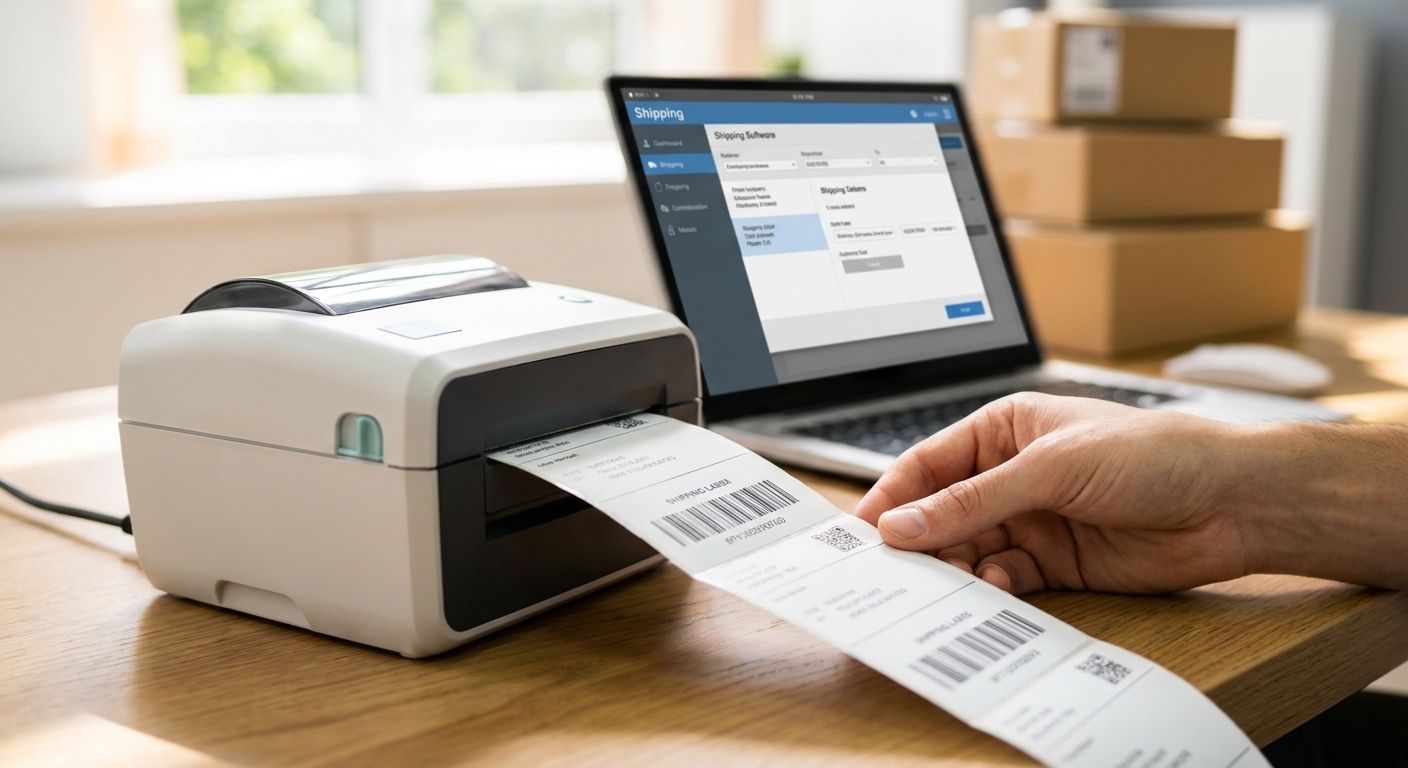
Printing labels one at a time is fine for a five-label order. It falls apart the moment you're running 200 asset tags, a full shift of oil change stickers, or a pallet of shipping labels before a 3pm pickup. Batch print labels the right way and that same job takes minutes instead of an afternoon standing at the printer.
- Batch print labels by pairing GoLabel software with a variable data file, not one-off manual reprints.
- GoDEX RT700i runs production-volume batch jobs at up to 300 DPI — Buy for daily label output.
- Test a 10 to 25 label batch before the full run to catch feed and data errors early.
- 3M heavy-duty barcode inventory labels hold their scan quality through repeat handling in a batch job.
Why this matters
A thermal printer that prints one label perfectly can still choke on 500 of them if the data file, ribbon, and settings aren't set up for volume. Most of the failures people blame on the printer — skipped labels, blank feeds, a printer that just stops mid-run — trace back to how the batch was built, not the hardware. Fix the workflow once in 2026 and every batch after that runs the same way.
What you'll need
- A thermal printer rated for continuous runs, not a low-duty desktop model
- GoLabel label design software for building variable data batches
- A CSV or spreadsheet with your label data (names, barcodes, sequential numbers)
- Label stock matched to the surface and durability the job needs
- Ribbon on hand if you're running thermal transfer instead of direct thermal
- 15-30 minutes to build and test the batch before the full print run
The steps
1. Build your label data file
Every batch print job starts with a clean data source, not the printer. Open a spreadsheet and lay out one column per variable field — barcode value, name, sequential number, expiration date, whatever changes label to label. GoDEX has a dedicated walkthrough on printing address labels in bulk from a spreadsheet that covers column formatting most people get wrong on the first try. Common mistake: leaving blank cells in the middle of the sheet — the printer reads that as an empty label and either skips it or jams.
2. Import the file into your label design software
GoLabel software reads CSV and Excel files directly and maps each column to a field on your label template. This is the step that turns 500 individual print jobs into one job with 500 variables. Save the template once you've got the mapping right — you'll reuse it every time you run this label type again in 2026 and beyond. Common mistake: mapping the wrong column to the barcode field, which prints perfectly formatted labels with the wrong data underneath the barcode.
3. Match the printer to the batch size
A printer built for occasional single labels will overheat or slow down on a 1,000-label run. The GoDEX RT700i is built for that kind of daily volume, with a display that lets you check batch status without a laptop tethered to it. If your batches run smaller — under 50 labels a day — a lighter desktop unit is enough and you don't need to spend up for industrial duty cycle. Common mistake: buying a printer rated for light office use and running warehouse-volume batches through it.
4. Pick label stock rated for the job
A batch of 500 barcode labels that peel or fade after two weeks isn't a batch you saved time on — it's a batch you'll reprint. For equipment, tools, or anything that gets handled repeatedly, 3M heavy-duty barcode inventory labels hold their adhesion and scan clarity through the kind of wear a semi-gloss label won't survive. Match the stock to the surface: metal and outdoor gear need heavy-duty adhesive, indoor shelving and short-term tracking can run on standard stock.
5. Set batch quantity and sequential numbering
Inside GoLabel, set the number of copies per record and turn on sequential numbering if each label needs a unique ID. This is where most people either print far too many or forget to increment the number, so double-check the start value and the increment step before you hit print. Common mistake: leaving the copy count at the default from the last job, which either shorts your run or wastes a stack of stock.
6. Run a test batch first
Print 10 to 25 labels before committing the full run. Check barcode scans, verify the sequential numbers actually incremented, and confirm the print is centered on the stock — not just legible, but aligned. Catching a feed or data problem in a 15-label test costs you a minute. Catching it after 400 labels costs you the roll.
7. Print the full batch and monitor it
Start the full run and stay near the printer for the first 20-30 labels, especially on a new template or stock size. Ribbon runs low mid-batch more often than people expect on longer jobs, and it's easier to swap it out at label 200 than to figure out which labels in the stack are faded after the fact.
8. Log the batch
Record what you printed, the quantity, and the date once the run finishes — especially for sequential numbered asset tags, where a gap or repeat in the numbering causes real problems down the line. A simple spreadsheet row per batch is enough; you don't need dedicated software for this part.


Troubleshooting
- Labels skip or feed blank mid-batch — usually a gap-sensor calibration issue. Recalibrate the sensor for the exact stock size you're running, not a close approximation.
- Print looks sharp at the start, faded by label 300 — the ribbon is running out. Check ribbon remaining before any batch over 200 labels.
- Sequential numbers repeat or skip — the increment field in GoLabel was left at zero or the wrong start value. Re-check the field before every new batch, not just the first one.
- Printer slows or stalls on a large CSV — very large files (thousands of rows) can lag depending on your printer's onboard memory. Split oversized batches into runs of 500-1,000 rather than one massive file.
- Barcodes print but won't scan — verify the barcode symbology and quiet zone in the template match what your scanner expects, especially after switching label stock sizes.
- First few labels print crooked — the stock wasn't seated straight in the feed. Reload and re-align before starting the batch, not after label 50.
Tools and resources
- GoLabel software for building and printing variable data batches
- GoDEX RT700i or a comparable industrial printer for daily production volume
- 3M heavy-duty barcode inventory labels for equipment and repeat-handling jobs
- A spreadsheet template you reuse batch to batch instead of rebuilding it each time
What to do next
Once the batch workflow is solid, the next bottleneck is usually the printer setup itself — connection type, driver install, and template calibration. A dedicated walkthrough on printer configuration saves a second round of troubleshooting once you're running batches weekly instead of occasionally.
FAQ
What's the best way to batch print labels in 2026?
Build a CSV or spreadsheet with one column per variable field, import it into GoLabel software, and map the fields to your label template. Running a 10-25 label test batch before the full run catches most errors before they become wasted stock.
Can GoLabel software print labels from a spreadsheet?
Yes, GoLabel imports CSV and Excel files directly and maps columns to label fields, which is what makes batch printing possible instead of manually re-entering data for every label.
How many labels can a thermal printer handle in one batch job?
It depends on the printer's duty cycle and onboard memory, not just the label count. Splitting very large jobs into runs of 500-1,000 labels avoids the lag some printers show on oversized CSV files.
Is a 300 DPI or 600 DPI printer better for batch label runs?
300 DPI covers most barcode and text batches fine. 600 DPI matters when the batch includes small text or fine barcode detail that needs to stay scannable at a distance.
Do I need thermal transfer ribbon for large batch print jobs?
Only if you're using thermal transfer label stock. Direct thermal labels print without ribbon, which simplifies batch runs but trades off some long-term fade resistance.
What causes labels to skip or misalign during a batch print?
Most skipping comes from a gap sensor that isn't calibrated for the exact stock size loaded. Recalibrating for that specific label size before the batch usually fixes it.
Can I print sequential numbered labels in a batch?
Yes, GoLabel has a sequential numbering field that increments automatically per label. Double-check the start value and increment step before each new batch to avoid duplicate or skipped numbers.
One last thing
The single most common batch failure isn't the printer or the software — it's running a 500-label job on the same template you last tested six months ago, without a fresh test print first. Templates drift when stock sizes or printers change. A 15-label test run in 2026 costs you a minute; skipping it costs you a reprint.