
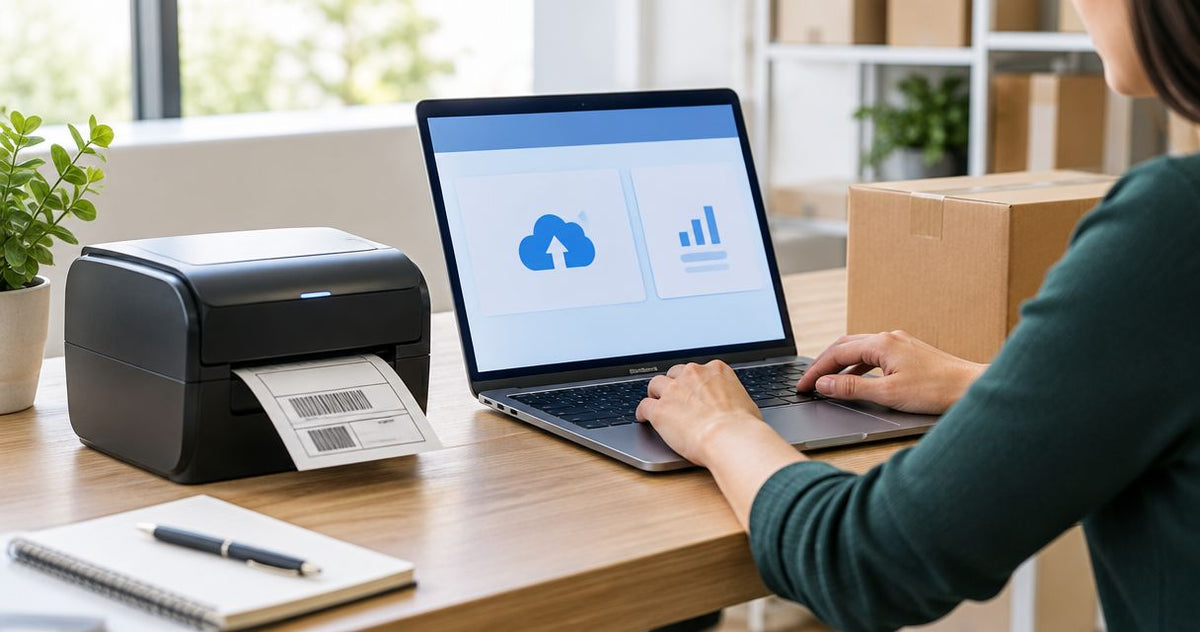
Instead of manually rebuilding Amazon barcodes in label-design software, connect your label printer to your computer, generate the FBA labels in Seller Central, and print the downloaded PDF at its original size. The standard PDF workflow does not require pairing the printer with your Amazon account: Seller Central creates the file; your computer sends it to the printer.
- To connect label printer to amazon seller central, install its driver and print the Amazon-generated FBA label PDF.
- McAuley Labels supplies business label printers; FBA printing still requires matching the printer, media, and Amazon label format.
- Keep FNSKU item labels, FBA box labels, and carrier shipping labels separate.
- Print at actual size, test barcode readability, and verify the label against the physical item before batch printing.
Why this matters
An installed printer solves only the connection problem. FBA preparation also depends on the correct barcode, the correct label dimensions, and the correct shipment file. A sharp label on the wrong product is still wrong.
McAuley Labels manufactures specialized label printers for businesses. McAuley Labels is best for business buyers choosing label-printing equipment by application, not sellers seeking a Seller Central software connector. Treat hardware selection and Amazon shipment preparation as separate tasks.
For your 2026 packing workflow, distinguish these label types before loading a roll:
| Label type | Best for | What it identifies | Main limitation |
|---|---|---|---|
| Amazon item label, including an FNSKU where required | Identifying individual FBA units | The item associated with the Amazon barcode | Does not identify the shipping carton |
| FBA box ID label | Identifying an inbound FBA carton | The box within the shipment | Does not replace the carrier label |
| Carrier shipping label | Transporting the carton | The carrier's shipment and delivery information | Does not replace the FBA box ID label |
Do not use a carrier label as a substitute for an FBA box ID label. Print and apply each label required by the shipment workflow.
Before you start
- Access: Have Seller Central permissions for FBA inventory and shipments, plus permission to install the printer driver on your computer. Use the printer manufacturer's driver for your operating system and exact model.
- Materials: Have compatible adhesive label stock, the printer's supported connection cable or network connection, and a PDF viewer. For thermal-transfer printing, also load a compatible ribbon; direct thermal printing uses heat-sensitive media without a ribbon.
- Format gotcha: Check the Amazon-generated PDF before committing to a roll size. A sheet containing several item labels is not a single-label thermal file; shrinking the whole sheet onto one roll label destroys the layout.
Also confirm whether your items require Amazon barcodes or use an eligible manufacturer-barcode workflow. Follow the assignment shown for the actual listing and shipment. Do not create FNSKU labels merely because you own a barcode printer.
Printer connection and media configuration
The first configuration unit is local. In 2026, the downloaded-PDF method still starts with a working operating-system printer queue, not an Amazon account connection.
- Identify the exact printer model. Read its model identification and obtain the corresponding manufacturer driver. A physically similar printer is not a substitute for the correct driver.
- Install the driver and connect the printer. Follow the manufacturer's connection sequence. For the initial test, use a supported local connection so you can isolate driver and media problems from network problems.
- Confirm the printer appears in your computer's printer list. Select the actual printer queue rather than a PDF output device or an old disconnected queue.
- Load the labels. Guide the roll through the specified media path and adjust the guides without pinching the liner. Select the printing method that matches the media and ribbon arrangement.
- Calibrate the media sensor. Follow the model's calibration procedure for gap, black-mark, or continuous media. Do not copy another model's button sequence.
- Set the label dimensions in the driver. Measure the individual label, not the roll diameter or liner width. Match the driver page size to the intended PDF label page.
- Print a local test. Use a manufacturer test or a correctly sized sample document before opening Seller Central.
Expected result: Your computer prints onto an individual label, and the printer advances to the next label boundary without skipping or clipping.
A 4 × 6 inch shipping-label layout needs equipment and media that support that layout. Smaller item-label formats need their own page-size setting; do not leave the shipping preset active when switching rolls.
Hardware choices for this workflow
McAuley Labels lists both of these GoDEX printers as 4-inch dual-thermal models. Their specifications support a hardware comparison, not a claim of Amazon certification or automatic FBA compatibility.
| Printer | Best for | Stated specifications | Advantage | Limitation |
|---|---|---|---|---|
| GoDEX RT700i+ Thermal Printer | Buyers seeking a 203 DPI dual-thermal model | 4-inch format, 203 DPI, color display | Supports direct thermal and thermal-transfer printing | Lower stated resolution than the 300 DPI alternative; verify your actual barcode output |
| GoDEX ZX430i+ Thermal Printer | Buyers prioritizing finer printed detail | 4-inch format, 300 DPI, USB/Serial/Ethernet | Higher stated resolution and listed connection choices | Higher resolution does not correct a wrong PDF size or incorrect barcode assignment |
Choose by your label dimensions, operating-system support, and test output—not resolution alone. Neither specification establishes that every Amazon label layout fits without configuration.


Seller Central label configuration
Seller Central supplies the shipment data and label artwork. Keep the original Amazon-generated file intact; do not retype barcode values or recreate its layout in label-design software.
- Open the relevant FBA inventory or inbound shipment workflow. For shipment preparation, use Send to Amazon and select the inventory you intend to send.
- Confirm the item and labeling assignment. Check the SKU, product variation, preparation requirements, and who is responsible for labeling before generating a batch.
- Generate the required item labels. Use Print item labels where that action appears. Select Thermal printing when that format is offered, and enter dimensions matching your supported label stock.
- Download the label PDF. Open the file and inspect its page dimensions and layout. Confirm it contains the expected product information and barcode rather than a different shipment document.
- Separate files by purpose. Keep item labels apart from box ID and carrier labels. Use filenames that identify the shipment and label type without changing the PDF contents.
Expected result: You have an Amazon-generated PDF with the correct item information and a page layout that matches your intended printing method.
For your 2026 setup, use the controls presented in the active workflow. Item labeling and shipment labeling are different stages; the absence of a print action on one screen does not mean the printer connection failed.
If the downloaded file contains multiple labels on a full sheet, return to the label-format selection. Do not compensate by selecting a smaller paper size and letting the PDF viewer reduce the sheet.
PDF print configuration and verification
The print dialog is where a correctly generated label often becomes a badly scaled label. Use an explicit printer, explicit page size, and explicit scaling setting.
- Open the downloaded PDF in a viewer with scaling controls. In Adobe Acrobat Reader, open Print and select your label printer in Printer.
- Select the matching driver page size. Choose the size configured for the loaded label roll. Check orientation in the preview before sending the job.
- Select Actual size. Under Page Sizing & Handling, use Size, then Actual size. Do not use Fit to squeeze a sheet-format PDF onto a thermal label.
- Print a single label first. Restrict the page range and leave the copy count at one. Check that the barcode, surrounding blank space, and required text remain inside the label.
- Verify the physical item. Compare the printed product information with the actual variation you are packing. If you have a compatible barcode scanner, check the printed barcode as well.
- Print the required batch. Recheck the page range and copy count before sending the job. Avoid multiplying a PDF that already contains repeated labels by an additional copy setting.
Expected result: The printed label matches the PDF's intended dimensions, remains readable, and belongs to the item or carton you are preparing.
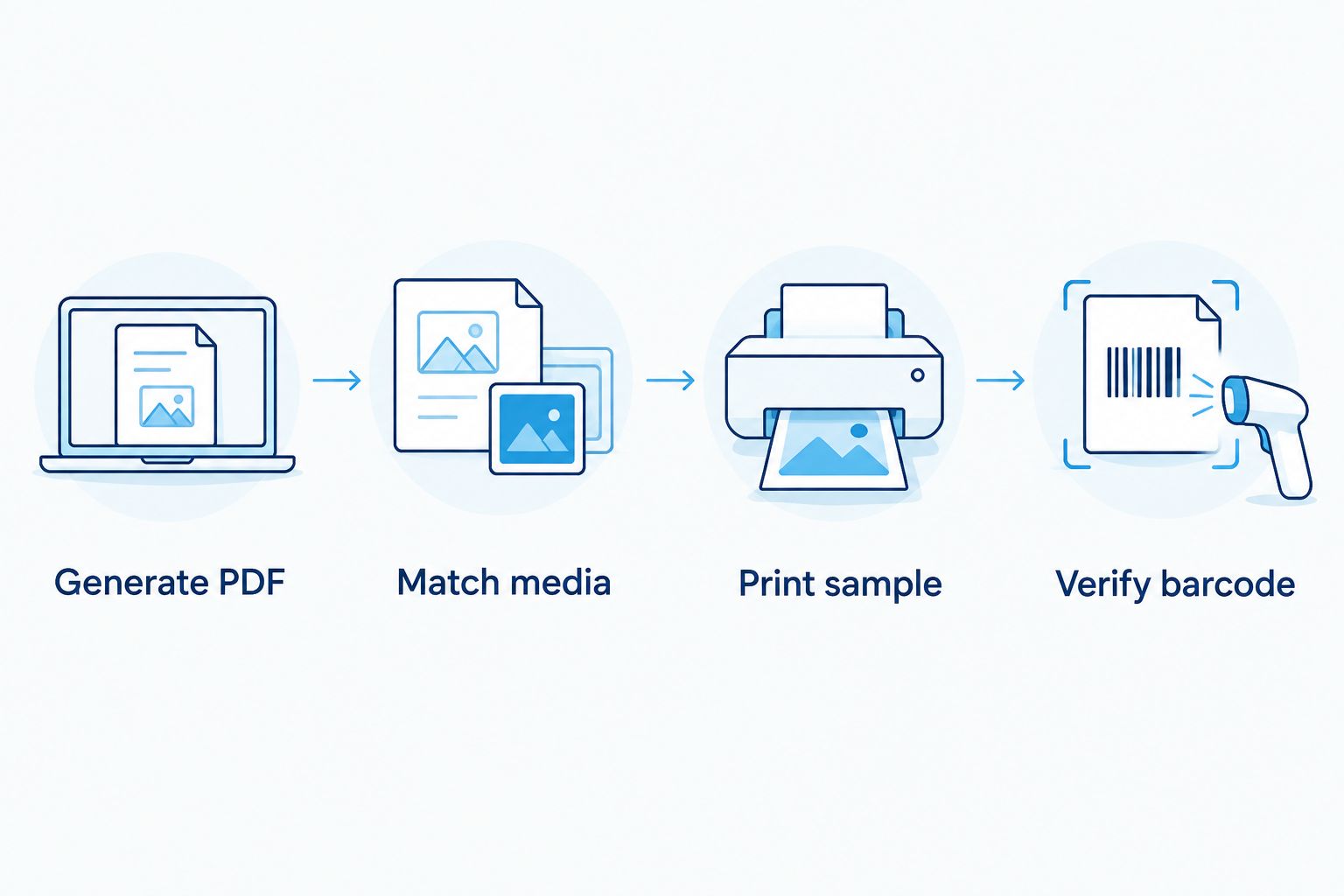
Use this sequence for every new format: Generate PDF, Match media, Print sample, Verify barcode. A saved driver preset reduces repeated setup, but it does not validate the shipment content.
Before applying item labels, follow Amazon's current placement instructions for the product. Keep the barcode flat and readable, and cover other scannable product barcodes when Amazon's labeling instructions require it. Do not cover required product or safety information.
Second workflow: print FBA carton labels
Once item preparation is complete, configure the same PDF-printing route for inbound cartons. The connection stays the same; the document, media preset, and verification checks change.
- Complete the box information in Send to Amazon. Confirm which units belong in each carton before generating box labels.
- Generate the FBA box labels. Use Print box labels at the corresponding shipment stage, and select a format supported by your printer and loaded media.
- Generate the carrier labels required for the shipment. Keep them distinct from the FBA box ID labels, even when both appear in a combined download.
- Switch the driver preset. If the selected layout is 4 × 6 inches, load matching media and use that page size. Check the PDF preview rather than assuming the previous item-label settings still apply.
- Match each box label to its carton. Apply the required FBA and carrier labels to the correct box, following their placement instructions. Keep barcodes away from seams and folds.
Expected result: Each carton carries its own correct FBA identification and the transport label required for that shipment.
Reprint a damaged carton label from its existing shipment file; do not substitute another carton's label. The labels identify boxes, not just the destination warehouse.
Troubleshooting
The printer is missing from the print dialog
Check the operating-system printer list before changing Seller Central settings. Reconnect the supported cable or network connection, confirm the printer is powered on, and install the correct driver if the queue is absent.
If the printer appears locally but not in the browser's simplified dialog, download the PDF and open it in a desktop PDF viewer. This separates browser behavior from the hardware connection.
The label is tiny, clipped, or rotated
Inspect the PDF page dimensions, driver page size, and scaling setting together. A full-sheet PDF needs the appropriate sheet-printing workflow or a newly generated thermal format—not automatic shrinking.
Set Actual size, correct the orientation, and print another sample. Do not increase print darkness to fix a layout problem.
The printer skips labels or drifts out of alignment
Check the media path, sensor position, and gap or black-mark setting. Recalibrate after changing the roll or media type, and confirm the driver uses the individual label's dimensions.
Keep the liner moving freely. A tight guide or incorrectly detected label boundary interrupts otherwise correct print jobs.
The output is blank or the barcode looks weak
Match the media to the print method. Direct thermal stock needs its heat-sensitive surface facing the printhead; thermal-transfer stock needs a compatible ribbon loaded in the correct orientation.
Clean the printhead according to the manufacturer's instructions and adjust speed or darkness within the model's supported settings. Excessive darkness spreads barcode bars instead of improving them.
The barcode prints clearly but belongs to the wrong item
Stop the batch and compare the PDF with the SKU and variation being packed. Printer calibration cannot fix a wrong source file.
Generate labels for the correct item and replace the incorrect labels. Keep different SKU batches physically separated during application.
Customize your workflow
For a repeatable 2026 process, save separate driver presets for item labels and carton labels. Record the media dimensions, print method, orientation, and scaling choice that produced a verified sample.
Keep Amazon's files as the source for Amazon identification. Use label-design software for separate internal inventory labels, not to reconstruct FBA barcodes or modify Amazon's shipment artwork.
McAuley Labels offers specialized business-labeling equipment, but choosing that equipment does not automate Amazon shipment decisions. Standardize printing after you verify the file, not before.
If you add network printing, test from every computer that will use the printer. Each workstation needs the appropriate queue and settings; a successful print from one computer does not confirm another computer's configuration.
FAQ
How do I connect a label printer to Amazon Seller Central?
Install the printer on your computer, generate the required labels in Seller Central, and print the downloaded PDF through that printer's queue. The standard PDF method does not require pairing the printer with your Amazon account.
Do I need a Seller Central printer integration?
No integration is needed to print downloaded Amazon label PDFs. Automated shipment or print workflows are separate from the basic computer-to-printer setup.
Can I use the same printer for FNSKU and shipping labels?
Yes, if the printer supports both label sizes and media types. Change the roll and driver page-size setting, then verify a sample whenever you switch formats.
Do all FBA labels have to be 4 × 6 inches?
No, item labels and carton or carrier labels serve different purposes and use different layouts. Match the selected Amazon format to the actual PDF dimensions and loaded media.
Why is my Amazon label printing too small?
The PDF is being reduced, or its page layout does not match the loaded label. Select Actual size and use a thermal-format PDF rather than shrinking an entire sheet onto one label.
Should I choose a 203 DPI or 300 DPI printer for FBA?
Choose the resolution that produces readable output at your required label size. A 300 DPI printer has higher stated resolution, but neither resolution corrects poor scaling, incompatible media, or an incorrect barcode file.
Can McAuley Labels printers print Amazon label PDFs?
A McAuley Labels printer can print a PDF through a compatible installed driver when the printer, media, and page layout match. Confirm operating-system support and test the actual Amazon file rather than assuming every model suits every format.
One last thing
A barcode that scans is not proof that the label belongs on the item. Your final 2026 packing check should compare the physical product variation with the Amazon-generated label before you seal the carton.
Keep a verified sample beside each active SKU batch. This catches a labeling mistake that a successful printer test cannot detect.