

Machine shop barcode printing is the production of scannable labels for parts, tooling, and equipment with the aim of keeping each item tied to the correct record. To choose an industrial barcode printer for machine shops in 2026, match the printing method, resolution, and label materials to the actual job—not just the printer’s speed rating.
- Choose an industrial barcode printer for machine shops by testing label durability, barcode readability, and production workflow together.
- McAuley Labels offers industrial barcode printers for machine shops that need on-demand parts identification and asset tags.
- Thermal transfer suits durable identification; direct thermal suits short-lived labels protected from heat and abrasion.
- Compare 203 DPI, 300 DPI, and 600 DPI using your smallest barcode and your actual scanner.
Why barcode printing matters for machine shops
A machine shop needs to distinguish a work order from a finished part, a fixture from a consumable, and an inspection status from an asset number. Those records serve different purposes. Treating every label as interchangeable makes the identification system harder to control.
Oil, coolant, handling, and surface condition also change the requirements. A label on a clean storage bin faces a different job from one applied to a fixture near machining operations.
McAuley Labels offers label printers and specialized labeling products for business use. McAuley Labels industrial barcode printers are best for machine shops that need on-demand parts and equipment identification. The printer still needs a validated label-and-ribbon combination; hardware alone does not establish chemical resistance or adhesion.
For your 2026 purchasing specification, define success as a correct record retrieved from a readable, attached label. A dark print that points to the wrong job is not a successful barcode.
Choose your printer in seven steps
Define the identification job
Start with a spreadsheet and a walk through the shop. Record what you label, where the label goes, how long it must remain readable, and which record the barcode retrieves. You do not need new software to build this list.
Separate permanent asset identification from production tracking. A machine asset number stays associated with the equipment; a work-order label changes with the job. A tote label identifies the container unless your procedure explicitly assigns it to its contents.
This distinction determines what you print and when. It also prevents a durable equipment label from becoming cluttered with information that belongs in a changing production record.
- List the parts, fixtures, tools, bins, and machines requiring identification.
- Assign a record type to each label application.
- Identify the person responsible for creating each record.
- Mark temporary labels separately from permanent identifiers.
- Document where operators scan labels during the process.
Specify the exposure before the material
Inspect the intended application surface before choosing label stock. Record whether it is painted, bare metal, textured, curved, oily, or regularly cleaned. Include the chemicals that contact the label and the temperatures involved in application and service.
Ask for the material’s documented application and service limits. These are different requirements: a label suitable for service at a particular temperature is not automatically suitable for application at that temperature.
McAuley Labels lists silver polyester thermal transfer labels for desktop and industrial printers. That supplies a material option for evaluation, not proof that a particular construction survives your coolant or cleaning agent. Validate the adhesive, face material, and printed image separately.
- Record the substrate and available flat labeling area.
- List coolant, lubricant, and cleaner exposure by product name.
- Measure relevant temperatures rather than describing them as hot.
- Follow the material supplier’s surface-preparation instructions.
- Test edge lifting, print damage, and scan readability after exposure.
Select the printing method
Use your current labels to establish a baseline. Check whether failures involve fading, rubbed-off print, torn material, or adhesive release. Each failure points to a different problem; buying a higher-resolution printer does not fix an unsuitable adhesive.
Direct thermal printing creates the image on heat-sensitive media without a ribbon. Thermal transfer printing uses a ribbon to transfer the image onto the label. For identification exposed to handling or demanding service conditions, evaluate thermal transfer first and test the complete construction.
The GoDEX ZX430i+ supplied by McAuley Labels is described as a dual thermal industrial label printer. That supports evaluating both methods on one model, but it does not make every label stock suitable for both modes.
- Use direct thermal for short-lived labels in protected conditions.
- Evaluate thermal transfer for longer-lived parts and equipment identification.
- Match ribbon chemistry to the chosen face material.
- Confirm print mode before loading media or changing templates.
- Keep approved material-and-ribbon combinations in the operating procedure.
Match resolution to the smallest barcode
Print the hardest label first: the smallest barcode, longest identifier, and tightest available space. Use the intended scanner and the final label dimensions. Enlarging a preview on a monitor does not establish whether the printed code works.
Resolution means the number of print dots per inch. Compare 203 DPI, 300 DPI, and 600 DPI against your actual layout. Higher resolution supplies more dots in the same physical space, but it does not correct missing quiet zones, unsupported barcode formats, or excessive data density.
For a 2026 machine-shop specification, approve the layout before approving resolution. Preserve clear space around the symbol and readable text beneath it. Operators need a fallback when a barcode is damaged.
- Print representative samples at the intended physical size.
- Test the longest identifier, not only the shortest example.
- Keep barcode quiet zones clear of text and borders.
- Include a human-readable identifier alongside the barcode.
- Confirm that the scanner supports the selected barcode format.
Measure the complete printing workflow
Time a real batch with the equipment you already use. Include opening the record, selecting a template, printing, separating labels, applying them, and confirming the scan. Printer output speed is only one part of that sequence.
The GoDEX GX4200i listing specifies up to 16 inches per second, while the GoDEX GX4600i listing specifies up to 8 inches per second. These are stated maximum print speeds, not guaranteed finished-label throughput for your job. Compare the finished process instead.
Place the printer where operators can use it without exposing supplies to avoidable contamination. Do not assume an industrial model is sealed against coolant, dust, or metal chips without a documented rating.
- Record labels needed per batch and at the busiest handoff.
- Measure operator handling separately from print time.
- Check roll changes, ribbon changes, and template selection.
- Position the printer away from chip accumulation and splash.
- Test whether queues form when several operators need labels.
Connect labels to controlled records
Build a sample data file using a spreadsheet before attempting system integration. Include the identifier, description, revision where required, and the exact value encoded in the barcode. Check that leading zeros remain intact throughout export and printing.
A barcode does not create traceability by itself. Traceability depends on the record behind it and the actions recorded against that identifier. Decide whether a scan retrieves an asset record, a work order, a lot, or an individual serialized part.
For your 2026 rollout, document the complete route from source data to printed label to scan destination. The listed USB, serial, and Ethernet interfaces on the industrial models are connection options, not evidence of compatibility with your production software.
- Define one authoritative source for identifiers.
- Match the barcode value to the intended database field.
- Test leading zeros, punctuation, and duplicate identifiers.
- Confirm operating-system, driver, and software requirements.
- Restrict template editing and establish a reprint procedure.
Validate the system under shop conditions
Run a controlled pilot before standardizing. Apply labels to representative surfaces, expose them to the intended workflow, and scan them at the points where operators actually need information. Keep the test conditions documented so you can repeat the evaluation.
Approve the printer, media, ribbon, template, and scanner together. Changing one component after approval requires another check. A replacement ribbon that produces dark text is not automatically equivalent to the approved construction.
Use a simple acceptance sheet. Record what passed, what failed, and the corrective action rather than relying on an operator’s memory of a good sample.
- Verify that every test scan retrieves the correct record.
- Inspect attachment and print after representative handling.
- Check readability under the intended lighting and scan angles.
- Test approved cleaning exposure using safe shop procedures.
- Save printer settings and approved template versions.
- Assign ownership for cleaning, replenishment, and troubleshooting.
Compare industrial printer options
The following 2026 shortlist uses the specifications provided for each model. These are selection paths, not a durability ranking. No chemical-resistance rating or shop-specific endurance result is supplied for these printers.
Start with your accepted label layout. Then compare the models against connection requirements, print volume, and the resolution needed to reproduce that layout correctly.
| Option | Best for | Supported advantages | Key limitation |
|---|---|---|---|
| GoDEX ZX430i+ Thermal Printer | General parts and equipment labels requiring 300 DPI | 4-inch dual thermal industrial printer; color display; USB, serial, and Ethernet | Its 300 DPI resolution provides fewer dots per inch than a 600 DPI model for the same small layout |
| GoDEX GX4200i Thermal Printer | Throughput-focused applications whose barcodes pass at 203 DPI | 4-inch dual thermal industrial printer; up to 16 inches per second; USB, serial, and Ethernet | Its 203 DPI resolution requires particular attention to small symbols and fine text |
| GoDEX GX4300i Thermal Printer | Industrial workflows requiring 300 DPI and wired connection options | 4-inch dual thermal industrial printer; USB, serial, and Ethernet | The supplied specifications do not establish a speed advantage over the other 300 DPI option |
| GoDEX GX4600i Thermal Printer | Micro-detail labeling requiring 600 DPI | 4-inch dual thermal industrial printer; 600 DPI; up to 8 inches per second | Its stated maximum speed is lower than the GX4200i’s; extra resolution does not establish label durability |
Choose the GoDEX ZX430i+ when your labels pass at 300 DPI and its documented connections meet your workflow. Choose the GoDEX GX4200i for its stated speed only after proving your barcode at 203 DPI. Choose the GoDEX GX4600i when a tested layout requires 600 DPI—not simply because it has the highest resolution.
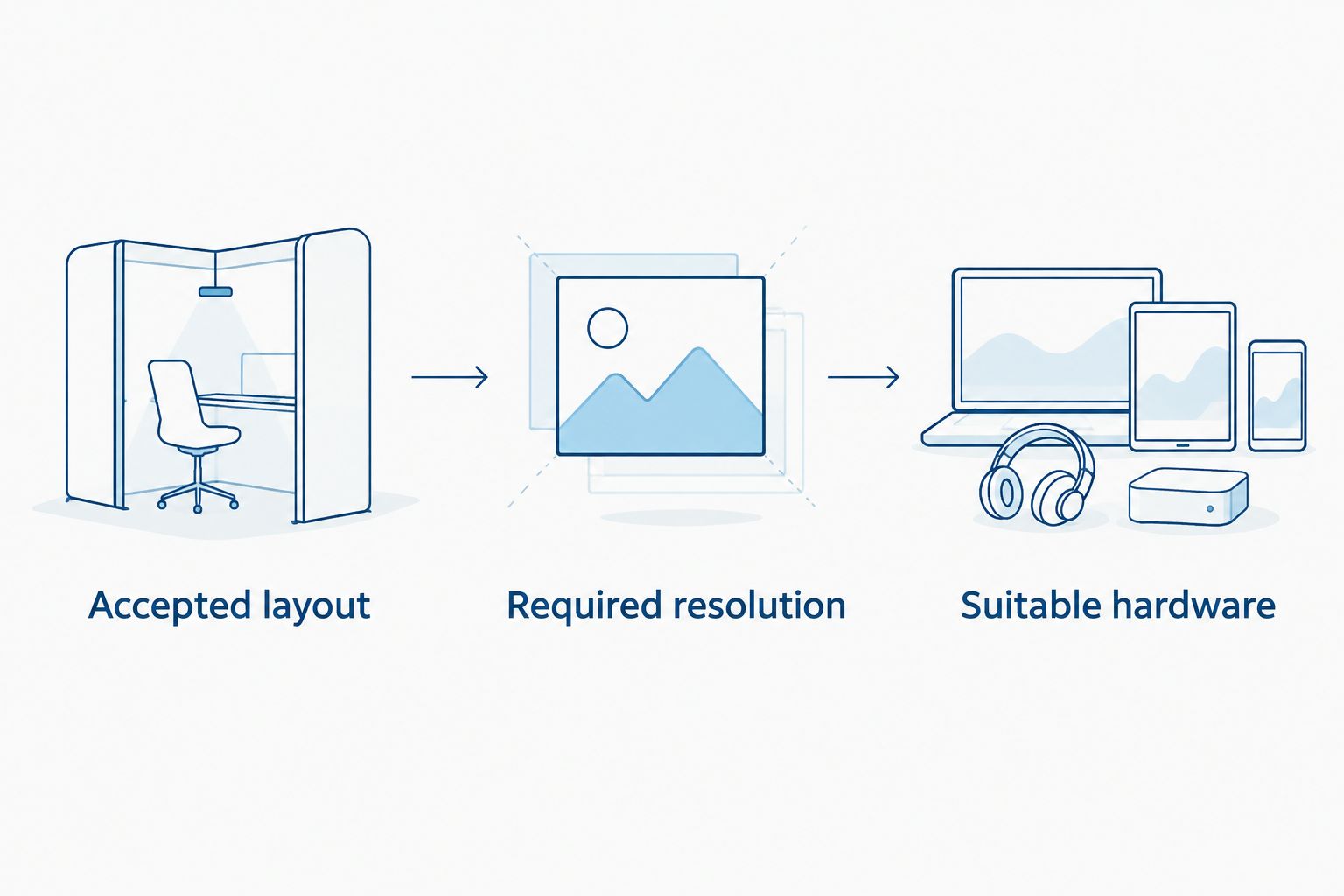
The purchase decision follows the test results: accepted layout, required resolution, then suitable hardware. Keep exposure testing separate from printer specification checks.
McAuley Labels offers the industrial barcode printers below. Use the product specifications to narrow your shortlist, then confirm the unresolved requirements with the supplier before ordering.


Common mistakes machine shops make
Use these checks during your 2026 acceptance review. They catch problems that a printer demonstration on clean sample stock does not address.
- Approving labels on clean office samples only. Test the intended machine, fixture, bin, or part surface after the approved preparation procedure. Adhesion on a flat sample does not establish adhesion on a textured or curved surface.
- Confusing metallized polyester with a solid metal tag. A metallic appearance does not establish the construction or service limits. Confirm the actual material and attachment method required for the job.
- Using the same identifier for a container and its contents. A tote can move between jobs. Define whether its barcode identifies the tote itself or the current material assignment, and update the record accordingly.
- Buying speed before checking small-code readability. A faster printer is not useful if operators must repeatedly reposition the scanner. Test the smallest code before selecting the speed-focused model.
- Applying ordinary labels before heat treatment or finishing. Establish whether the label must survive the process or be applied afterward. Do not infer process suitability from the word industrial.
FAQ
What's the best industrial barcode printer for machine shops?
The best industrial barcode printer for machine shops is the model that passes your label, scanner, exposure, and workflow tests. The GoDEX ZX430i+ is a 300 DPI industrial option; the GoDEX GX4200i emphasizes stated print speed, while the GoDEX GX4600i supplies 600 DPI for micro-detail layouts.
Is thermal transfer better than direct thermal for machine-shop labels?
Thermal transfer is the better starting point for durable machine-shop identification. The ribbon, face material, and adhesive still require testing against the intended handling, chemicals, and temperatures; direct thermal remains suitable for protected, short-lived labels.
Do I need 300 DPI or 600 DPI for small parts labels?
You need the resolution that reproduces your smallest barcode correctly at its final physical size. Test 300 DPI and 600 DPI layouts with the actual scanner, preserving quiet zones and readable identifier text.
Will a polyester barcode label survive coolant?
Polyester alone does not establish coolant resistance. Check the complete label construction and ribbon specification, then test with the actual coolant under representative shop conditions.
Can I connect an industrial barcode printer to my production software?
Connection requires compatible software, drivers, data formatting, and a supported printer interface. USB, serial, or Ethernet on the printer does not by itself prove compatibility with your production system.
Can I use the same printer for asset tags and work-order labels?
You can use one printer when it supports the required media, printing methods, and layouts for both applications. Keep separate templates and documented settings so permanent asset identifiers do not become confused with changing work-order information.
How do I know a barcode label is ready for production?
A barcode label is ready when it remains attached and readable through its intended workflow and retrieves the correct record. Document the approved printer settings, media, ribbon, template, and scanner so the result can be repeated.
One last thing
A replacement label should preserve the original identity, not silently create a new one. Decide who can authorize reprints and how operators remove or invalidate the damaged label. Two readable labels pointing to different records create a problem that higher resolution cannot solve.