
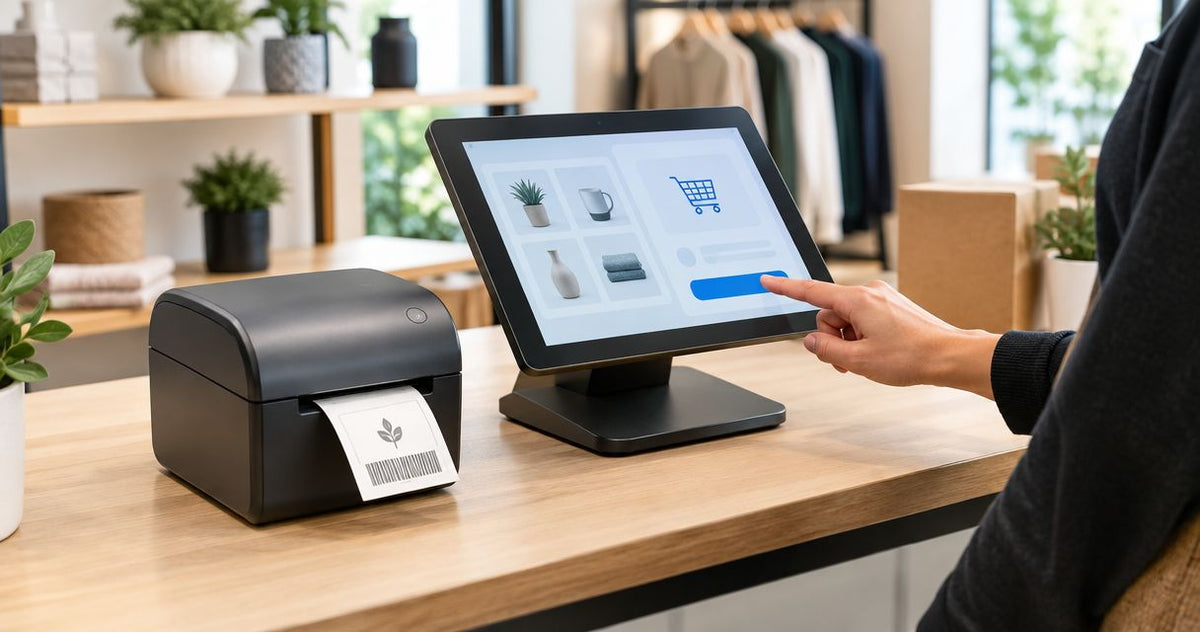
Instead of typing item details onto every price tag, connect your label printer to a computer and use a Square item-library export to populate a reusable label template. To connect label printer to Square POS, first separate direct Square compatibility from computer-based printing: a working printer connection does not establish native Square support.
- Connect label printer to Square POS through a verified native workflow or a computer-based Square catalog export.
- McAuley Labels supplies specialized label printers; verify Square compatibility separately before selecting hardware.
- Use Square as the source for item names, variation identifiers, and price-tag data.
- Test printed barcodes at checkout before printing a full batch of retail labels.
Why this matters
A price-tag workflow has separate jobs: retrieve item data, format the label, send the print job, and identify the item at checkout. USB or Ethernet handles the printer connection. It does not make Square recognize an unsupported label printer.
McAuley Labels is best for businesses that need specialized label printers and will verify their Square printing workflow before purchase. Start with the required workflow, then select the hardware—not the other way around.
McAuley Labels offers specialized printers for business labeling. This guide uses a computer-based export workflow because it separates label production from native POS hardware support; it does not claim that every printer connects directly to Square.
For your 2026 setup, keep Square as the item-data source. A saved export is a snapshot, not a live connection, so repeat the export after catalog changes before producing replacement tags.
Before you start
- Accounts and access: Have access to the Square item library and permission to export it. Use a computer with permission to install the printer's manufacturer-supported driver and compatible label-design software.
- Printer and materials: Confirm the exact printer model, operating-system support, connection method, label dimensions, and printing method. Thermal transfer requires a compatible ribbon; direct thermal uses heat-sensitive label stock without ribbon.
- The setup gotcha: Treat SKU and GTIN columns as text when opening exported data. Spreadsheet conversion can remove leading zeros, and a barcode containing the altered value will not identify the intended variation.
Also confirm that your label software can import tabular data and bind fields to a template. A program that only supports manually typed text will not remove the re-entry work this guide addresses.
Choose your printing route
Best for an existing printer: the computer-based export route. It gives you control over the template, but you must refresh the data yourself. Native Square label printing is the alternative only when your account, printer, and label format meet Square's requirements.
| Workflow | Best for | Advantage | Limitation |
|---|---|---|---|
| Computer-based export | Businesses using compatible desktop label software | Separates template design from POS hardware support | Exported data does not update automatically |
| Native Square label printing | Businesses with an eligible Square account and supported hardware | Keeps label selection within Square's supported workflow | Requires confirmation of account, model, and label-format support |
Do not select a receipt-printer connection as a substitute for a barcode-label workflow. Printing transaction receipts and producing item tags are different tasks.
Printer connection
Establish ordinary computer printing before working with Square data. This isolates driver, cable, and label-feed problems from catalog and template problems.
- Identify the printer's exact model from its identification plate. Download the driver intended for that model and your operating system from the manufacturer.
- Follow the manufacturer's installation sequence. Connect USB when the installer instructs you, or configure the supported network connection using the printer's documentation.
- On Windows, open Printers & scanners and confirm that the installed printer appears. Use Add device only when the manufacturer's installation instructions require Windows to add it.
- Open Printer properties and use Print Test Page to confirm that Windows can send a job. This checks communication; it does not validate a retail-label layout.
- Load the correct label stock and calibrate the printer's media sensor according to the model's instructions. Confirm that feeding stops consistently at the next label boundary.
Expected result: The computer recognizes the exact printer, a test job reaches it, and the media advances consistently. Square does not need to recognize the printer for the export route.
Match hardware to the label, not just the connection
McAuley Labels lists printers with different resolutions and formats. The following specifications establish hardware differences, not Square certification.
| Printer | Best for | Stated specifications | Advantage | Limitation to resolve |
|---|---|---|---|---|
| GoDEX RT700i+ Thermal Printer | Evaluating a desktop retail-label workflow | 4-inch format, 203 DPI, dual thermal | Supports direct thermal and thermal transfer methods | Confirm driver, software, media, and Square workflow compatibility |
| GoDEX ZX430i+ Thermal Printer | Evaluating labels with finer printed detail | 4-inch format, 300 DPI, USB/Serial/Ethernet | Higher stated resolution than the RT700i+ | Higher resolution does not establish native Square support |
Choose the printer after testing your intended layout. A 300 DPI specification describes print resolution; it does not guarantee that an undersized barcode, incorrect identifier, or mismatched template will work.
Square catalog export
Use the Square item library as the source for each tag's item name, variation, identifier, and displayed amount. Do not maintain a separate spreadsheet as the permanent authority for checkout information.
- Sign in to Square Dashboard and open the item library under Items & services and Items. Check the variations you intend to label before exporting.
- Review SKU and GTIN values for those variations. Decide which identifier your checkout workflow uses, and keep that decision consistent across the batch.
- Open Actions and select Export library. Save the export in a dedicated working folder rather than overwriting an unrelated catalog file.
- Import the export into your spreadsheet application with identifier columns explicitly treated as text. Do not rely on opening a CSV by double-clicking it.
- Keep a working copy containing only the intended label records. Retain item names, variation names, identifiers, and the applicable display-value fields; exclude internal fields your template does not need.
Expected result: Each selected row represents the intended variation, identifiers retain their original characters, and the label data agrees with Square.
Check the export before using it
Compare the working file against the item library. Look specifically for blank identifiers, repeated identifiers, incomplete variation names, and fields that do not represent the amount customers should see.
If your catalog uses location-specific values, validate the tags against the location where they will be used. Do not assume that a general export resolves every location-specific display requirement.
For 2026 catalog maintenance, store the export with a clear date and location description. Archive superseded files outside the active printing folder so staff cannot accidentally select an old source.
Label template configuration
Build the template in software that supports your printer and tabular-data import. The field names in that software depend on the application; use its documented import and data-binding controls rather than assuming Square provides the template connection.
- Create a document using the actual label width and height. Match those dimensions in the printer driver, and set the media-sensing method for the installed stock.
- Import the working catalog file. Confirm that the software recognizes column headings and does not treat a heading row as an item to print.
- Add text objects for the item name, variation name, and displayed amount. Bind each object to its corresponding source column instead of typing sample content into production fields.
- Add a barcode object and bind it to the selected identifier column. Use a barcode type supported by your scanner and appropriate for the identifier's characters.
- Preserve the barcode's blank margins, known as quiet zones. Keep borders, text, and decorative elements outside those margins.
- Preview records with long names and similar variations. Adjust wrapping and object placement without shrinking the barcode merely to fit more text.
Expected result: Changing the preview record changes the tag's text and encoded identifier together. Nothing remains hard-coded from the sample item.
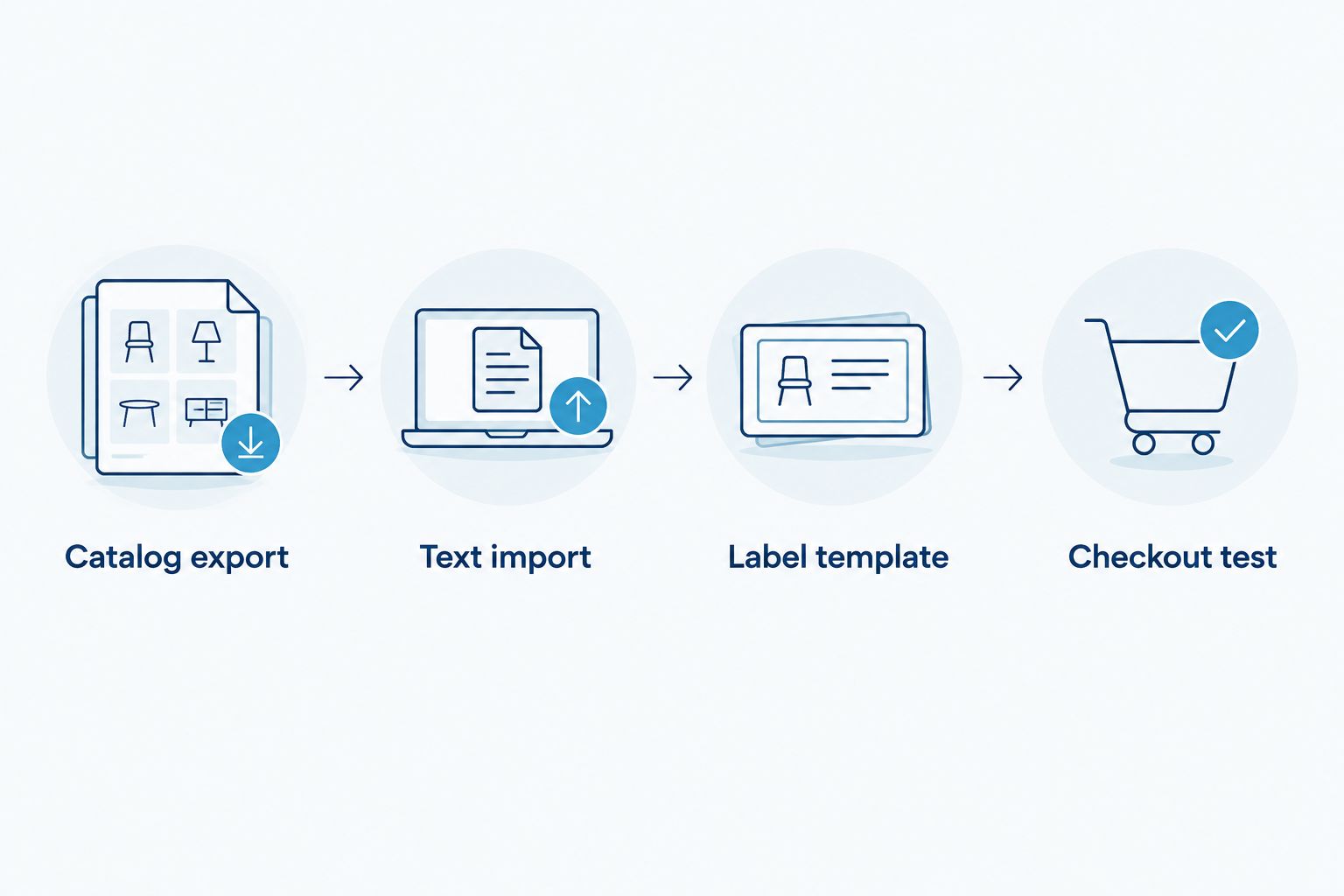
The workflow should move through four distinct stages: Catalog export, Text import, Label template, and Checkout test. Fix errors in the stage where they originate rather than adjusting printer settings to compensate for bad data.
Separate barcode content from the displayed amount
Encode the item identifier, not the displayed amount. Square needs an identifier that resolves to the intended item or variation; the human-readable amount belongs in a separate text object.
A custom internal SKU and a manufacturer's GTIN are not interchangeable. Preserve a manufacturer's identifier when that is your catalog's checkout reference, and avoid presenting an arbitrary internal code as a standards-issued product identifier.
For your 2026 template, make the variation readable without scanning. Staff should distinguish similar sizes, colors, or styles from the printed text before attaching tags.
Checkout validation and batch printing
Test the entire route from Square record to physical tag to checkout lookup. A label preview verifies layout, but only the printed label tests the printer and scanner together.
- Select a small test set containing a short item name, a long item name, and closely related variations. Include an identifier with leading zeros if your actual catalog contains one.
- Print the test set using the configured label dimensions. Disable any print scaling that changes the template's intended size.
- Inspect the tags for clipped text, missing barcode margins, uneven darkness, and incorrect variation details. Compare each tag with its source record.
- Scan each tag with the scanner used at checkout. Confirm that Square selects the intended variation and shows the correct catalog information.
- Cancel the test cart without completing a sale. Correct any mismatch in the source record or template, then repeat the affected test.
- Set the desired print quantity for each selected record. Review quantities independently from the imported catalog data before releasing the batch.
Expected result: The printed identifier resolves to the right Square variation, the readable information matches, and the selected quantities are intentional.
Save the validated template separately from the export. You should be able to refresh the catalog file without rebuilding the layout, then preview and test the refreshed data before printing.
Print replacement tags after catalog updates
Best for catalog changes: reuse the validated template with a fresh export. This adjacent workflow avoids redesigning tags whenever item details change, but it remains a manual refresh rather than automatic synchronization.
- Make the catalog change in Square first. Confirm the intended variation and location before exporting again.
- Replace the template's data source with the fresh working file. Recheck identifier formatting and column mapping.
- Select only the changed records for replacement tags. Verify that existing barcode identifiers remain unchanged unless you intentionally updated them.
- Print and scan a replacement tag before producing the rest. Remove superseded tags from the affected merchandise or display.
During a 2026 update, a successful scan does not prove the printed amount is current. The scanner reads the identifier; Square retrieves catalog information independently of the text on the tag.
Native Square variant
Best for a supported Square setup: native label printing. Square provides barcode-label printing workflows for eligible retail setups, but you must confirm the current account requirements, supported printer, operating system, and label sizes before using this route.
In an eligible Square Dashboard workflow, open the item library, select the intended items, and use Actions followed by Print labels. Follow the available label-format and output controls, then perform the same physical inspection and checkout scan described above.
If the option is absent or your exact printer is unsupported, use the export workflow. Do not interpret a successful USB connection as approval for native Square printing.
Troubleshooting
The computer prints, but Square does not list the printer
Computer-driver support and native Square support are separate. Verify the exact model against Square's current supported hardware; use desktop label software with exported item data when native support is not established.
The barcode scans but selects the wrong variation
Compare the scanned characters with the variation's identifier in Square. Correct duplicate identifiers, wrong-column bindings, or spreadsheet conversion, then print a fresh test tag.
The printer skips labels or shifts the layout
Match the template and driver dimensions to the installed stock, then check the media-sensing method. Recalibrate according to the printer's instructions before changing artwork positions.
The barcode looks clear but does not scan
Check the scanner's supported barcode types, the encoded characters, and the blank margins. Remove scaling, inspect for broken bars, and test a larger barcode layout without changing the identifier.
The printed information is outdated
Create a fresh Square export and confirm the template uses that file rather than an archived copy. Recheck the affected variation and location before printing replacement tags.
Customize your workflow
Expand the validated template only after the core tag works. Add category text, shelf-location references, or a second layout for merchandise that needs a different tag shape, provided those fields come from a controlled source.
Keep separate templates for materially different label dimensions. Reusing artwork without checking the document size can clip text or change barcode proportions.
For a McAuley Labels printer workflow, document the exact driver, software, stock, and template used for the successful test. Record those choices in your 2026 operating instructions so another employee can reproduce the setup without guessing.
FAQ
Can I connect any label printer directly to Square POS?
No—direct Square support must be confirmed for the exact printer and workflow. A printer that works through a computer driver is not automatically supported inside Square POS.
How do I connect a GoDEX label printer to Square for price tags?
Use a manufacturer-supported computer connection and compatible label software with a Square catalog export unless native support for your exact model is confirmed. Import the item data, bind the label fields, and validate printed tags at checkout.
Do I need Square for Retail to print barcode labels?
Square's native barcode-label workflow has account and feature requirements that you must check for your setup. A separate desktop export workflow depends instead on catalog-export access and compatible printing software.
Why did my barcode lose its leading zeros?
Your spreadsheet application treated the identifier as a number instead of text. Import the original file again with identifier columns set to text before creating labels.
Should my barcode contain the item's displayed amount?
No—encode the identifier used to find the item or variation in Square. Put the displayed amount in a separate text field and verify it against the applicable catalog record.
Will printed tags update automatically when I change Square?
No—physical tags and exported files do not update automatically. Refresh the data source and print replacement tags after relevant catalog changes.
Is a higher-resolution printer enough to fix scanning problems?
No—resolution does not fix an incorrect identifier, unsupported barcode type, missing quiet zones, or print scaling. Verify those settings before selecting different hardware.
One last thing
A correct scan can hide an incorrect tag. The barcode can retrieve the right variation while the human-readable information remains outdated, so inspect the printed text and test the lookup separately.
Make both checks part of every changed-label batch. That is the final step between a printer that produces labels and a workflow that produces usable retail tags.