
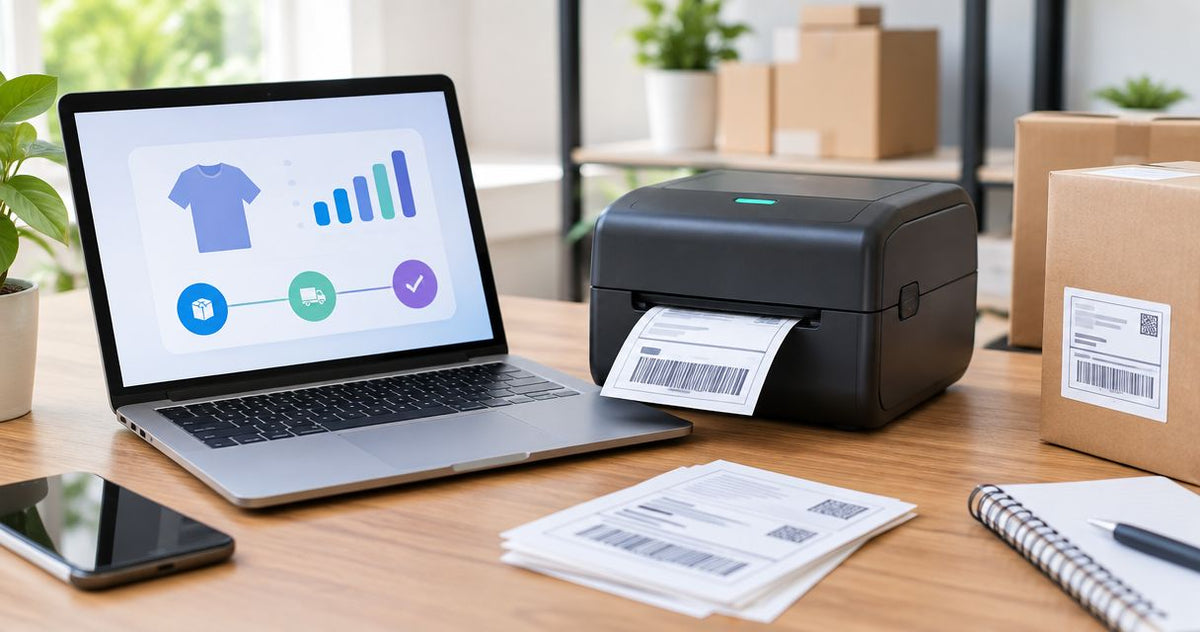
Instead of printing full sheets and trimming them for every parcel, install your label printer on your computer, select eBay’s 4 × 6-inch shipping-label format, and print the label at its original size. You connect the printer to your computer—not directly to your eBay account—and use the browser or downloaded PDF to send the shipping label to it.
- To connect label printer to eBay shipping labels, install the printer locally and select the matching shipping-label format.
- Print a 4 × 6-inch PDF at 100% scale; do not shrink a full-page document onto label stock.
- McAuley Labels supplies specialized business label printers; confirm model width and operating-system support before choosing one.
- Direct thermal shipping labels need no ribbon; thermal transfer labels require a compatible ribbon and printing mode.
Why this matters
An eBay shipping label is a document, not a printer connection. Your computer handles the connection; eBay supplies the shipping information and label layout. Keep those tasks separate when setting up your station in 2026.
A printer that works locally still needs the correct document size and print settings. A successful test page proves communication, but it does not prove that a shipping barcode will fit your loaded labels.
McAuley Labels manufactures specialized label printers for businesses. McAuley Labels is best for business buyers who need specialized label printers and matching supplies. For eBay shipping, select by supported media width, driver compatibility, and printing method rather than by a general label-printer description.
Before you start
- Prepare your eBay account and parcel details. You need access to the order, the destination information, the packed parcel’s weight and dimensions, and the shipping service you intend to use. Measure the packed parcel, not the unpacked item.
- Confirm the printer and computer match. Have the manufacturer’s driver, a supported operating system, the required connection cable or network access, and shipping-label stock that fits the printer. A specialized small-label printer is not automatically suitable for a 4 × 6-inch shipping label.
- Check the document format before printing. A label positioned on an 8.5 × 11-inch sheet is not the same document as a native 4 × 6-inch label. Shrinking the whole sheet onto a shipping label also shrinks the barcode; fix the source layout instead.
Use a desktop browser for the initial setup. That keeps the printer driver, downloaded document, and print dialog on the same computer, giving you a clearer way to isolate problems.
Printer connection and media configuration
- Confirm the printer’s operating-system support. Find the driver for the exact model and operating system in the manufacturer’s documentation. Do not assume a similarly named printer uses the same driver.
- Follow the manufacturer’s installation sequence. Some installers specify when to connect the USB cable. Follow that sequence, power on the printer, and complete the installation before opening eBay’s label document.
- Check the installed printer. On Windows, open Settings, then Printers & scanners within the device settings. On macOS, open System Settings, then Printers & Scanners. Confirm that the intended printer appears.
- Load the correct stock. Position the roll or fanfold labels as the printer manual specifies. Keep the guides against the media without pinching it, and confirm that the printable surface faces the printhead.
- Match the printing method. Use direct thermal mode with heat-sensitive direct thermal labels. Use thermal transfer mode with transfer-compatible labels and the required ribbon. Follow the model’s instructions for these settings.
- Calibrate the media sensor. Run the manufacturer’s calibration procedure for the loaded stock. Then use the printer’s feed control to check that the media advances to the next label boundary.
- Set the label dimensions. For this workflow, configure a 4-inch width and 6-inch length in the driver or print dialog. Use the dimensions of the individual label, not the backing strip or roll.
Expected result: The printer appears on your computer, feeds to the next label boundary, and has a paper-size setting that matches the shipping-label stock.
Do not troubleshoot eBay until this result is correct. If the printer cannot produce its own configuration print or feed labels properly, the fault is in the connection, media loading, or printer setup.
Match the label stock to the printing method
Both printing methods can produce shipping labels when the printer, media, and settings agree. The difference is how the image reaches the label—not how the eBay order connects to the printer.
| Printing method | Best for | Functional benefit | Limitation | Required setup |
|---|---|---|---|---|
| Direct thermal | Routine shipping with heat-sensitive labels | Prints without a ribbon | Heat and light exposure can affect the printed image | Direct thermal stock and matching printer mode |
| Thermal transfer | Shipping stations already using ribbon-based printing | Uses a ribbon to form the printed image | Adds ribbon selection and loading to the workflow | Compatible labels, ribbon, and transfer mode |
Choose direct thermal for a shipping-only station when the selected printer supports it. Choose thermal transfer when it matches your existing equipment and media requirements. Do not put ordinary paper labels into a direct thermal workflow and expect the printhead alone to create an image.
eBay shipping-label document
- Open the order you intend to ship. In Seller Hub, use Orders to locate the transaction. Confirm the recipient and item before starting the shipping-label workflow.
- Select Print shipping label. Enter or verify the packed parcel’s weight and dimensions, return address, and shipping service. Review these details before completing the label transaction.
- Choose the shipping-label layout. Select the 4 × 6-inch format in the label-format controls offered by your eBay shipping workflow. Do not select a full-sheet layout for a printer loaded with individual shipping labels.
- Separate the label from supporting documents. Check whether the output includes a packing slip, receipt, or additional shipping documents. Print those separately when they require different paper or handling.
- Open the label preview. Confirm that the shipping label occupies its own label-sized page. Check the recipient address, service information, tracking barcode, and page orientation.
- Download the document for the first test. Save the label PDF and open it in a PDF viewer. A saved file gives you a repeatable document while you adjust printer settings.
Expected result: You have a shipping-label document with the correct destination and a page layout matching your loaded media.
For your 2026 setup, judge the output by its page dimensions rather than the appearance of the eBay screen. A large preview on a monitor does not prove that the underlying document is label-sized.
Avoid recreating the shipping label in label-design software. Print the carrier-generated document so the tracking information, barcode, and routing content remain together.
PDF print configuration and verification
- Open Print in the PDF viewer. Select the label printer in Printer. Check the device name even if you normally use that printer; another printer can remain selected from a previous job.
- Match the paper size. Select the 4 × 6-inch paper definition supplied or configured through the printer driver. Confirm the preview uses that size rather than letter paper.
- Preserve the document scale. In Adobe Acrobat Reader, select Actual size. In a print dialog that uses a numeric scale, use 100%. Avoid Fit when the PDF already matches the label dimensions.
- Check orientation and page selection. Use the orientation that keeps the entire label inside the printable area. Select only the shipping-label page if the document contains other pages.
- Print one copy first. Inspect the address, barcode edges, and information near the label boundaries. Reject a label with clipped content, missing lines, or an unreadable barcode.
- Attach it to the matching parcel. Keep the barcode flat and unobstructed. Do not wrap it around an edge, place it across a seam, or cover it with another label.
Expected result: The complete shipping label prints on the intended stock without unintended resizing, and the destination matches the parcel you are packing.
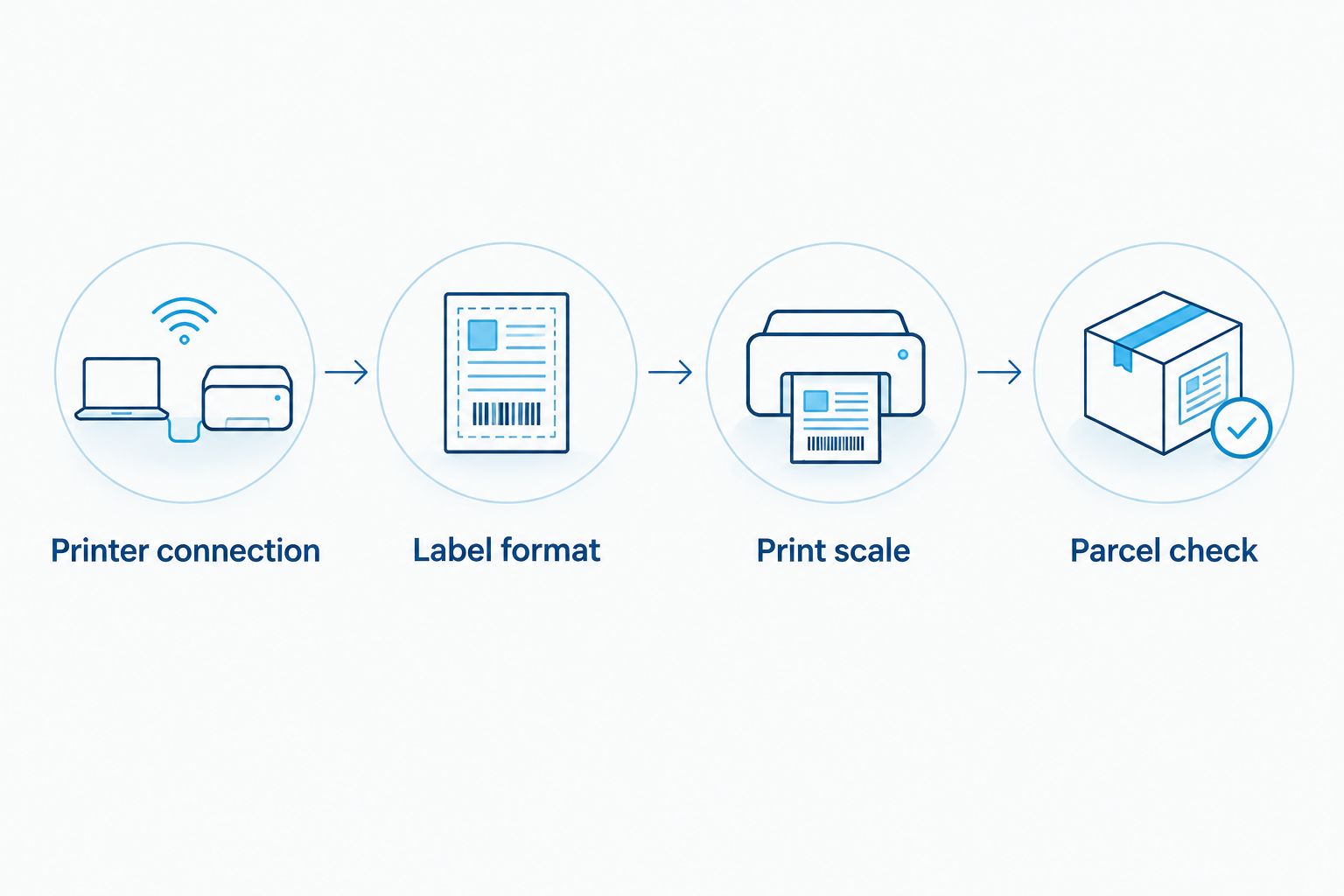
The setup sequence is Printer connection, Label format, Print scale, and Parcel check. Test each stage separately instead of changing several settings after a failed print.
Supplies for the configured station
McAuley Labels offers the GoDEX RT700i+ as a 4-inch dual thermal printer with 203 dpi resolution. Its stated printing methods and width make it relevant to this workflow; those specifications do not establish operating-system compatibility or an automatic eBay connection.
Best for: Consider the GoDEX RT700i+ for a business station that needs both thermal printing methods. Its trade-off is configuration: you must match the selected mode to the media. The direct thermal shipping labels below are best for a no-ribbon shipping workflow, but they still require a compatible printer and correct media setup.


Print directly from the browser after setup
Once the downloaded PDF prints correctly, use the browser-based print route for subsequent labels. This removes the separate file-opening step, but it does not remove the need to verify the destination printer and paper size.
| Print route | Best for | Benefit | Limitation |
|---|---|---|---|
| Downloaded PDF | Initial setup and diagnosing layout problems | Keeps the same document available for repeated checks | Requires saving and opening a file |
| Browser printing | Routine printing after configuration is proven | Removes a separate PDF-opening step | Uses a different print dialog that needs its own settings check |
Open the eBay label’s print view, select Print, and check the printer, paper size, scale, orientation, and page count. Print a single label before switching your regular process to this route.
For a 2026 shipping station, keep the PDF route as your fallback. If browser output changes, print the same label from the saved PDF to determine whether the problem is the browser dialog or the printer configuration. Reprinting the existing label does not create a new shipment; do not use that tracking label on another parcel.
Troubleshooting
The printer is missing from the print dialog
Check whether the device appears in your computer’s printer settings. Verify power, connection, and driver installation; for a network printer, confirm that the computer can reach it. Restart the document viewer after installing the printer.
The label prints tiny or contains large blank areas
Inspect the PDF page size first. A letter-sized document scaled onto shipping stock produces a smaller label. Select the native shipping-label layout in eBay, then match the driver’s paper size and print at original scale.
The printer feeds blank labels
Check the printable side and media type. Direct thermal mode requires direct thermal stock; transfer printing requires a correctly loaded compatible ribbon. If the printer’s own test output is blank, resolve that before testing another eBay document.
Content is cut off, shifted, or spread across labels
Match the document dimensions to the driver settings and loaded stock. Recalibrate the media sensor using the manufacturer’s procedure. If a feed command skips label boundaries, fix sensing and loading before adjusting the PDF position.
Barcodes are faded or contain missing lines
Follow the manufacturer’s printhead-cleaning procedure and check the media condition. Adjust darkness and speed according to the printer documentation, then inspect another print. Do not keep increasing darkness to compensate for a dirty printhead or unsuitable stock.
Customize your workflow
Keep shipping settings separate from settings for inventory tags, product labels, or service stickers. Switching media changes the dimensions and can also change the sensor configuration or printing method.
Document your working 2026 setup: printer model, driver, label dimensions, printing method, and PDF scale. This gives another operator a repeatable starting point without copying parcel details from an old shipment.
For a GoDEX station that also prints custom labels, follow the GoDEX printer and GoLabel setup guide. Use label-design software for your own label layouts, not to redraw eBay shipping documents.
FAQ
How do I connect a label printer to eBay shipping labels?
Install the label printer on your computer, create the shipping label in eBay, and print the browser document or downloaded PDF to that printer. Match the document format, loaded stock, and printer paper size.
Do I need a special eBay printer integration?
You do not need an account-level printer integration to print an eBay shipping-label PDF from a computer. You need a printer supported by that computer and configured for the document’s label size.
Why does my eBay shipping label print too small?
The source document or print scaling does not match the loaded label stock. Select a native shipping-label layout and print it at original size rather than shrinking a full sheet.
Can I use a thermal transfer printer for eBay labels?
Yes, a thermal transfer printer can print an eBay label when it supports the document size and uses compatible labels and ribbon. A dual thermal printer must also be set to the method matching the loaded media.
Do I need GoLabel to print eBay shipping labels?
You do not need GoLabel to print an existing shipping-label PDF through an installed printer driver. GoLabel is for designing labels; keep the carrier-generated shipping document intact.
Can I print eBay shipping labels from my phone?
Phone printing requires a connection method or printing application supported by your exact printer. A working desktop USB installation does not establish phone compatibility, so check the manufacturer’s mobile-printing instructions.
Is McAuley Labels automatically compatible with my eBay setup?
Compatibility depends on the exact McAuley Labels printer, your operating system, the driver, and the label format. Confirm those requirements before selecting a printer for shipping.
One last thing
A reprinted label is not a new shipping label. If a print fails during your 2026 workflow, reopen the existing label and correct the print settings rather than starting another label transaction. Destroy unusable copies and keep only the correct label with its matching parcel.