
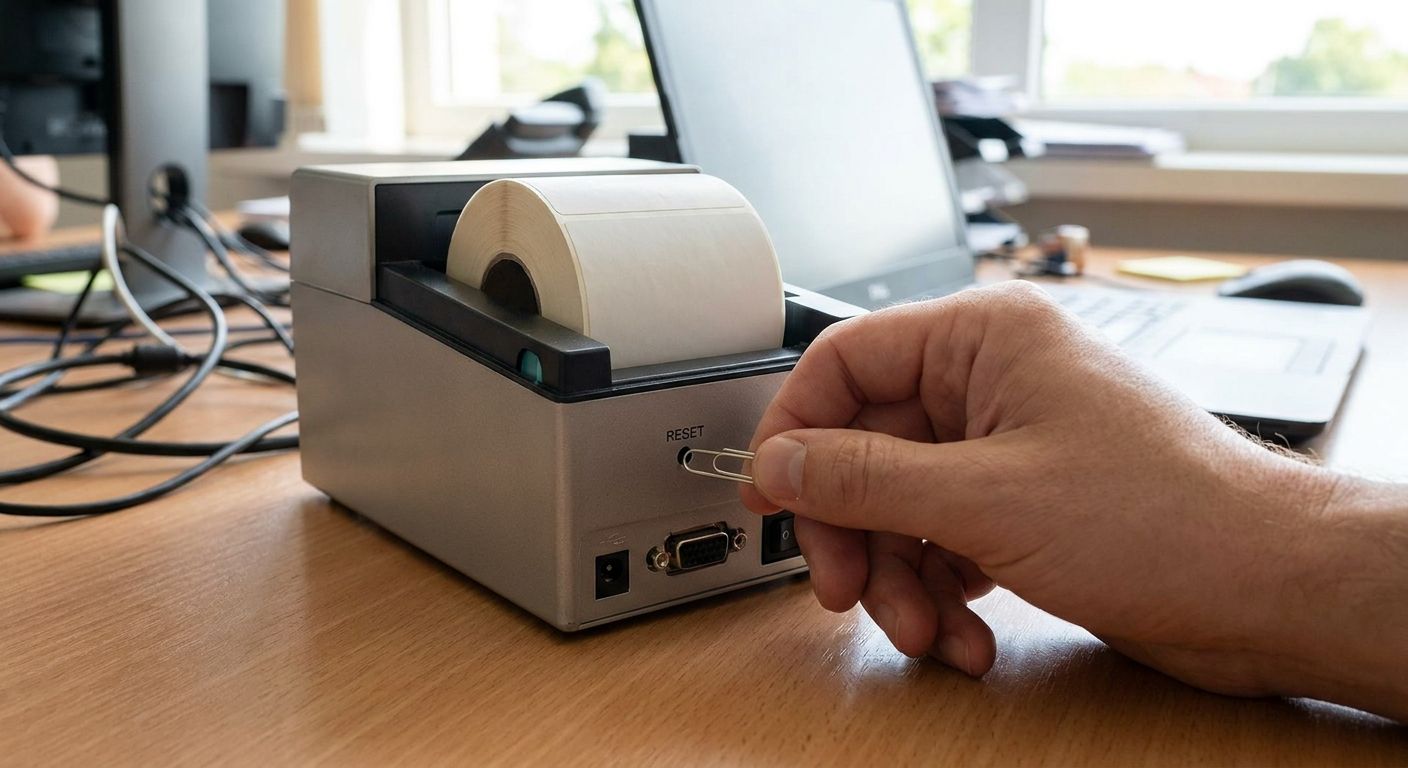
Resetting a thermal label printer to factory settings clears bad calibration data, stuck driver settings, and mystery print errors in under five minutes, and it beats replacing a printer that isn't actually broken.
- Holding the Feed button through power-up resets most thermal label printers, including GoDEX desktop models, in under a minute.
- A factory reset wipes saved darkness, speed, and label-size settings, so write down your current print settings before you start.
- GoLabel software resets driver-side defaults on a connected PC, but the physical button reset clears the printer's own onboard memory. You often need both.
- Recalibrate the label sensor right after any reset or the next print job jams or comes out blank.
- GoDEX RT200i and GoDEX G530 desktop printers reset the same way: hold Feed, power on, release at the LED cue.
Why this matters
A thermal label printer that skips labels, ignores darkness commands, or refuses to talk to GoLabel usually isn't broken. It's holding onto a corrupted setting from a driver update, a power surge, or a label size change that never saved correctly. Reset it to factory settings before you order parts or schedule service in 2026 — it's free, it's fast, and it fixes more print quality complaints than a printhead swap does. If the reset doesn't clear the issue, the GoDEX printer troubleshooting guide walks through the next layer of diagnosis.
What you'll need
- 5 to 10 minutes and access to the printer's power switch
- The Feed or Pause button on the printer's front panel
- The printer's model number, printed on the label on the back or bottom
- GoLabel software installed on the connected computer, if the printer is a GoDEX model
- A loaded label roll with the printhead latch closed, for the test print at the end
- The current driver installer, in case you need to reinstall after the reset
The steps
1. Document your current settings
Write down darkness level, print speed, and label size before you touch the power switch. A factory reset erases all of it, and you'll need these numbers to get back to a working configuration fast instead of guessing for 20 minutes afterward.
Common mistake: skipping this step because "the settings never worked right anyway" — you still need a baseline to know if the reset actually changed anything.
2. Power down completely
Turn the printer off at the switch, not just to sleep or standby. Unplug it for 10 seconds if the model has no true off switch. A full power cycle clears any half-written setting sitting in temporary memory before the reset even starts.
Expected outcome: the display or status LED goes fully dark, with no standby glow.
3. Confirm the button combination for your model
Most desktop thermal printers, including GoDEX units, reset through the Feed (or Pause) button held during power-on — but the exact hold time and LED pattern vary by model and firmware version. Check the printer's manual or the model label before assuming your combination matches a different printer on your desk.
Why it matters: holding the wrong button, or holding it on the wrong printer entirely, can trigger a self-test print instead of a reset.
4. Hold Feed while powering on
With the printer off, press and hold the Feed button, then flip the power switch on while keeping the button held down. Keep holding until the status LED changes color or starts flashing in a different pattern than normal startup.
Common mistake: releasing the button the instant power comes on — most printers need 2 to 5 seconds of continuous hold before the reset actually registers.
5. Release at the LED cue and let it reboot
Once the LED signals the reset (a color change or a specific flash count depending on model), release the button and let the printer finish its boot cycle. Don't touch the power switch again until the printer settles into its normal idle state.
Expected outcome: the printer returns to default darkness, default speed, and default label gap sensing — no custom settings survive this step.
6. Reconnect and reinstall the driver in GoLabel
Plug the printer back into the computer and open GoLabel (or your printer's equivalent software). Confirm the software detects the printer at its default communication settings. If it doesn't show up, reinstall the driver — a factory reset occasionally reverts the printer's port or baud rate to a default the old driver profile doesn't expect.
7. Recalibrate the label sensor
A factory reset clears the gap or black-mark sensor calibration along with everything else. Run the printer's built-in calibration routine (usually a Feed-button self-test or a GoLabel calibration command) before you print anything real. Skipping this step is the single most common reason people think the reset "broke" their printer.
8. Print a test label and compare
Send a single test label and check darkness, alignment, and edge detection against the settings you wrote down in step one. Adjust darkness and speed back to your working numbers manually — the reset doesn't restore your old preferences, it erases them.
Expected outcome: a clean, correctly aligned label matching your original print quality, with settings you now control deliberately instead of inheriting from a corrupted profile.


Troubleshooting
The LED never changes pattern during the button hold. You're either holding the wrong button or not holding long enough — try 5 full seconds before assuming the reset failed, and confirm you're on the model's actual Feed button, not a menu or cutter button on a different panel layout.
Print quality got worse right after the reset. The reset restores default darkness, which is often lower than what you had dialed in. Bump darkness up in GoLabel one level at a time until the barcode scans clean again.
Labels feed blank after the reset. The sensor calibration didn't run, or ran against the wrong label stock. Reload the same label roll you'll actually use in production, then rerun calibration — mismatched stock during calibration is the top cause of blank feeds afterward.
Print looks faded or streaked even after darkness is corrected. A reset doesn't clean the printhead. Static, dust, and ribbon residue build up over time regardless of software settings — the guide on how to clean the printhead covers the isopropyl-and-lint-free-swab process.
GoLabel won't detect the printer post-reset. Reinstall the USB or serial driver — a factory reset can revert the printer's port settings to a default the currently installed driver profile doesn't recognize anymore.
Custom label size disappeared and won't print correctly. This is expected. Reset erases saved label templates along with darkness and speed — reload your saved label file in GoLabel rather than trying to recreate it from memory.
Tools and resources
- GoLabel software, free with any GoDEX printer purchase, for driver-side configuration and template storage
- A desktop model like the GoDEX RT200i 203 DPI printer if your current unit needs replacing rather than resetting
- The printer's model-specific manual for exact reset button timing and LED patterns
- A spare label roll matched to your printer's resolution for calibration and test prints
- GoDEX printers carry a 3-year warranty as of 2026, so check warranty status before opening the case for anything beyond a software-level reset
What to do next
A factory reset gets the printer back to zero, but zero isn't calibrated for your actual label stock and print speed. Run through how to calibrate a thermal label printer next to dial in gap sensing, darkness, and speed for the labels you actually run day to day — that's the step most people skip, and it's why printers get reset a second time within a month.
FAQ
How do I reset a thermal label printer to factory settings?
Power the printer off, hold the Feed button, then power it back on while keeping the button held until the status LED changes pattern. Release, let it reboot, then recalibrate the label sensor before printing anything real.
Does a factory reset delete saved label templates?
Yes, a factory reset erases saved label sizes, darkness levels, and speed settings stored on the printer. Reload your label files from GoLabel or your design software after the reset finishes.
Will resetting my GoDEX printer fix blurry or faded prints?
Sometimes, if the issue is a corrupted darkness setting, but a reset won't clean a dirty printhead. If prints stay faded after adjusting darkness back up, clean the printhead before assuming the printer needs service.
How long does a thermal printer reset take?
The reset itself takes under a minute once you hold the correct button combination. Budget 5 to 10 minutes total once you include recalibration and a test print.
Is a software reset in GoLabel the same as a hardware factory reset?
No. GoLabel resets driver-side settings on the connected computer, while a hardware reset via the Feed button clears the printer's own onboard memory. Persistent problems usually need both.
Why won't my printer feed labels after a factory reset?
The label sensor calibration gets wiped along with everything else during a reset. Reload your actual label stock and rerun the calibration routine before printing.
Can I reset a thermal label printer without a computer?
Yes, the button-hold method works entirely from the printer's own power switch and Feed button. You only need a computer afterward to reinstall the driver and recalibrate through software.
Should I reset the printer before contacting support?
Yes, a factory reset takes under a minute and resolves most driver conflicts and stuck settings on its own. Try it before opening a support ticket or ordering replacement parts.
One last thing
Most people reset the printer, recalibrate, print a test label, and stop — then run into the same problem three weeks later because they never reset the darkness and speed back to numbers that match their actual label stock, not the factory default. Write your working settings down every time you change them, not just before a reset, and you'll stop treating this as an emergency fix.