
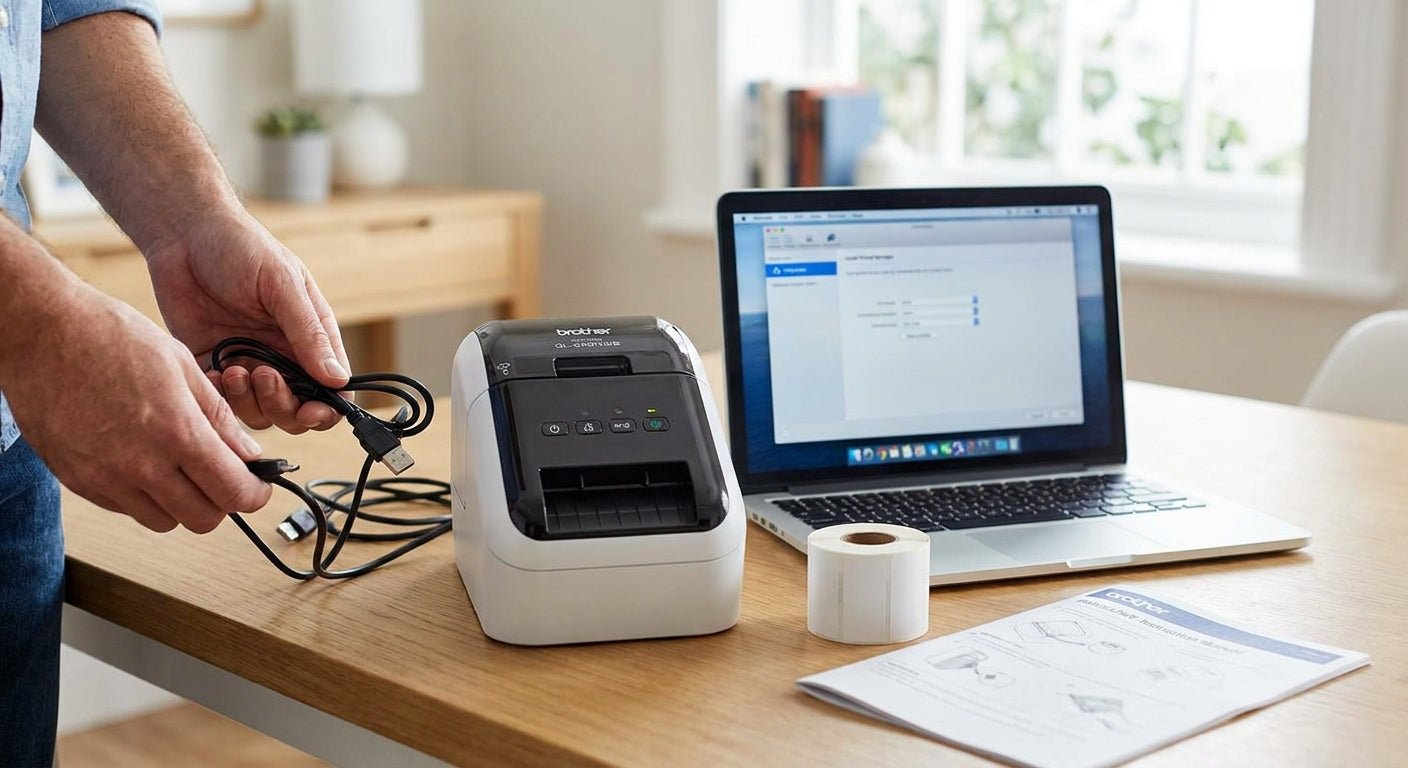
Setting up a Brother label printer takes 15 to 20 minutes if the roll loads correctly and the right driver installs on the first try. This guide walks through the QL and PT series setup process step by step, then flags the point where a Brother printer stops keeping up with a growing shop in 2026.
- Brother label printer setup takes under 20 minutes: load the roll, install P-touch Editor, connect via USB or Wi-Fi, print a test label.
- Brother QL-800 and PT-P710W models handle low-volume print runs below 500 labels a week -- buy for that use case.
- Shops printing 1,000+ labels a day need an industrial printer like the GoDEX RT700i+ at 203 dpi -- a Brother unit stalls there.
- Misaligned or blank labels almost always trace back to the wrong label size set in the driver, not the printer itself.
Why this matters
A Brother label printer is built for desktop use: shipping labels, name tags, small batches of barcode stickers. It is not built for continuous 8-hour print runs or industrial adhesive stock, and the setup process reflects that -- most of the friction comes from software, not hardware.
Getting the initial setup right in 2026 matters because a bad first connection (wrong driver, wrong label size default) causes 90% of the "why is my label blank" support calls Brother owners run into later. Fix it once, correctly, and the printer runs for years without touching the settings again.
If you're deciding between a consumer printer and something built for daily commercial output, read choosing the right label printer for your business before you buy anything. It settles the volume question before you spend money twice.
What you'll need
- A Brother label printer (QL series for shipping/barcode labels, PT series for general-purpose labeling)
- USB cable (included) or a Wi-Fi network for wireless models
- A genuine or compatible label roll sized for your printer model
- Brother P-touch Editor software (desktop) or the Brother iPrint&Label app (mobile)
- A Windows or Mac computer, or a smartphone for wireless setup
- 15 to 20 minutes of uninterrupted setup time
The steps
1. Unbox and inspect before powering on
Check the box for the printer, power adapter, USB cable, and starter label roll. Missing a cable at this stage means a wasted trip later -- confirm everything is present before you start the software install.
2. Load the label roll correctly
Open the top cover, drop the roll in with the label facing up and feeding toward the front, and slide the width guide until it sits snug against the roll edge. A loose guide is the single most common cause of crooked or shifted prints -- it should touch the roll without pinching it.
3. Connect power and turn the printer on
Plug in the AC adapter, press the power button, and wait for the status light to turn solid (usually green or blue depending on the model). A blinking light after 30 seconds usually means the roll isn't seated -- reopen the cover and reset it.
4. Install P-touch Editor or the mobile app
Download P-touch Editor from Brother's support site for the exact model number printed on the printer's base plate -- generic drivers cause more setup failures than any other single step. Mobile-only setups use the Brother iPrint&Label app instead and skip desktop software entirely.
5. Connect via USB or Wi-Fi
USB connections are plug-and-play: the computer detects the printer once the driver install finishes. Wi-Fi setup runs through a wizard in P-touch Editor or the mobile app -- select the network, enter the password, and wait for the printer to show up in the device list, which typically takes under a minute.
6. Print a test label
Open a blank template in P-touch Editor, type a short test string, and print. This confirms the driver, the connection, and the label size are all correct before you commit to a real print run.
7. Set the correct label size as default
Mismatched label size in software versus the roll loaded in the printer is the top cause of blank or partial prints. Set the exact roll width and length in the printer properties menu and save it as default so every future print job starts correct.
Brother printers ship as direct thermal (no ribbon, heat-sensitive paper) on some models and thermal transfer (ribbon-based, more durable) on others. If you're not sure which type your labels need to survive -- especially for barcode or asset labels that get handled repeatedly -- direct thermal vs thermal transfer breaks down which stock holds up and which fades within weeks.
Troubleshooting
- Printer not detected by computer: Reinstall the driver for the exact model, not a generic Brother driver. Mismatched drivers are the top cause of "device not found" errors in 2026 support threads.
- Labels print blank: The label size set in software doesn't match the roll loaded. Reset the size in printer properties and reprint.
- Crooked or shifted print: The width guide inside the printer isn't snug against the roll. Reopen the cover and adjust it until there's no side-to-side play.
- Wi-Fi keeps dropping: Move the printer closer to the router or switch to USB for a stable connection during high-volume print jobs.
- Streaky or faded print on a thermal transfer model: The ribbon is loaded backward or running low. Check that the coated side of the ribbon faces the label stock, not away from it.
- P-touch Editor won't launch after install: Restart the computer. A driver install that runs mid-restart is the most common cause of a software crash on first launch.
Tools and resources
Brother printers cover light desktop use well, but they hit a wall on volume and durability. A shop printing barcode asset tags, service reminders, or warehouse labels every day needs a printer rated for continuous cycles, not intermittent office runs. That's the gap McAuley Labels' GoDEX line is built to close.
| Printer | Resolution | Best for | Print speed |
|---|---|---|---|
| Brother QL-800 | 300 dpi | Shipping labels, low volume | Consumer-grade, intermittent |
| GoDEX RT700i+ | 203 dpi | Daily commercial labeling | Up to industrial-duty cycles |
| GoDEX ZX430i+ | 300 dpi | High-precision barcode/asset labels | Industrial-duty cycles |


What to do next
If the Brother printer is running fine and the volume stays low, there's nothing left to do -- the setup above holds for years. If print volume climbs past a few hundred labels a day, or the labels need to survive outdoor exposure or repeated handling, a Brother unit isn't the right tool for that job anymore.
That's the moment to compare industrial options directly. GoDEX vs Zebra: which printer is right for your business lays out the tradeoffs between the two dominant industrial brands so the next printer purchase in 2026 doesn't need a redo in six months.
FAQ
What's the best way to connect a Brother label printer to a laptop in 2026?
USB is the most reliable connection for a Brother label printer -- plug in, install the correct model driver, and the printer shows up automatically. Wi-Fi works too but is more prone to dropped connections during long print jobs.
Is Brother P-touch Editor required for label design?
P-touch Editor is required for desktop label design on most Brother models, though mobile-only users can design in the Brother iPrint&Label app. Third-party design software generally isn't supported for print-ready output.
Why won't my Brother printer print after installing the driver?
A generic driver instead of the exact model driver is the most common cause. Reinstall using the driver matched to the model number on the printer's base plate.
How much does a Brother label printer cost compared to an industrial thermal printer?
Consumer Brother printers run well under industrial thermal printer pricing, but industrial models like the GoDEX RT700i+ at $581 close that gap while adding continuous-duty print cycles Brother units aren't built for.
Can a Brother QL printer handle barcode and asset tag labels?
A Brother QL printer can print basic barcodes at low volume, but it isn't built for the adhesive durability or scan-resistance permanent asset tags need. Heavy-duty metalized or 3M-backed asset tags require an industrial thermal printer to print reliably at scale.
Is a Brother label printer better than a GoDEX printer for a small business?
A Brother label printer is better for occasional, low-volume printing under a few hundred labels a week. A GoDEX printer is better once daily volume or label durability requirements increase, since it's built for continuous commercial use.
How do I calibrate a Brother label printer that's printing off-center?
Reset the label width and length settings in the printer driver to match the exact roll loaded, then reprint a test label. Off-center prints almost always come from a mismatched size setting, not a hardware fault.
Does a Brother label printer need ribbon or ink?
Some Brother models use direct thermal printing with no ribbon or ink required, while others use thermal transfer ribbon for more durable output. Check the model spec sheet before assuming which type applies.
One last thing
The width guide inside the printer, not the driver, causes most of the crooked-print complaints people blame on software. Before reinstalling anything, open the cover and check that the guide sits flush against the roll -- it solves more setup problems in 2026 than any driver update does.