
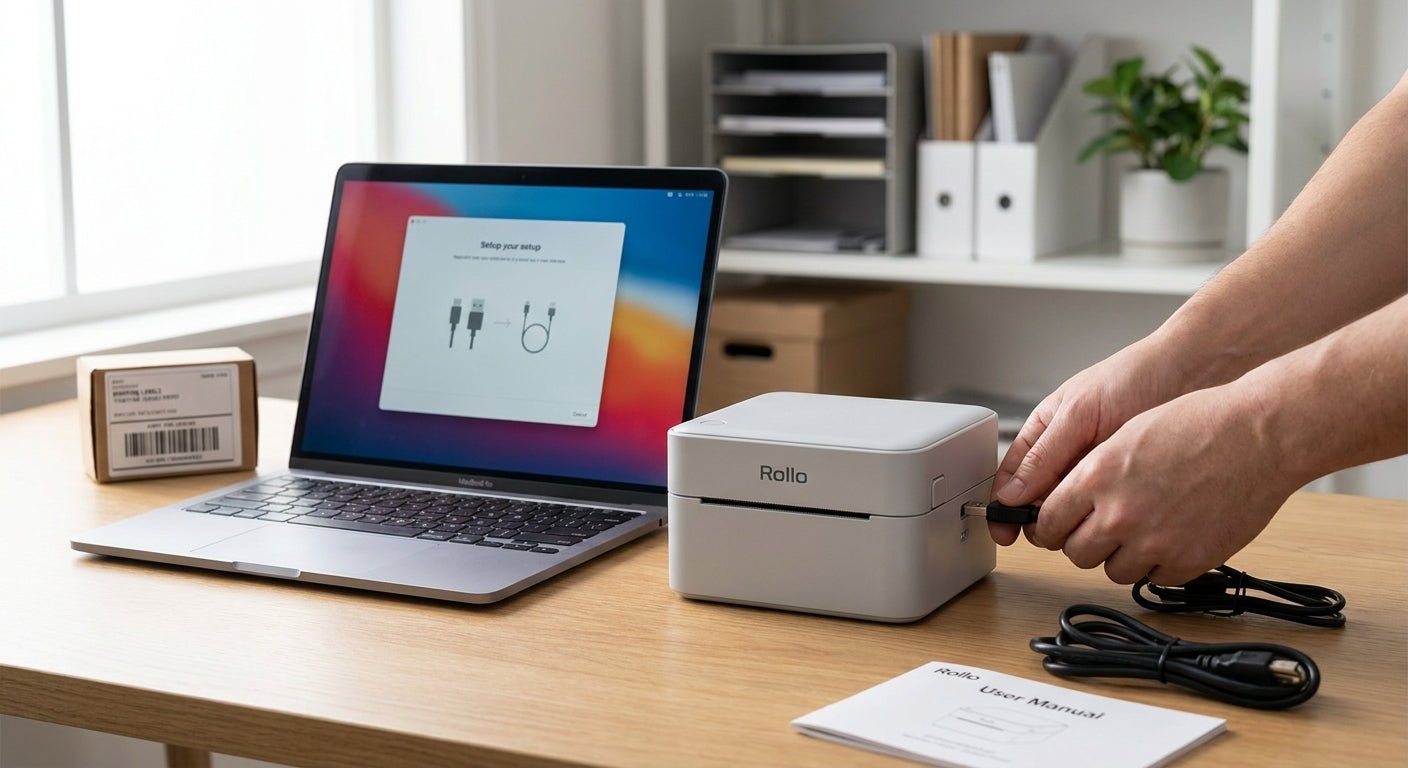
Setting up a Rollo label printer takes about 15 minutes if you do it in the right order: unbox, connect, install the driver, load labels, calibrate, then print a test batch. Skip a step and you'll spend an hour troubleshooting blank labels instead of shipping orders.
- Rollo label printer setup takes under 15 minutes: unbox, install driver, load labels, calibrate, test print.
- Rollo runs direct thermal only, no ribbon, but the print fades in 6 to 12 months under heat or sunlight.
- Blank labels almost always mean the roll is loaded upside down or the driver needs a reinstall.
- For barcode or asset tag work beyond shipping labels, a dual thermal printer covers both label types with one machine.
Why this matters
A Rollo printer skips the ink cartridge, toner, and ribbon that eat into shipping costs on inkjet or laser setups. It's a direct thermal printer — it burns the image straight into heat-sensitive label stock, so the only consumable is the label roll itself. That's why Shopify, Etsy, and eBay sellers running 20 to 200 orders a day lean on Rollo in 2026.
The process below covers the general order every direct thermal printer follows — see the broader rundown on how to set up a thermal label printer for first use if you're comparing brands — but Rollo's driver and calibration quirks deserve their own walkthrough.
The tradeoff with direct thermal is fade. Heat, sunlight, and friction wear the printed image down over 6 to 12 months. Fine for a shipping label scanned once and thrown out. Not fine for anything meant to last — barcode inventory tags, asset labels, equipment IDs. Sellers stretch a shipping-label printer into permanent labeling constantly, then reprint faded tags every few months.
What you'll need
- A Rollo printer (2-inch or 4-inch model) and its power adapter
- A USB cable, or a WiFi connection if your model supports it
- A roll of direct thermal labels sized to your printer — most run 4x6
- A computer or tablet with the Rollo software installed, or a shipping platform like ShipStation, Shopify Shipping, or Pirate Ship
- 10 to 15 minutes with no other USB devices fighting for the same port
One thing that trips people up: Rollo only prints direct thermal stock, not thermal transfer labels that need a ribbon. If you're not sure which type you're holding, direct thermal vs. thermal transfer, which should you use breaks down the difference before you load the wrong roll and get nothing but blank output.
The setup steps
1. Unbox and check the contents
Confirm the box has the printer, power adapter, USB cable, and a starter label roll. Check the roll width matches your printer — 2-inch and 4-inch Rollo models take different core widths, and forcing the wrong size cracks the label guide. Expected outcome: the printer sits flat, the cable reaches your computer, and the roll fits the compartment without forcing it.
2. Connect power and the data cable
Plug in power first, then connect USB or join the printer to WiFi depending on the model. USB is the more reliable path for a first setup in 2026 — WiFi adds a network step that fails more often on the initial try. Expected outcome: the status light goes solid, not blinking. Common mistake: connecting USB before power, which some computers flag as an unrecognized device.
3. Install the Rollo driver
Download the driver and software directly from Rollo, not a third-party mirror. Outdated or mismatched drivers cause more blank-label complaints than any other single issue. Restart your computer after install even if it doesn't prompt you to. Expected outcome: the printer shows up by name in your system's printer list. Common mistake: skipping the restart, then wondering why the printer never appears in the print dialog.
4. Load the label roll
Open the top cover, drop the roll onto the spindle with the label facing up and feeding toward the front, then close the cover until it clicks. Direct thermal labels have a heat-reactive coated side — load it backward and every print comes out blank with no error message at all. Expected outcome: a couple inches of label visible past the cutter bar. Common mistake: loading the roll upside down, which is the single most common reason for blank prints in 2026 support threads.
5. Calibrate the gap sensor
Run the built-in calibration function, usually a button-hold sequence or a software command, so the printer learns where one label ends and the next starts. Skip this and the printer misreads gaps — printing across two labels or leaving large blank sections. Expected outcome: a test label prints clean, edge to edge, cut in the right spot. Common mistake: calibrating with a nearly empty roll, which throws off the sensor reading.
6. Connect to your shipping platform
Set Rollo as the default printer inside ShipStation, Shopify Shipping, Pirate Ship, or whatever platform you ship from, and set the label size to match your stock — most sellers run 4x6. Expected outcome: a purchased label prints automatically without a print dialog popping up every time. Common mistake: leaving the default size at "Letter," which shrinks a 4x6 label down to fit a full sheet.
7. Print a test batch
Print five to ten test labels before running live orders through the printer. Check barcode scan quality with a phone scanner app, not just visual alignment — a barcode that looks clean can still fail to scan if the darkness setting is too light. Expected outcome: every label in the batch scans on the first try and cuts at the same spot. Common mistake: trusting the first good label out of the box, then hitting a jam three labels later.


Troubleshooting
Blank labels print. The roll is almost always loaded upside down, or the driver is out of date. Reload the roll coated-side up and reinstall the driver from Rollo's site before anything else.
Printer feeds but skips two labels at a time. The gap sensor needs recalibration — run the calibration cycle again with a fresh roll, not one that's nearly out. See how to calibrate a thermal label printer for the full sensor-reset process.
Print looks faded or streaky. Either the darkness setting is too low, or the label stock is past its shelf life — direct thermal rolls stored in heat lose sensitivity over time. Bump the darkness setting up a notch and retest.
Computer doesn't detect the printer. Try a different USB port, then reinstall the driver. A conflicting USB hub is the usual culprit, not the printer itself.
Labels jam or crumple on feed. The roll is loaded at the wrong tension or the wrong width for your model. Re-seat the roll and make sure the width guides sit snug against the edges, not jammed tight.
Barcode won't scan even though it looks fine. Print darkness is too light for the barcode density you're printing. Increase darkness in small increments and rescan after each change.
Tools and resources
- Rollo's official driver and software download page
- A phone-based barcode scanner app to verify print quality, not just visual alignment
- Backup direct thermal label rolls sized correctly for your printer model
- McAuley Labels stocks GoDEX dual thermal printers and direct thermal label stock if you need supplies or hardware Rollo doesn't cover
- A calibration reference for gap-sensor issues if the printer starts skipping labels again later
What to do next
If you're printing more than shipping labels — barcode inventory tags, asset labels for equipment that needs to survive years outdoors — a direct thermal-only printer like Rollo won't cover it long term. Start with how to print 4x6 shipping labels at home for format specifics, then decide whether a single-purpose shipping printer still fits once your label needs grow past 4x6 boxes.
FAQ
What labels does a Rollo printer use?
A Rollo printer uses direct thermal labels, most commonly 4x6 rolls, with no ink, toner, or ribbon required. The printhead heats the coated label surface directly to create the image.
Do I need special software for Rollo label printer setup?
Yes, you need Rollo's driver and software, or a connected shipping platform like ShipStation, Shopify Shipping, or Pirate Ship. The driver has to be installed and the computer restarted before the printer shows up in your print list.
Why is my Rollo printer printing blank labels?
Blank labels usually mean the label roll is loaded upside down, since direct thermal stock only reacts to heat on one coated side. An outdated driver is the second most common cause.
Can I use a Rollo printer for barcode or asset labels, not just shipping labels?
You can print barcodes on a Rollo printer, but the print fades within 6 to 12 months under heat or light, which makes it a poor fit for permanent asset tags. Dual thermal printers that add ribbon-based thermal transfer hold up longer for that use.
How do I calibrate a Rollo printer?
Run the printer's built-in calibration function, usually a button-hold sequence, so it learns the gap between labels. Recalibrate any time you switch to a new roll size or the printer starts skipping labels.
Is a Rollo printer direct thermal or thermal transfer?
A Rollo printer is direct thermal only — it does not accept ribbon and cannot run thermal transfer labels. That keeps the printer simple but limits label lifespan compared to ribbon-based printing.
What's the difference between a Rollo printer and an industrial thermal transfer printer?
Rollo is built for 4x6 shipping labels and direct thermal stock only. Industrial dual thermal printers, like the GoDEX models McAuley Labels sells, run both direct thermal and ribbon-based thermal transfer for barcode and asset labels that need to last.
How long do direct thermal labels last before fading?
Direct thermal print typically fades within 6 to 12 months under heat, sunlight, or friction. That's fine for a shipping label scanned once, but not durable enough for equipment IDs or long-term barcode tags.
One last thing
Rollo printers use direct thermal print, and direct thermal has a shelf-life problem most sellers don't learn about until months later: labels stored in a warm garage or a delivery van can fade to unreadable in weeks, not months. If you're printing anything meant to last — asset tags, equipment IDs, oil change reminders — you need thermal transfer with a wax or resin ribbon, not direct thermal. That's the whole reason McAuley Labels builds its label printer lineup around GoDEX dual thermal models: one printer, both technologies, no guessing which stock ages out on you.